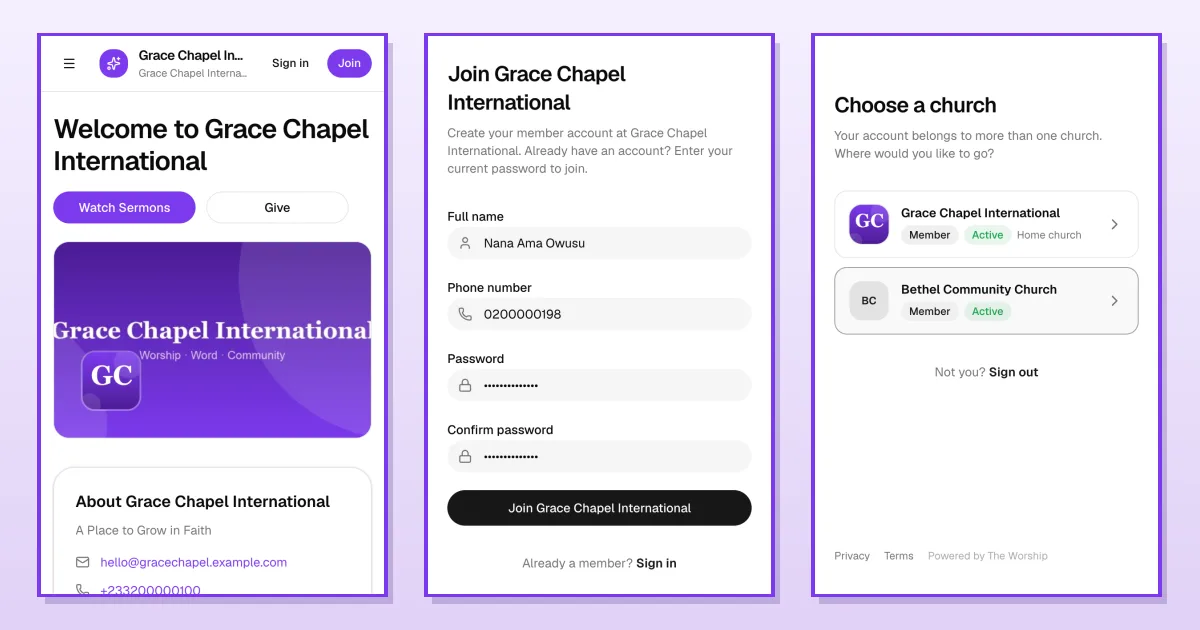
Can't make it to church in person? With The Worship you can watch your church's services live on Online TV, listen to its Online Radio station, and join the live chat with your church family as it happens. This guide is for members and works on both phones and computers.
Before you start
- Watching and listening: anyone can open your church's Online TV and Online Radio pages; you don't need an account.
- Live chat: to read and post comments you must be signed in as a member of the church.
- A stable internet connection helps. Video uses more data than radio.
Watch a live service on Online TV
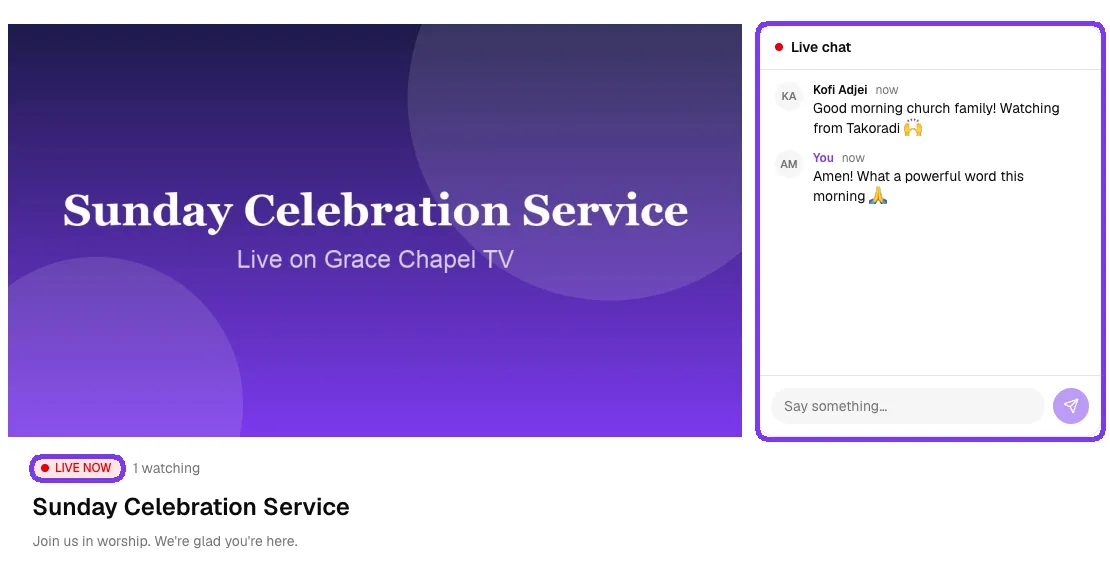
Tap Online TV in the menu, under Watch & Listen. When your church is live you'll see the video player with a red LIVE NOW badge, the number of people watching, and the service title. Tap the video if you need to turn the sound on (Tap for sound).
When nothing is live
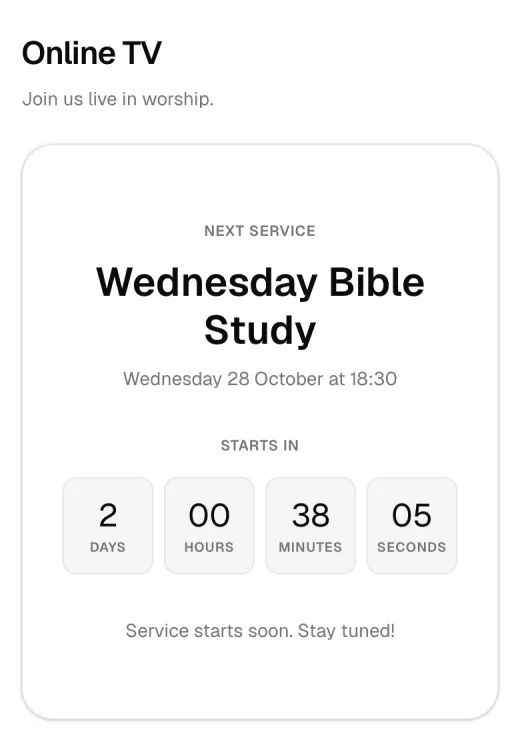
Between services, the page shows the Next service with its date and time and a countdown, so you know exactly when to come back.
Join the live chat
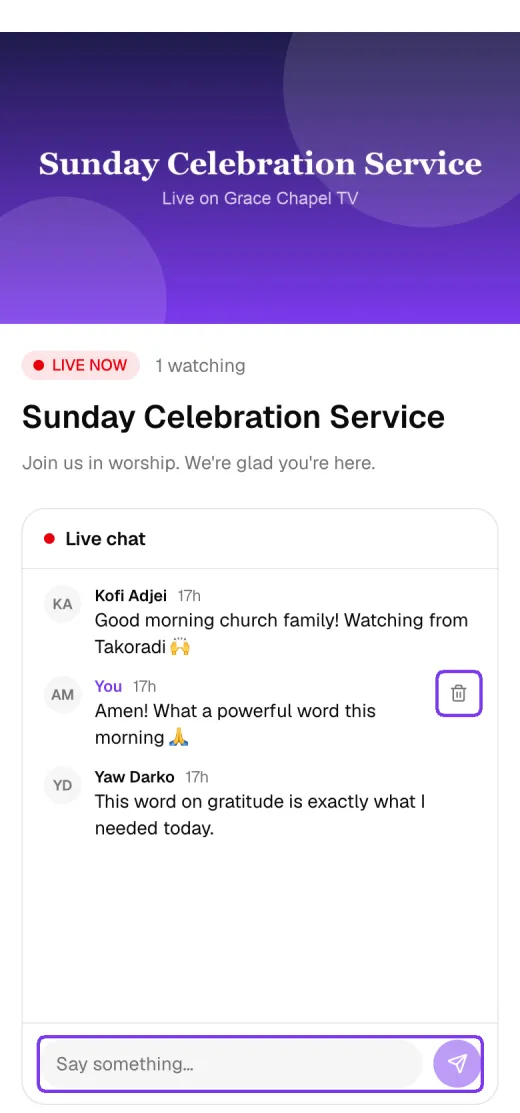
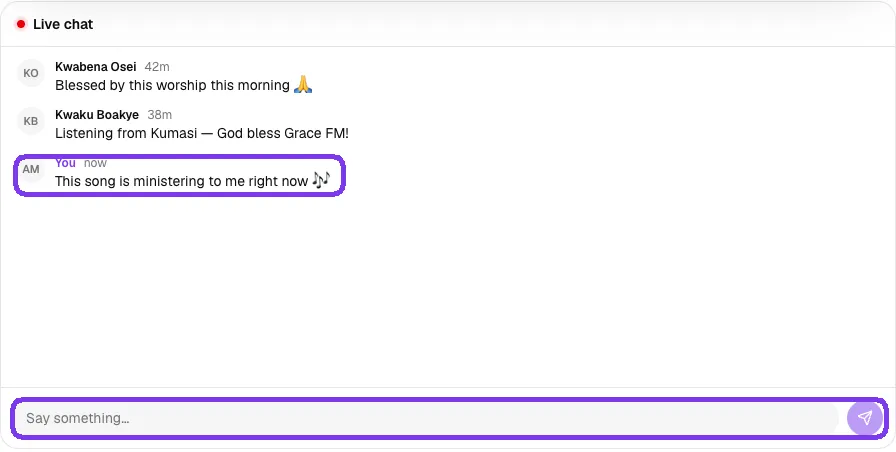
Below the video on a phone, or beside it on a computer, you'll find Live chat. Type in the Say something… box and tap the send arrow. Your comments show as You; other members' comments show their names. New comments appear automatically.
A few things to know:
- Comments can be up to 500 characters, and you can post one every few seconds.
- To remove one of your own comments, tap the bin next to it. On a phone the bin is always shown; on a computer, point at your comment to see it.
- Church staff can remove comments or turn the chat off. If you see Comments are turned off, the chat is closed for now.
- If you're not signed in, you'll see Sign in to join the live chat instead.
Listen to church radio
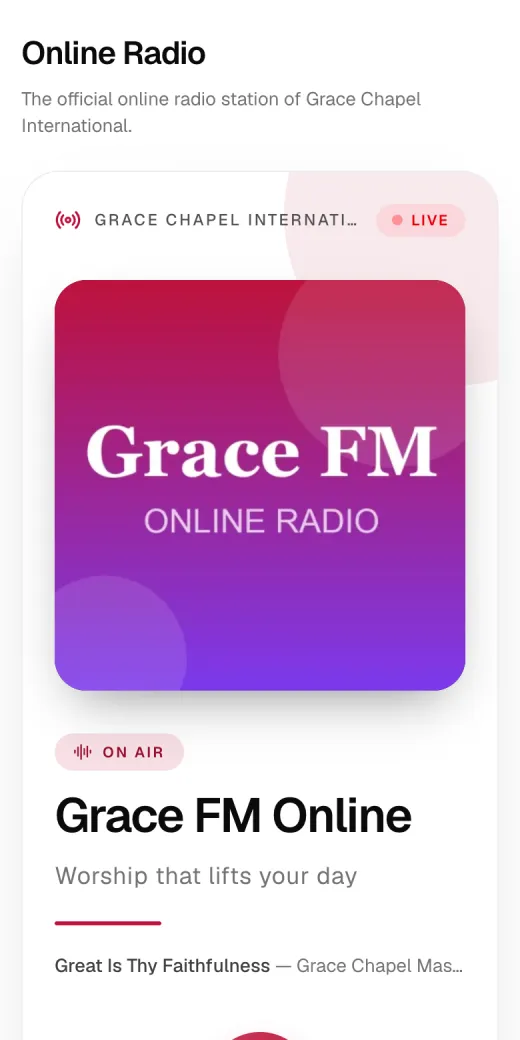
Tap Online Radio in the menu. When the station is broadcasting you'll see LIVE and ON AIR badges, the station name and, when available, the song or programme playing now. Tap the big play button to start listening.
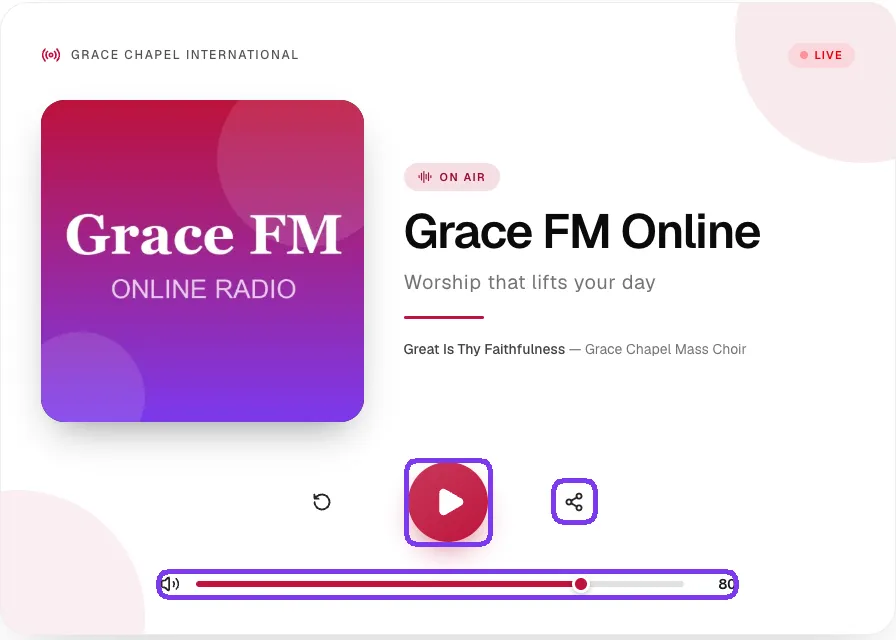
- Restart (the circular arrow) reconnects the stream if it stops.
- Share opens your phone's share menu, or copies the station link on a computer, so you can invite friends.
- Use the slider to set the volume, or tap the speaker to mute.
- The radio keeps playing while you move around the rest of the app.
The radio page has its own Live chat under the player. It works just like the TV chat.
Tips
- Use Wi-Fi to watch video if your mobile data is limited; radio uses much less data.
- Keep push notifications on in Settings to get live service reminders.
- Be kind in the live chat: it's a space for your whole church family.
Troubleshooting and FAQ
The page says "We'll be back soon".
Nothing is showing at the moment. Check back at the next service time.
The radio won't play.
Tap the restart button. If the station is off air, the page tells you so and shows the next programme when the church has scheduled one.
I can't post in the live chat.
Make sure you're signed in as a member of the church. The chat is also only open while the service or station is on air, and staff may have turned comments off.