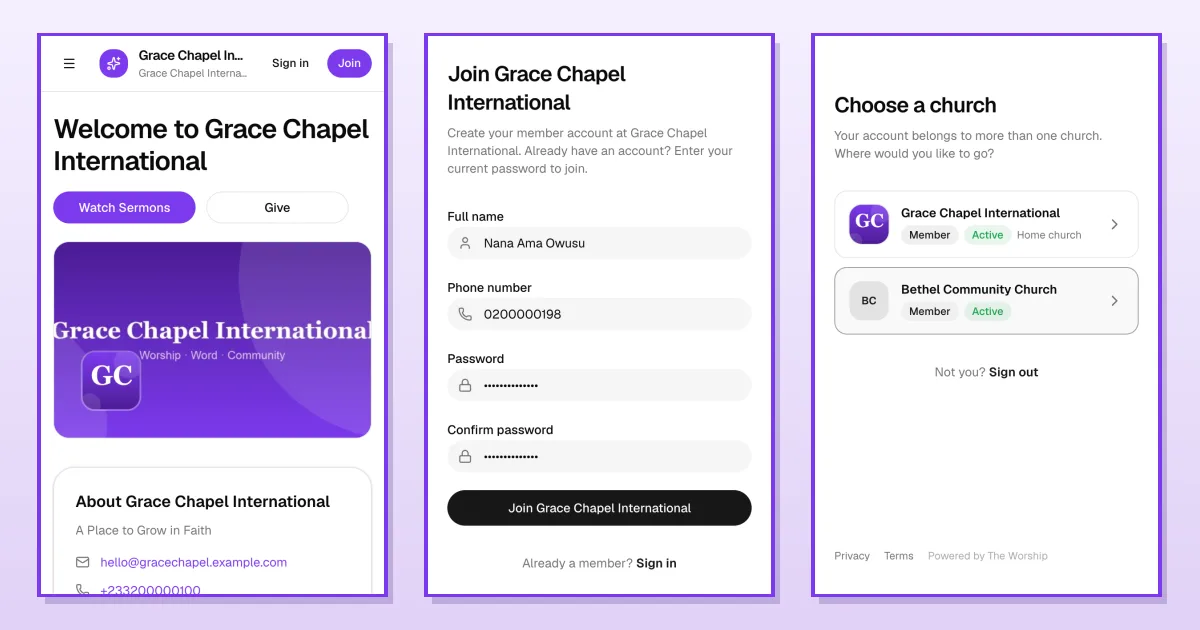
Once you've joined your church on The Worship, there's a lot you can do between Sundays: register for events, join a group, share prayer requests, keep up with announcements and notifications, and read the Bible. This guide is for members and walks you through each of these, plus how to manage your profile and settings and where to get help.
Before you start
- Who this is for: church members with an account. If you don't have one yet, see How to join your church on The Worship.
- Sign in on your phone or computer. Everything below is in the menu (tap the three lines at the top left on a phone).
1. Find and register for events
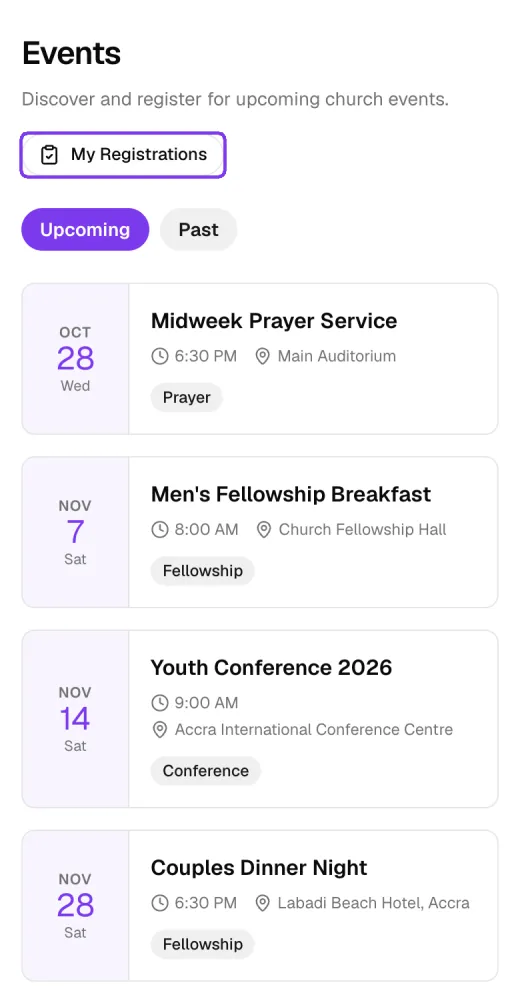
Tap Events in the menu. Upcoming shows what's coming up, with the date, time and place; Past shows earlier events. Tap an event to see the details, including whether registration is required and how many spots are left.
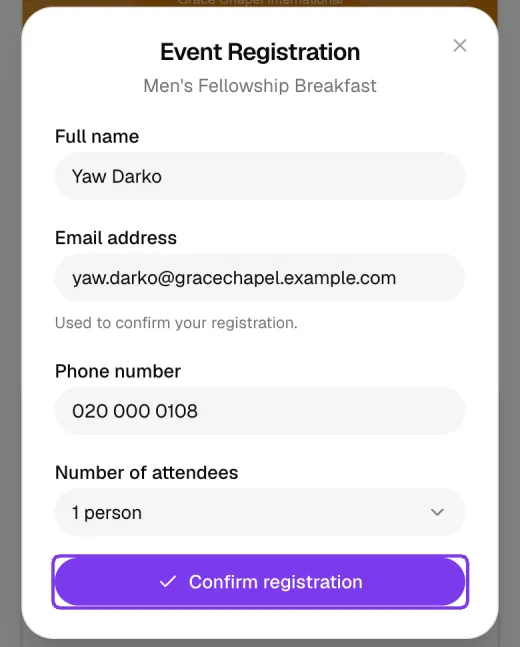
On the event page, tap Register for this event. If registration isn't required, the button says I will attend instead. Check your name, email and phone number, choose the Number of attendees, and tap Confirm registration.
A confirmation appears, and the button changes to Registered.
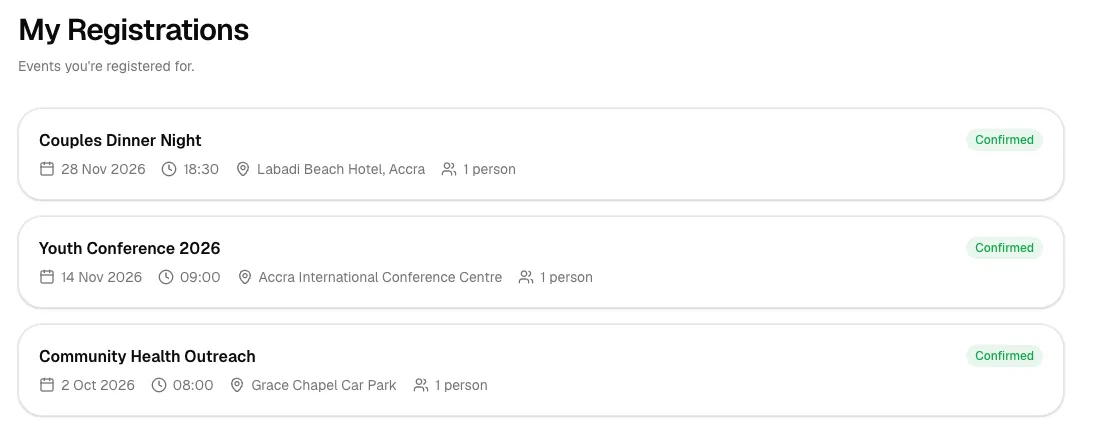
To see every event you've signed up for, tap My Registrations on the Events page.
2. Join a church group
Tap Groups to see your church's ministries and fellowships. Search by name or filter by type (Fellowship, Youth, Prayer, Worship and more). Each card shows how many members a group has and when it meets.
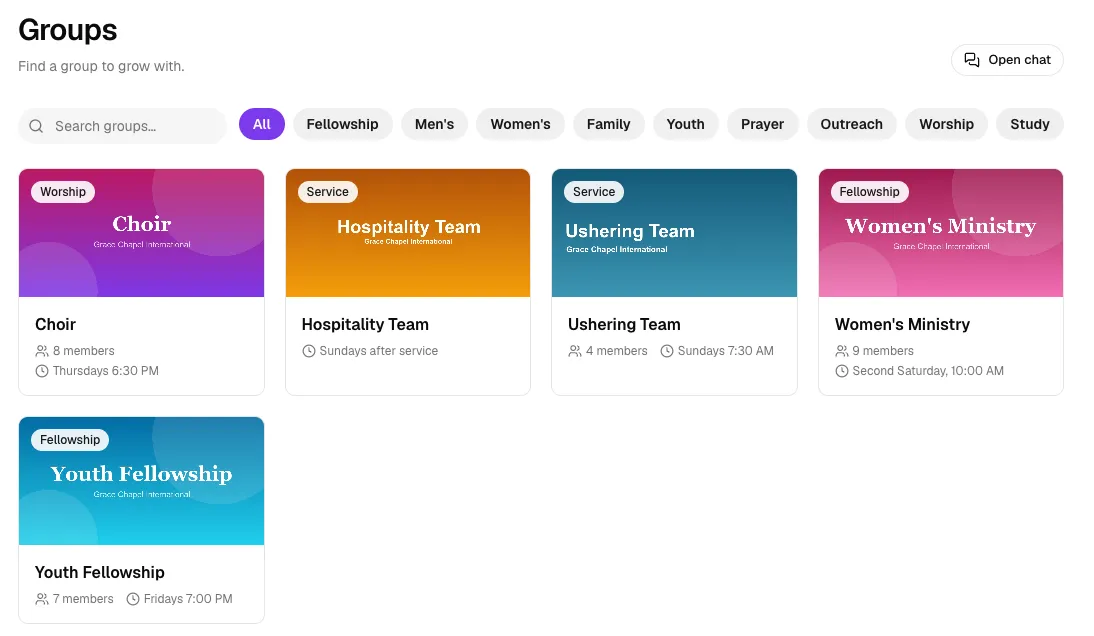
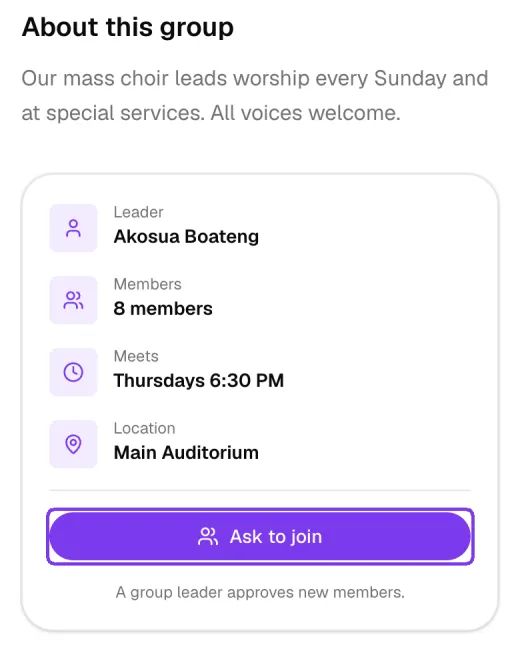
Open a group to see its leader, number of members, meeting time and location. Most groups have an Ask to join button: a group leader approves new members.
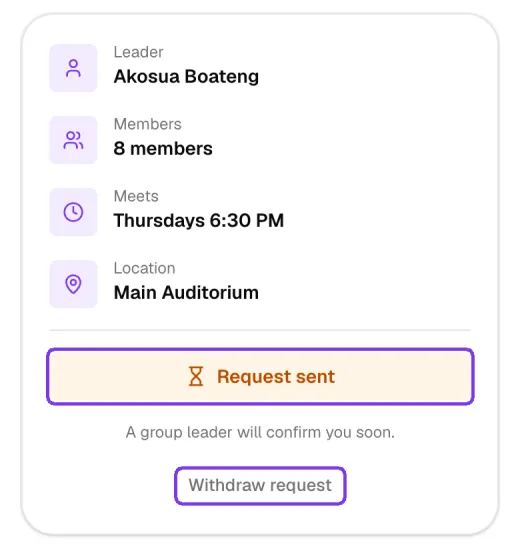
After you tap it, the button changes to Request sent. You'll become a member as soon as a leader approves you. Changed your mind? Tap Withdraw request.
Some groups are open to everyone. Their button says Join group, and you join straight away. Once you're in a group, the page shows You're a member, and you can tap Leave group at any time.
3. Share and pray for prayer requests
Tap Prayer Requests to see the church's prayer wall. Tap Pray for this under a request to let the person know you're praying.
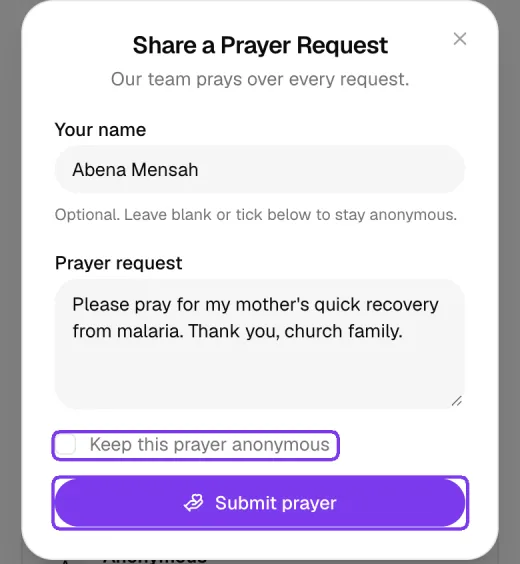
To share your own request, tap Share a request, type it, and tap Submit prayer. Your name is optional: tick Keep this prayer anonymous to hide it. The church's team reviews each request before it appears on the wall.
4. Keep up with announcements
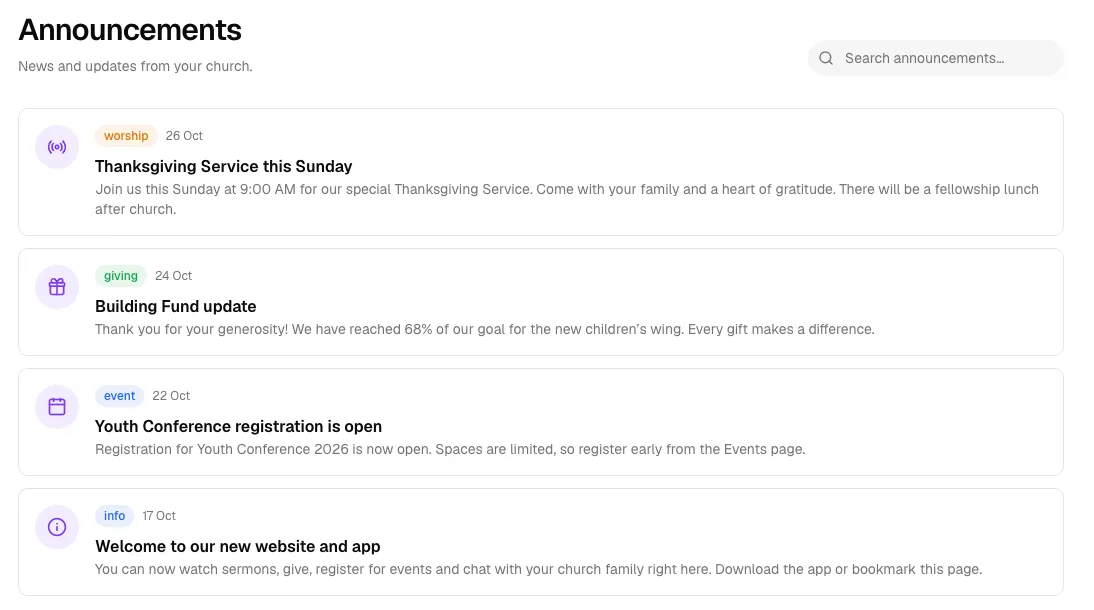
Your church feed shows the Latest announcements. Tap See all to open the full list, where you can search past announcements and tap one to read it in full.
5. Check your notifications
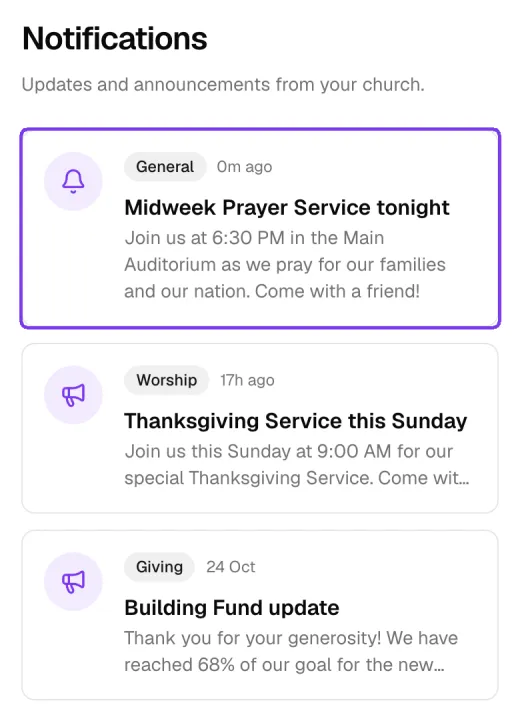
Tap Notifications under Account in the menu. You'll find your church's notifications, such as a reminder about tonight's service, together with its announcements, newest first. Notifications sent only to one group appear for that group's members. If you allow notifications on your phone, you'll get them there too.
6. Read the Bible
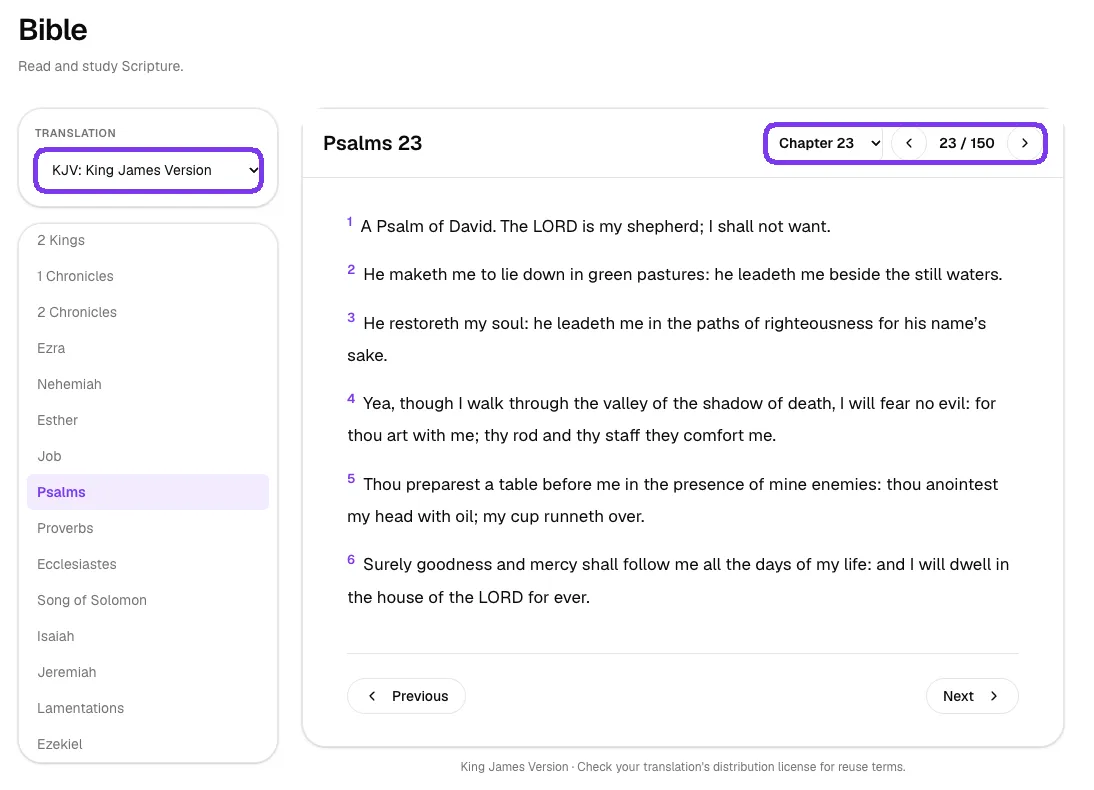
Tap Bible in the menu. Choose a Translation, pick a book from the list, and use the chapter selector or the Previous and Next buttons to move through the chapters.
7. Manage your profile and settings, and get help
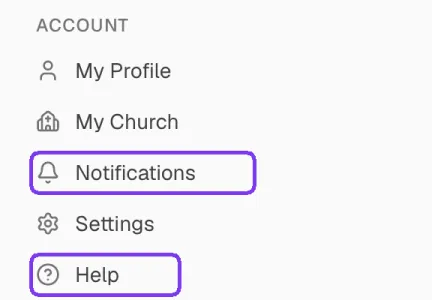
Under Account in the menu:
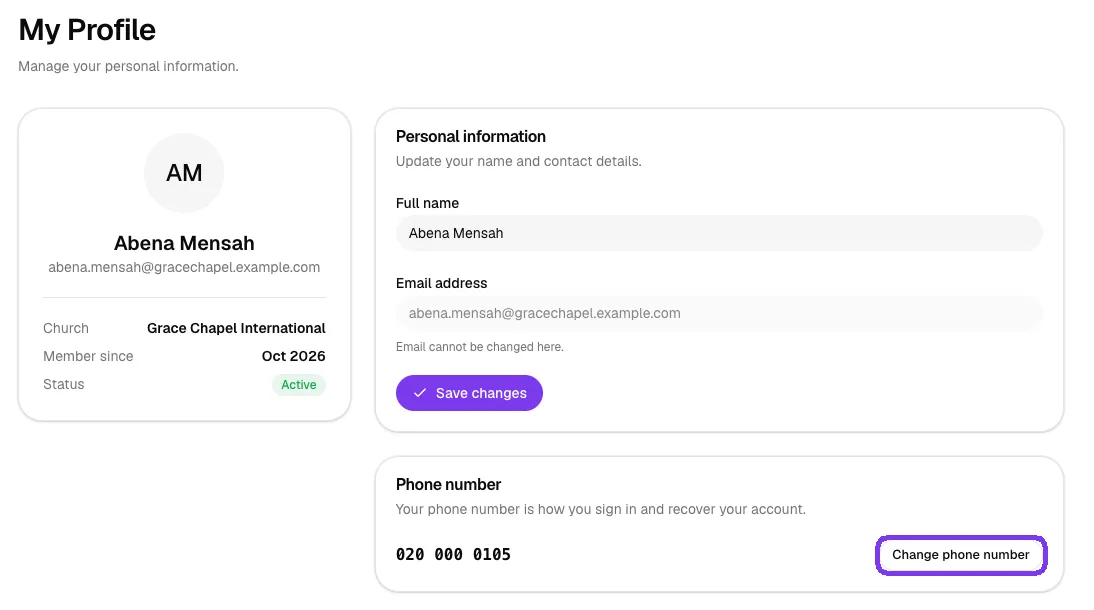
- My Profile: update your name, change the phone number you sign in with, and change your password.
- My Church: the church you belong to and your membership details.
- Notifications: your church's notifications and announcements (see section 5).
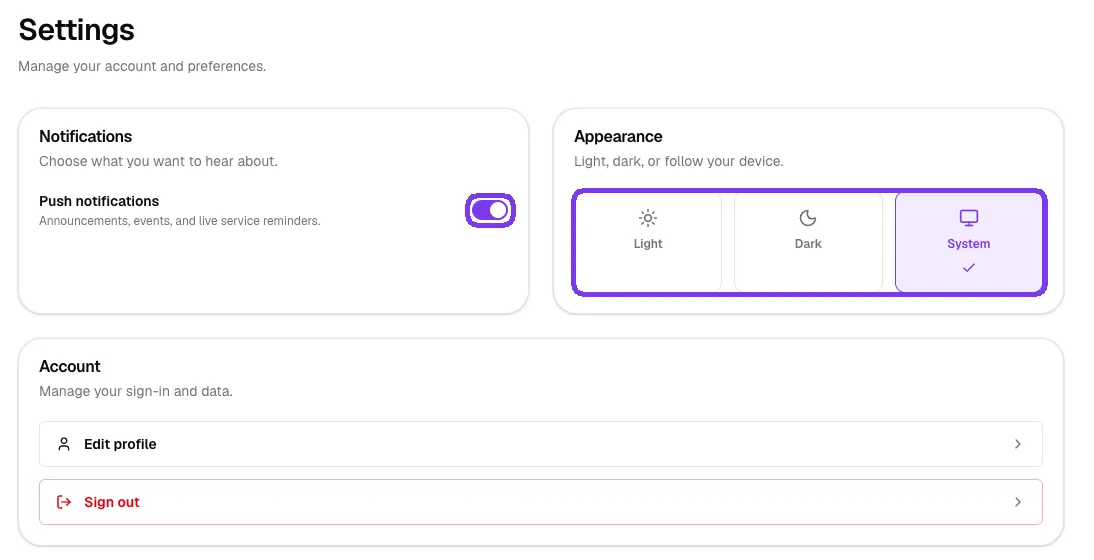
- Settings: switch Push notifications on or off for announcements, events and live service reminders, and choose Light, Dark or System appearance.
- Help: answers to common questions about using The Worship.
Some churches also switch on an AI Assistant where you can ask about Scripture, prayer, sermons or the church. When it's on, you'll find AI Assistant in the menu under Bible.
Tips
- Register early for popular events: spots can run out.
- Keep push notifications on so you don't miss service reminders.
- Use the anonymous option for sensitive prayer requests.
Troubleshooting and FAQ
My prayer request isn't on the wall.
Requests are reviewed by the church's team before they appear. Your request has still been received and prayed over.
The register button says "Registration closed" or "Event full".
The event has stopped taking registrations or has no spots left. Contact the church office if you still want to attend.
I asked to join a group but I'm not a member yet.
A group leader needs to approve your request. Your request stays as Request sent until then. If it's urgent, speak to the group leader shown on the group page.
How do I change the phone number I sign in with?
Go to My Profile and tap Change phone number.