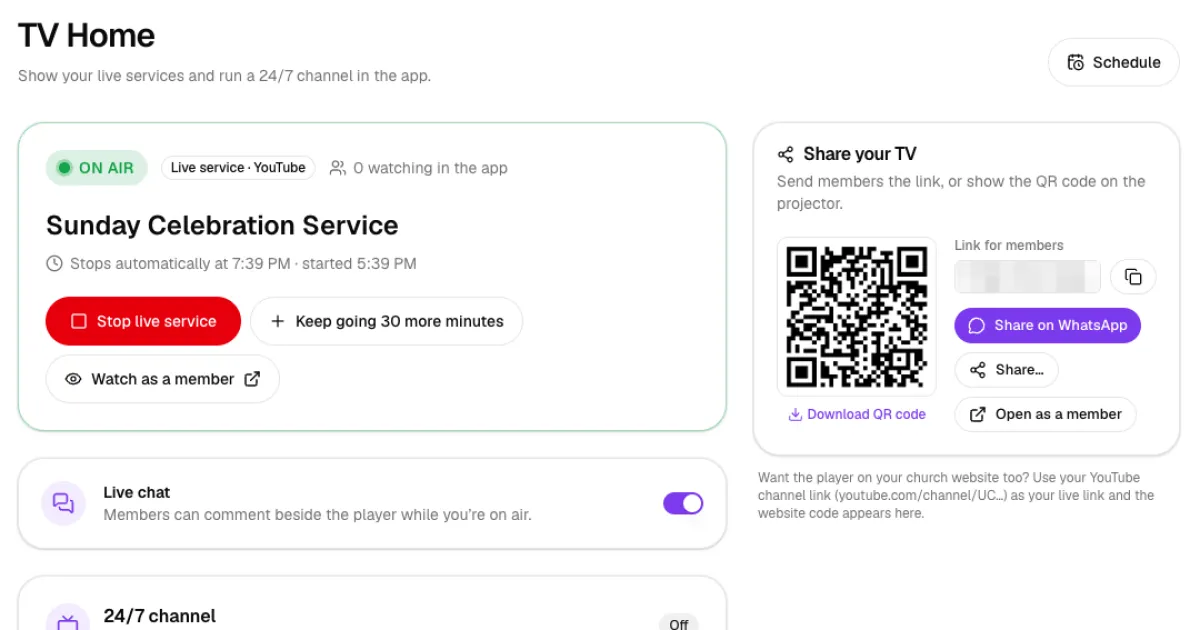
When your church is on Online TV or Online Radio, members can greet one another, say "Amen" and share prayer points in the live chat. This guide explains how the live chat works, how to turn it on or off, and how to remove comments that do not belong.
Before you start
- Who can moderate: church admins, and staff who manage Online TV (for TV comments) or Online Radio (for radio comments), for example a "Media Team" role.
- Who can comment: signed-in members of your church. Visitors see a "Sign in to join the live chat" message instead.
- When it is open: only while something is on air: a live service, your 24/7 channel or your radio station. When nothing is on air, members see "The live chat opens while we're on air."
Step 1: Check the live chat switch
The live chat is on by default. You control it from two places in the admin:
- Online TV → TV Home: while you are on air, a Live chat card appears under the status card. "Members can comment beside the player while you're on air."
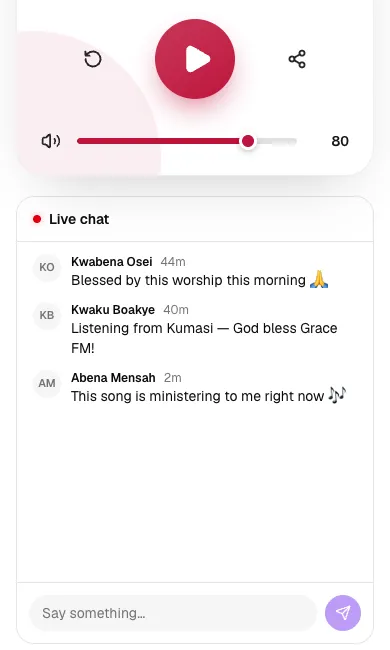
- Online Radio → Set up & start: the Live chat card is at the bottom of the page. "Members can comment under the player while your radio is on air."
Click the switch to turn the chat off or on.


Step 2: See what members see
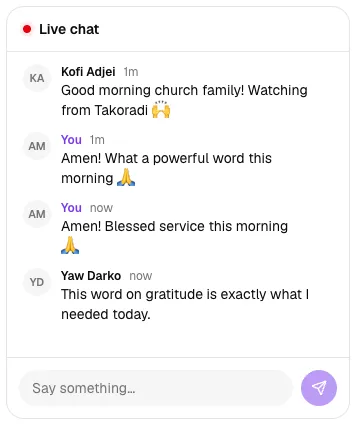
On Online TV, the live chat sits beside the video on a computer and below it on a phone. On Online Radio, it is under the player. Members type in Say something… and tap send. Their own comments show as You, and new comments appear on their own, without refreshing the page.
Step 3: Remove a comment
As a moderator, open your church's Online TV or Online Radio page while you are signed in. Then:
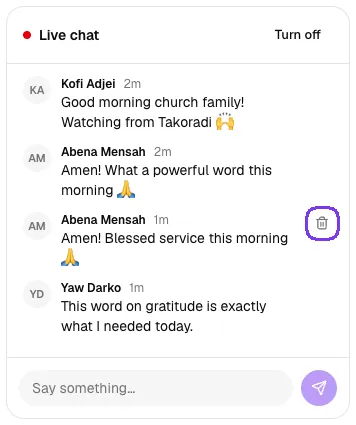
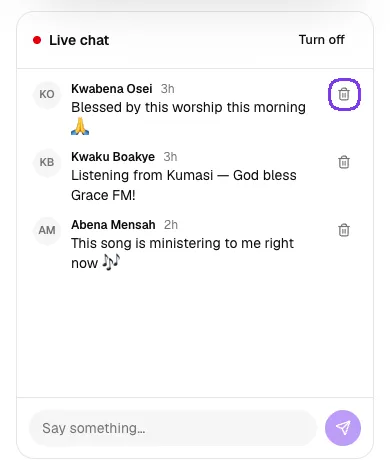
- Find the comment's bin icon on the right. On a computer, it appears when you move your mouse over the comment. On a phone or tablet, the bin is always shown next to every comment you can remove.
- Click or tap the bin and confirm "Remove this comment by …?".
The comment disappears for everyone. Members can also remove their own comments the same way.
Step 4: Turn the chat off during a service
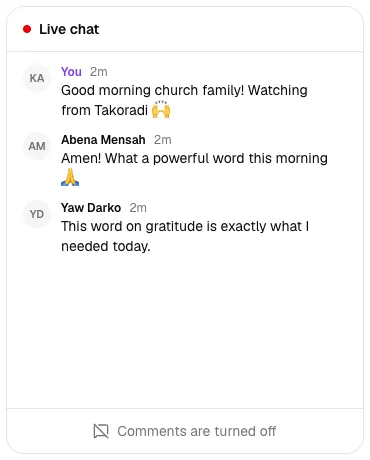
Moderators also see a Turn off button at the top of the live chat. Click it to stop new comments straight away, for example during Holy Communion or a solemn moment. Existing comments stay visible, and the box at the bottom says Comments are turned off. Click Turn on to open it again.
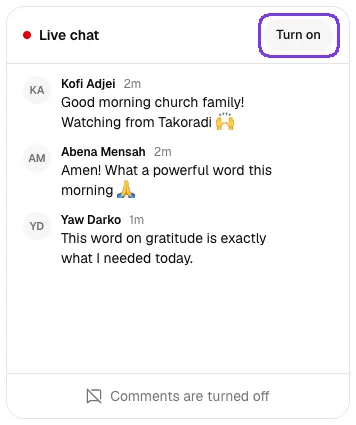
Members see the same message and cannot post until you turn the chat back on.
Tips
- Ask one person on your media team to keep an eye on the chat during each service, ideally on a computer.
- Greet people by name in the chat; online members love to be welcomed.
- Remind members that the chat is public to the whole church family, so they should not share private phone numbers or personal details.
- Comments can be up to 500 characters, and each person has to wait a few seconds between comments, which keeps the chat calm.
Troubleshooting
A member gets "Slow down a little — wait a moment before sending another comment."
They sent comments too quickly. Waiting a few seconds before sending the next one fixes it.
Members say they cannot comment
Check three things: that something is on air, that they are signed in as a member of your church, and that the live chat is turned on (TV Home or Online Radio page, or the Turn on button in the chat).
I cannot see the bin icon or the Turn off button
Make sure you are signed in with an account that manages Online TV or Online Radio, and that you have opened your church's TV or radio page. On a computer, the bin appears when you point at a comment. On a phone or tablet it is always shown, so if you still don't see it, you are not signed in as a moderator.



