With Online TV, members can watch your services live inside your church's page and app, even when they cannot make it to church. You stream on YouTube or Facebook as usual, and The Worship shows that stream to your members, with a countdown before each service. This guide shows you how to go live, schedule your weekly services and share your TV link.
Before you start
- Who can do this: church admins, and staff whose role includes Online TV permissions (for example a "Media Team" role).
- What you need: a YouTube channel or Facebook Page where you stream your services. You start the stream on YouTube or Facebook (with your phone, OBS or your streaming software) and then share its link with The Worship.
Step 1: Open TV Home
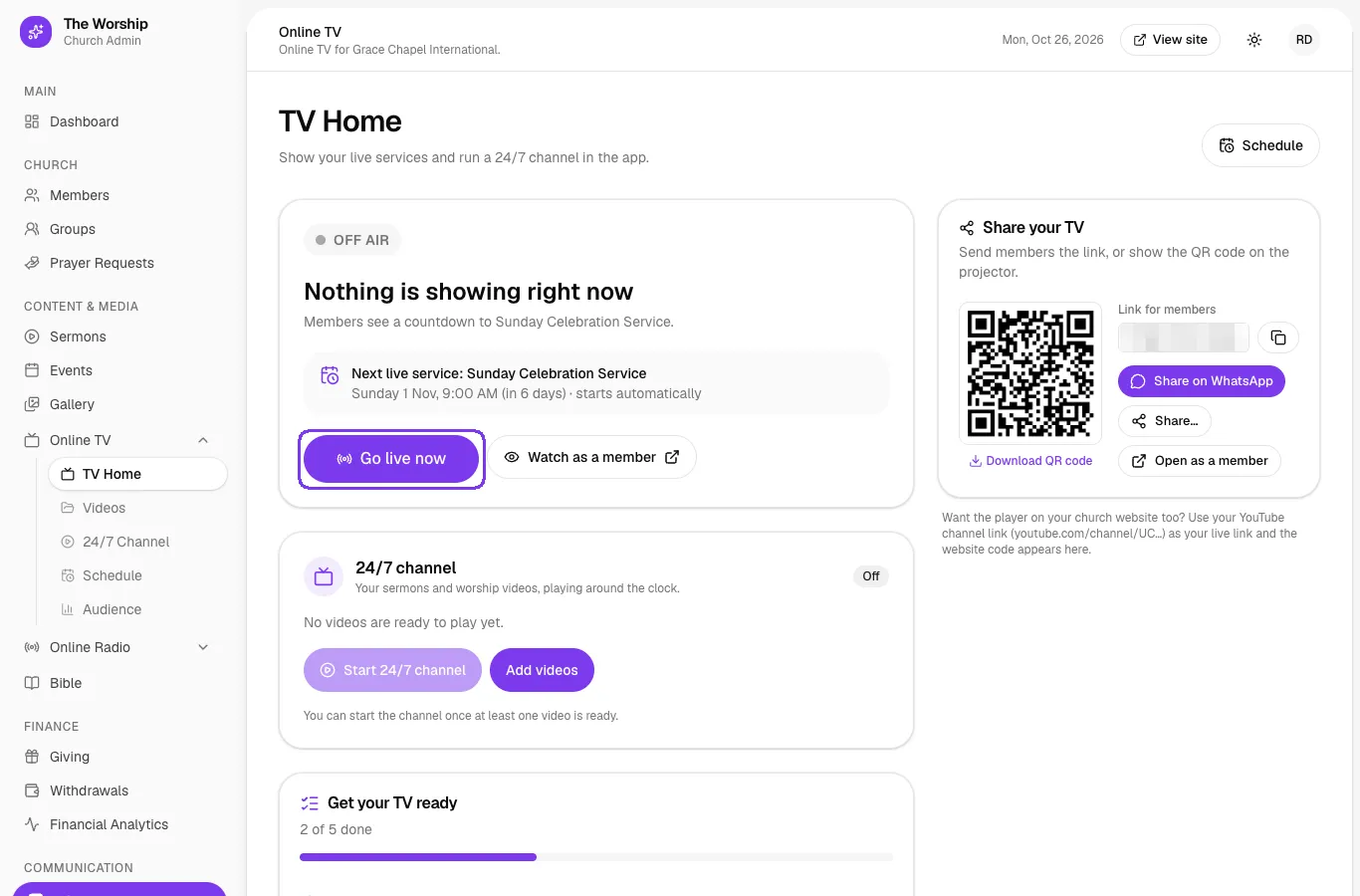
In the left menu, go to Content & Media → Online TV → TV Home. The big card at the top shows what members see right now. When nothing is playing it says OFF AIR, and it shows your next scheduled service, if you have one.
Step 2: Go live with your YouTube or Facebook link
- Start your live stream on YouTube or Facebook first.
- Copy its link. On YouTube or Facebook, open the live video and tap Share → Copy link.
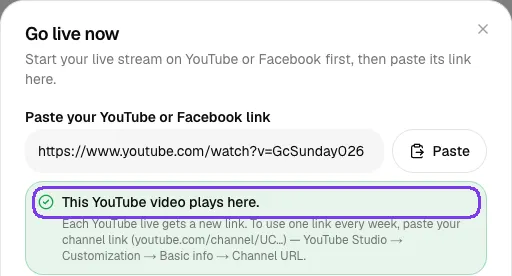
- On TV Home, click Go live now and paste the link into Paste your YouTube or Facebook link. You can also tap the Paste button.
The Worship checks the link straight away. A green message such as "This YouTube video plays here." means members will be able to watch it inside the app.
Below the preview:
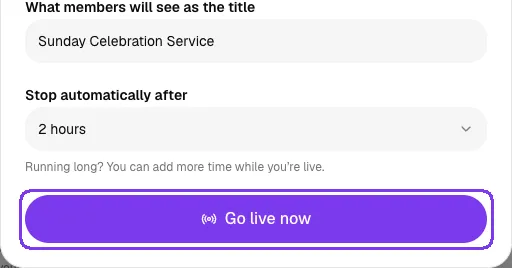
- What members will see as the title: for example "Sunday Celebration Service".
- Stop automatically after: choose from 1 hour up to 5 hours, or Don't stop — I'll press Stop myself. Running long? You can add more time while you're live.
Click Go live now.
Step 3: While you are live
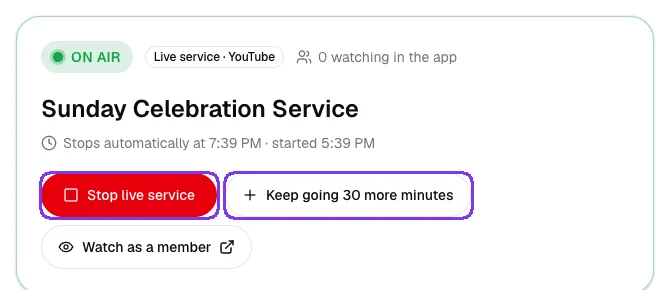
The card turns green and says ON AIR. It shows the title, how many people are watching in the app and when the stream will stop. From here you can:
- Click Keep going 30 more minutes if the service runs long.
- Click Watch as a member to see exactly what members see.
- Click Stop live service when you are finished.
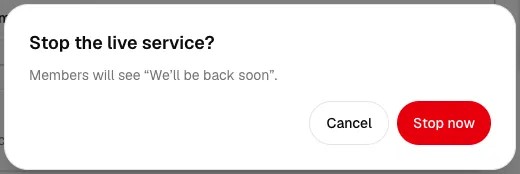
When you stop, The Worship asks you to confirm. Members will then see "We'll be back soon", or your 24/7 channel if it is turned on.
Step 4: Schedule your weekly services
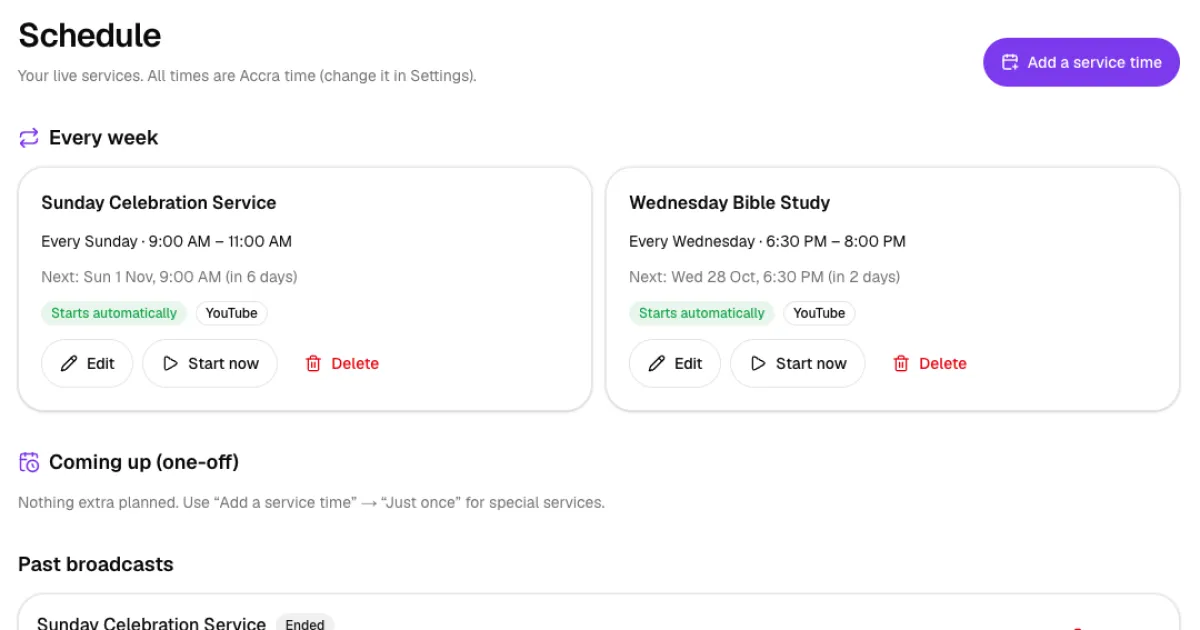
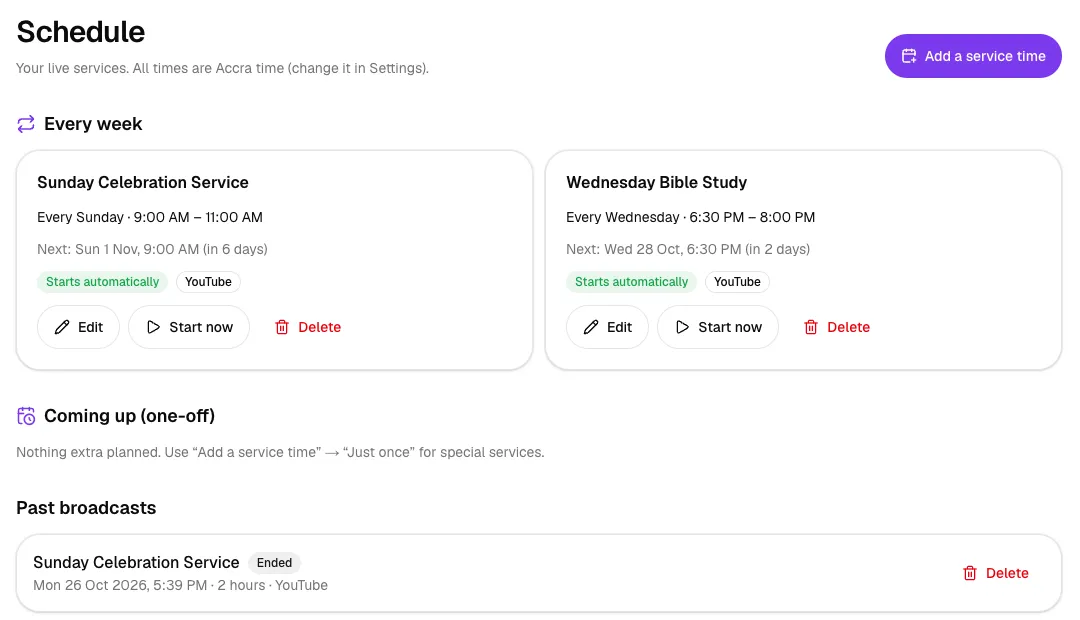
If you stream at the same time every week, schedule it once and The Worship does the rest. Go to Online TV → Schedule and click Add a service time.
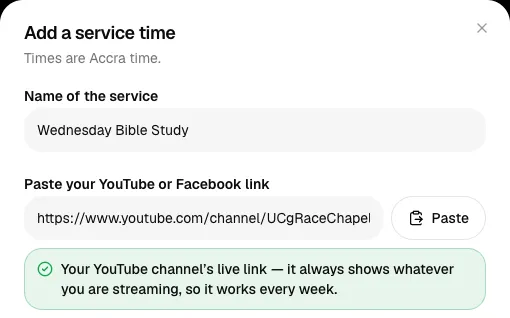
- Enter the Name of the service.
- Paste your link. Tip: YouTube gives every live stream a new link, so for weekly services paste your YouTube channel link instead (youtube.com/channel/UC…). It always shows whatever you are streaming, so it works every week. You will find it in YouTube Studio → Customization → Basic info → Channel URL.
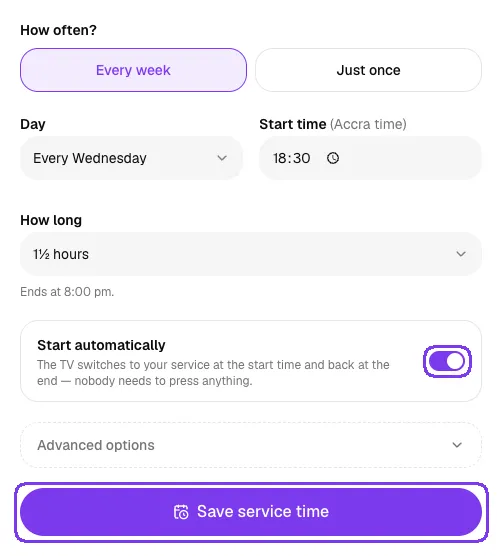
- Under How often? choose Every week, or Just once for a special service.
- Pick the Day and Start time (in your church's time zone), and How long it lasts.
- Leave Start automatically on. The TV switches to your service at the start time and back at the end, so nobody needs to press anything.
- Optionally open Advanced options to add a Picture for the news feed, or to play one of your playlists instead of a link.
- Click Save service time.
Your services appear under Every week, with the next date and time. Use Edit to change one, Start now to go live straight away, or Delete. One-off services are listed under Coming up, and finished ones under Past broadcasts.
Step 5: What members see before the service
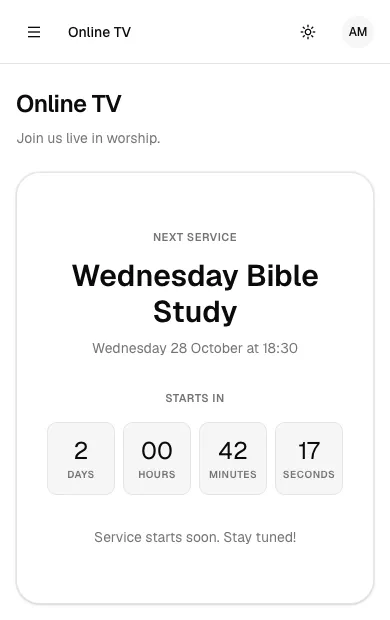
When you are not live, members who open Online TV see a countdown to your next service, with the days, hours, minutes and seconds until it starts. When the service begins, the countdown changes to your live stream automatically, with the live chat beside it.
Step 6: Share your TV
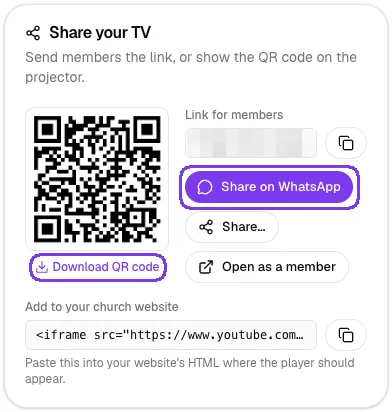
The Share your TV card on TV Home helps you invite people to watch:
- Link for members: copy it and send it anywhere.
- Share on WhatsApp: opens WhatsApp with the link ready to send to your groups.
- Download QR code: show it on the projector or print it in your bulletin so people can scan and watch.
- Open as a member: check the members' view.
- Add to your church website: when you use a YouTube channel link, you get a code to paste into your own website so the player appears there too.
Tips
- Follow the Get your TV ready checklist on TV Home; it walks you through every setup step.
- Start your YouTube or Facebook stream a few minutes early so the link is ready before members join.
- Turn on the 24/7 channel so members always have something to watch between services.
- Members can comment during the service in the live chat. You can turn it off from TV Home at any time.
Troubleshooting
"This is the address your streaming software SENDS to…"
You pasted your stream key or server address (the link you put into OBS). Paste the link people watch instead: open your live video on YouTube or Facebook and tap Share → Copy link.
Facebook says it can't play inside the app
Facebook does not let Page links play inside other apps, so members get a "Watch on Facebook" button instead. For the video to play right inside The Worship, open your live video on Facebook, tap Share → Copy link and paste that link. Facebook gives every live video its own link, so paste the new one each time you go live.
The preview says the channel is offline
That is normal for a YouTube channel link when you are not streaming. It shows your live stream as soon as you go live on YouTube.



