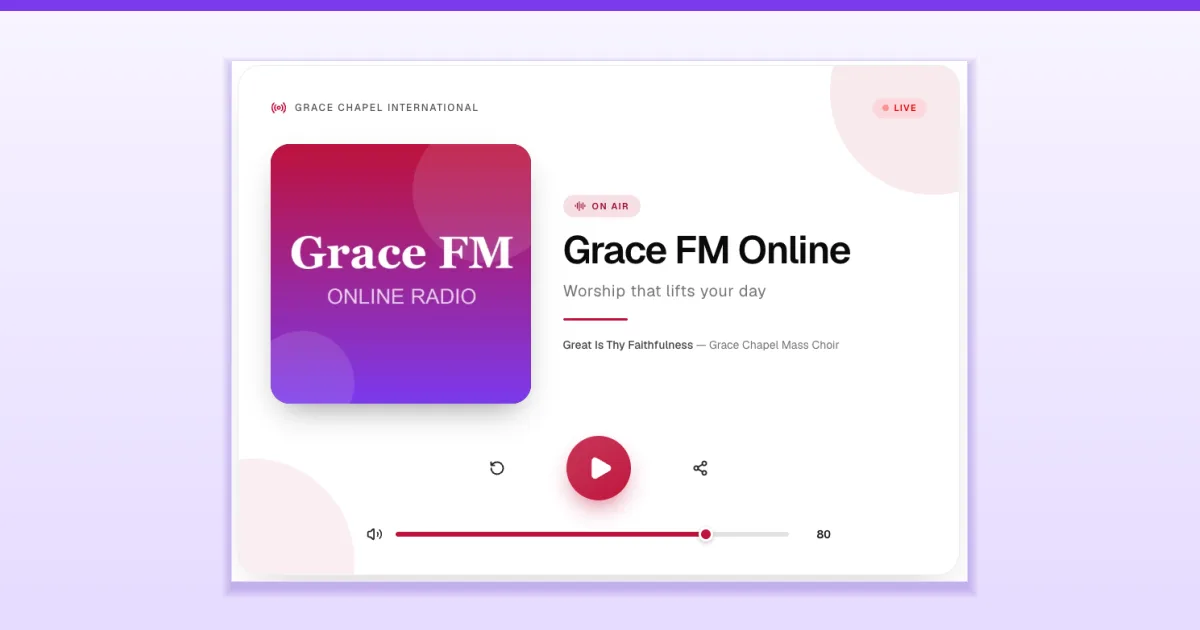
An online radio station lets your members listen to worship music, sermons and live programmes from anywhere — at home, in the car or on the way to work — on any phone, with no app to install. On The Worship, setting one up takes three short steps on a single page: choose where your radio comes from, connect it, and press Start radio.
This guide walks you through each step, shows you how to share the station with your church, and explains what your members see when they tune in.
Before you start
- Who can do this: the church admin, or a staff member whose role includes Manage radio or Manage radio settings.
- Your plan: Online Radio must be included in your church's plan. If you don't see Online Radio in the menu, check Subscription or ask your church admin.
- If you already broadcast elsewhere: have your stream link ready. You'll find it in your provider's dashboard — in Zeno it's called "Stream URL", and in Shoutcast it's the "Listen" link.
- Optional: a square logo for your station (up to 512 KB) and a short description of what listeners will hear.
Step 1: Open Online Radio
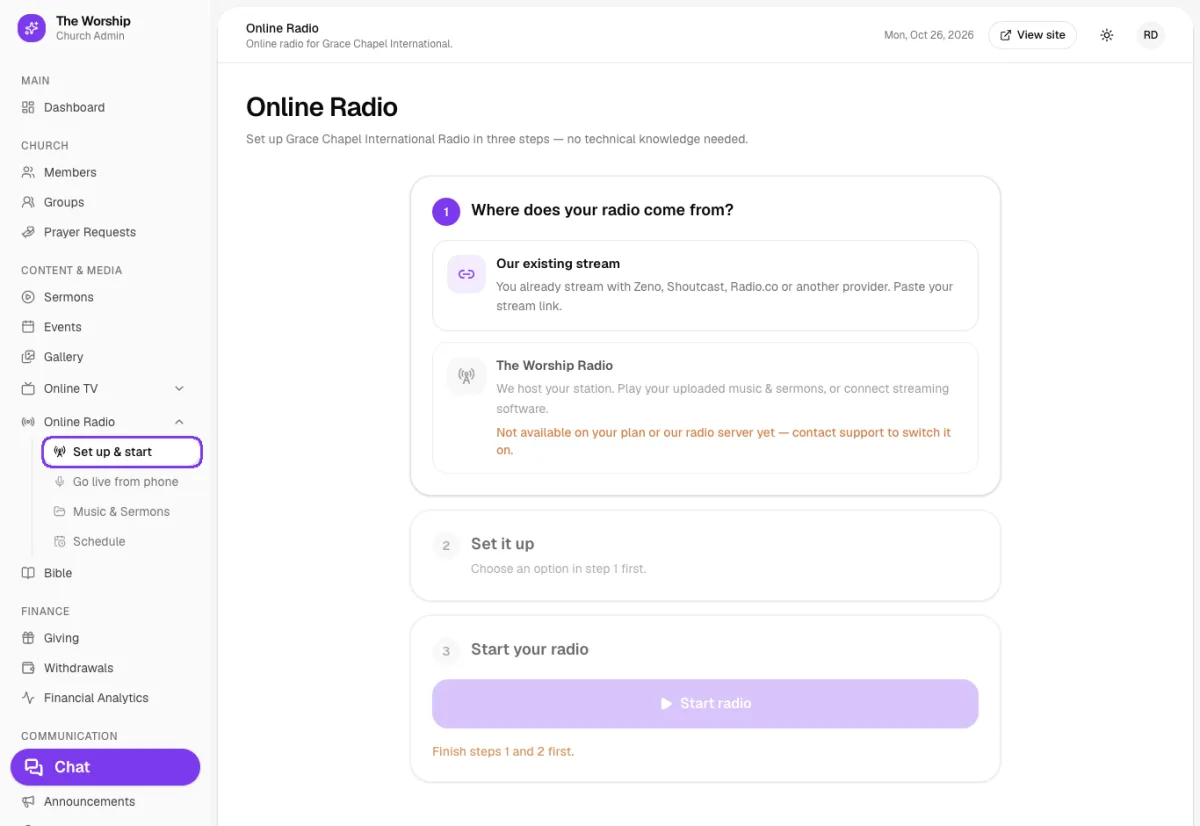
In the church admin menu, open Online Radio and choose Set up & start. The page shows three numbered steps. Steps 2 and 3 stay greyed out until you've made your choice in step 1.
Step 2: Choose where your radio comes from
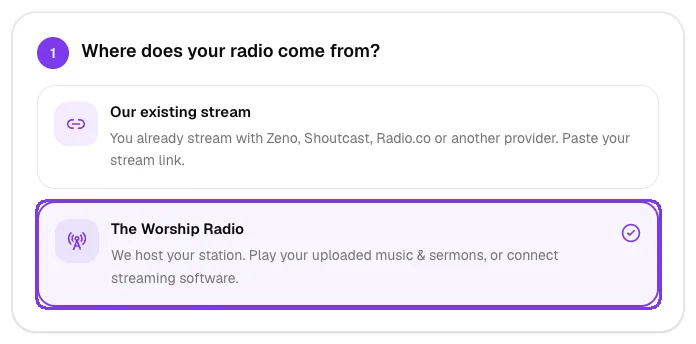
Under Where does your radio come from? you have two options:
- Our existing stream — choose this if your church already streams with Zeno, Shoutcast, Radio.co or another provider. You simply paste your stream link.
- The Worship Radio — we host the station for you. It can play your uploaded music and sermons around the clock, or carry a live broadcast from streaming software.
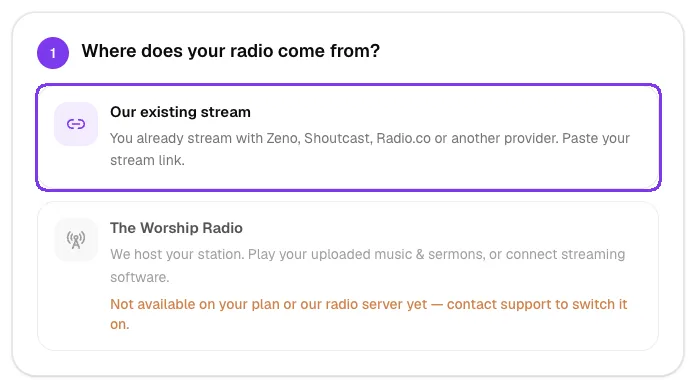
If The Worship Radio shows the message "Not available on your plan or our radio server yet — contact support to switch it on", the hosted option isn't switched on for your church yet. You can start today with your existing stream and contact The Worship support to enable hosting later.
Step 3: Paste and check your stream link
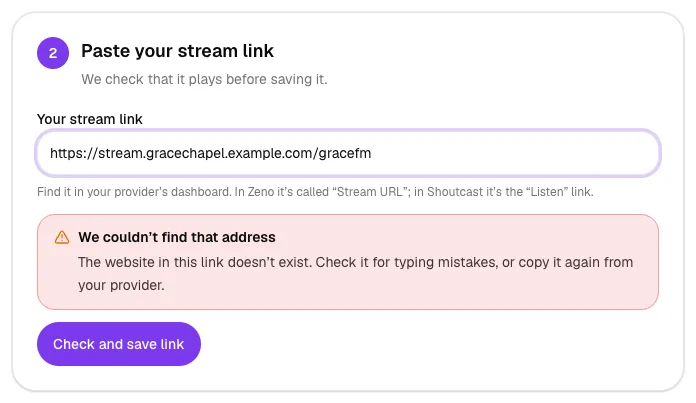
After choosing Our existing stream, step 2 becomes Paste your stream link. Paste the link into Your stream link and tap Check and save link.
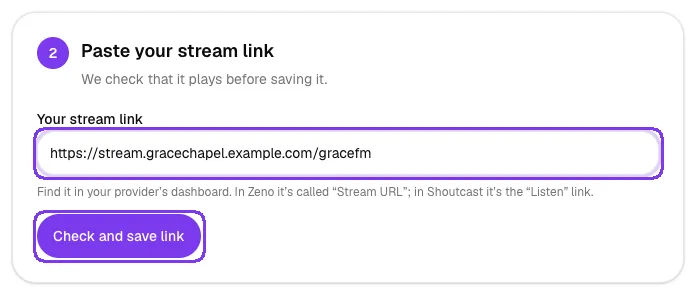
The Worship tests the link before saving it, so a link that doesn't play can never replace a working one. If something is wrong, you'll see a plain explanation and what to do about it — for example, when the address has a typing mistake:
When the check passes, you'll see Your stream link is saved with your link underneath. You can come back any time and tap Change link.
Step 4: Start your radio
Step 3, Start your radio, now shows Off air and a Start radio button. Tap it.
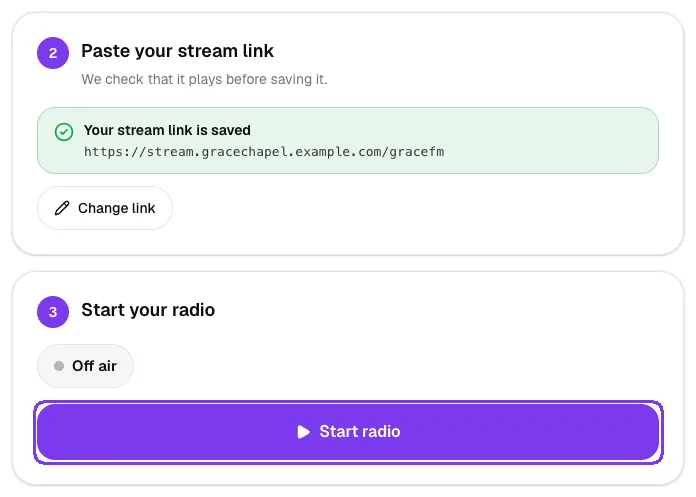
You'll see the message "Your radio is on! Members can listen now." The step changes to Your radio with a green On air badge and, when your provider shares it, the song that's playing now.
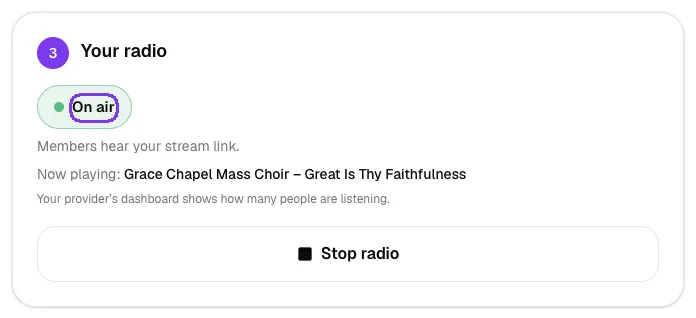
To take the station off air, tap Stop radio and confirm. Members see an off-air page until you start it again.
If you chose The Worship Radio
When hosting is available for your church, choosing The Worship Radio changes step 2 to What should play?:
- Our uploaded music & sermons — plays automatically, shuffled, day and night. Upload your songs and sermons right there or on the Music & Sermons page. You need at least one song or sermon before you can start the radio.
- Streaming software (BUTT, OBS) — your media team broadcasts live from a computer using the connection details shown on the page.
See How to add music and sermons to your church radio for uploading and playlists. Changing where your radio comes from later stops the radio first — the page asks you to confirm, and you simply start it again after switching.
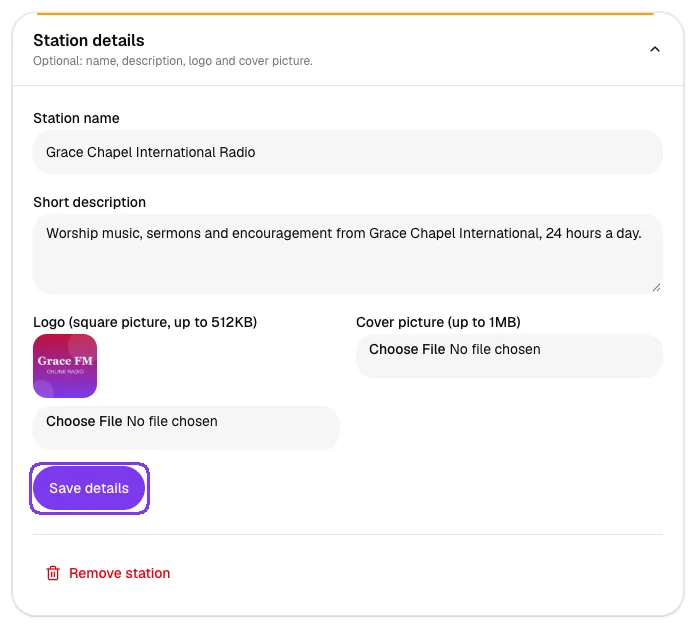
Step 5: Add your station details
Open Station details further down the page to give your station a personality. You can set:
- Station name — for example "Grace FM Online".
- Short description — what members will hear, such as worship, sermons and prayer.
- Logo — a square picture, up to 512 KB.
- Cover picture — up to 1 MB.
Tap Save details when you're done.
Step 6: Share your station with your church
Once the radio is on air, the Share your station card appears. Members can listen on any phone — no app needed. From this card you can:
- Copy the Link for members, tap Share on WhatsApp, or use Share… to send it through any app.
- Download QR code to print in your bulletin or show on the projector.
- Copy the link For radio apps and paste it into apps such as VLC or TuneIn.
- Copy the code under Add to your church website and paste it into your website's HTML where the player should appear.
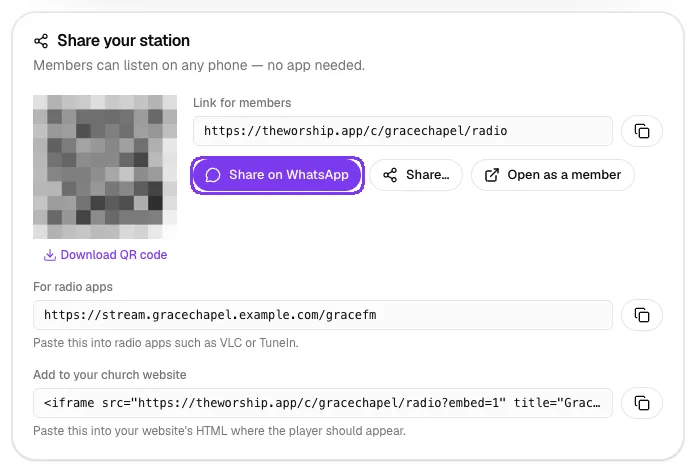
You can also tap Open as a member to hear exactly what your members hear. The Listen as a member player on the same page does the same thing.
What your members see
Members find the station under Watch & Listen → Online Radio on your church page. They see your logo, the station name, what's playing now and a big play button. Underneath is the Live chat, where signed-in members can greet each other while they listen. Visitors who aren't signed in can still listen, and are invited to sign in to join the chat.
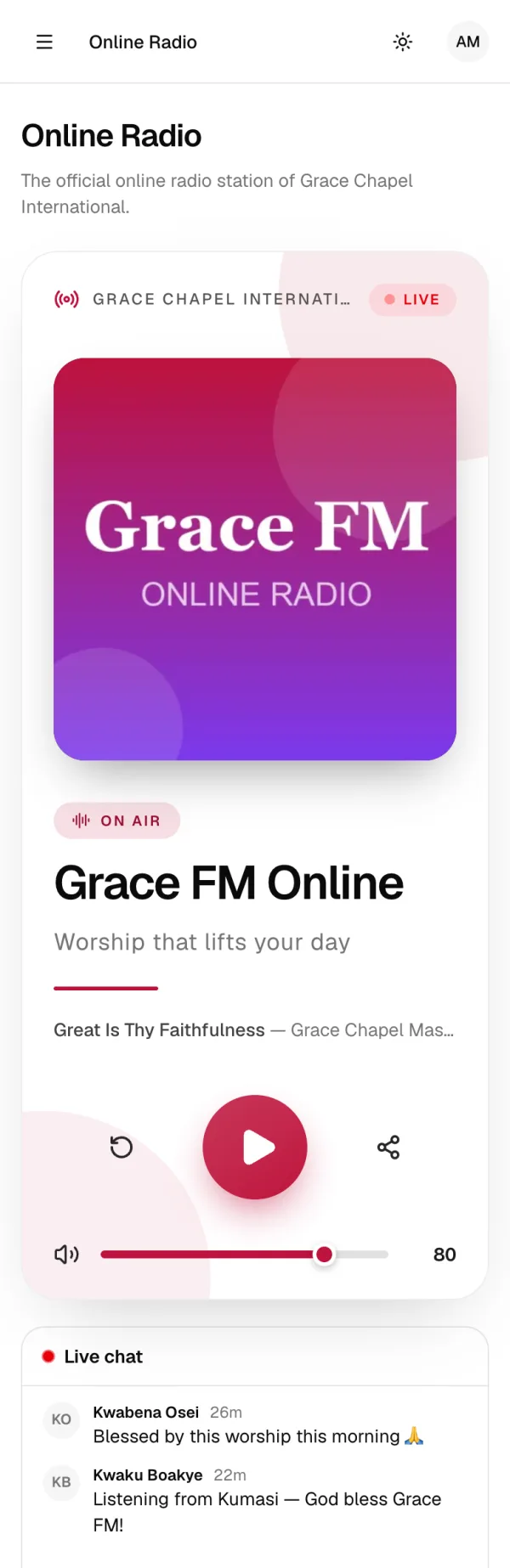
You can switch the live chat on or off with the Live chat switch at the bottom of the Online Radio page.
Tips
- Use the exact link from your provider's dashboard — copying a web page address instead of the stream link is the most common mistake.
- Print the QR code on your Sunday bulletin and invite the congregation to share the link with family abroad.
- Use a square logo with large, simple text so it stays readable on small phone screens.
- Keep the live chat on during special broadcasts such as all-night prayer — it helps listeners feel part of the service.
Troubleshooting and FAQ
The check says "We couldn't find that address".
The website in the link doesn't exist. Check it for typing mistakes, or copy it again from your provider's dashboard and paste it in full.
Why is The Worship Radio greyed out?
Hosting isn't switched on for your church yet, either because of your plan or because our radio server isn't available for your church. Contact The Worship support to switch it on. Meanwhile, "Our existing stream" works on its own.
Members say the player is silent.
Make sure step 3 shows On air, and check that your broadcast is actually running at your provider. Tap Open as a member to test it yourself.
Can I change my stream link later?
Yes. Tap Change link in step 2, paste the new link and tap Check and save link. The new link is only saved if it plays.



