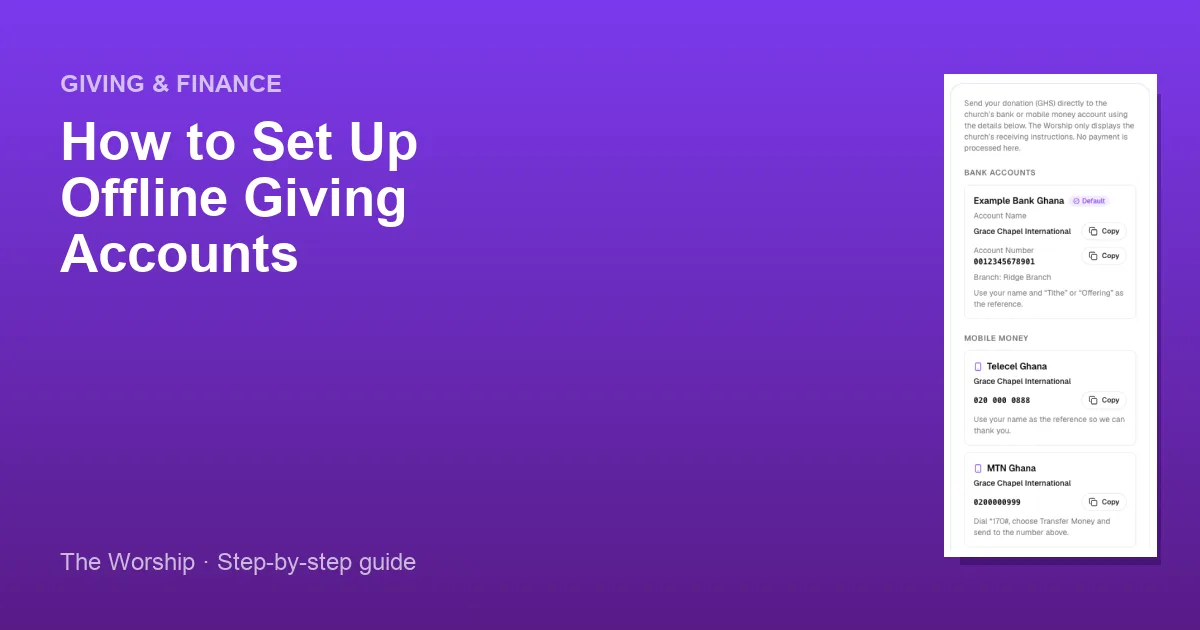
Not everyone wants to pay through a checkout page. Some members prefer to send their tithe by bank transfer or straight from their mobile money wallet. With Offline Giving, you can show your church's bank and mobile money details on your Give page, so members and visitors can give directly. The Worship only displays your receiving details. No payment is processed through the platform, so the money goes straight into your church's account.
Before you start
- You need to be the church admin, or a staff member whose role can manage giving (for example a Finance role).
- Use accounts that belong to the church, and have the exact registered account name for each one. Don't use your own name.
- Have the bank name, account number and branch for bank accounts, and the network and number for mobile money.
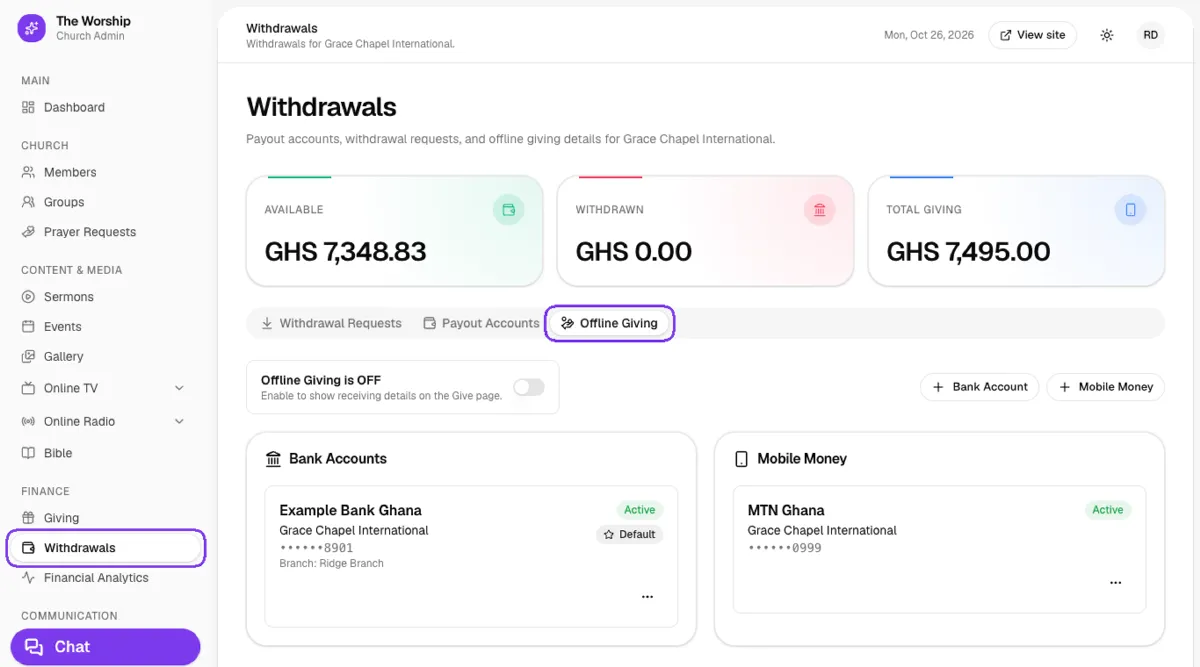
Step 1: Open the Offline Giving tab
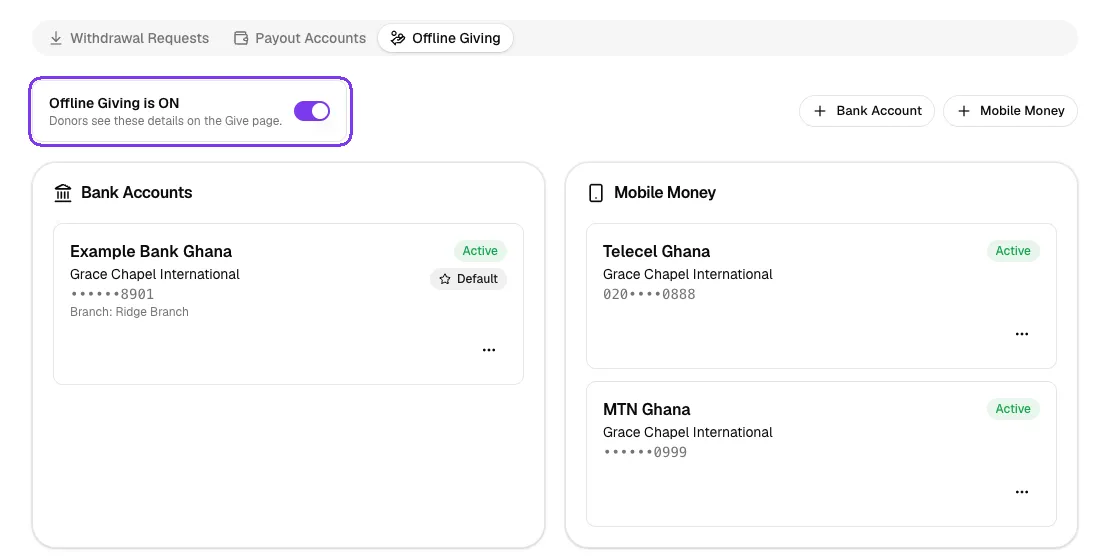
In the left menu, go to Finance → Withdrawals and click the Offline Giving tab. At the top you will see whether offline giving is on or off. Below it are your Bank Accounts and Mobile Money lists.
Step 2: Add a bank account
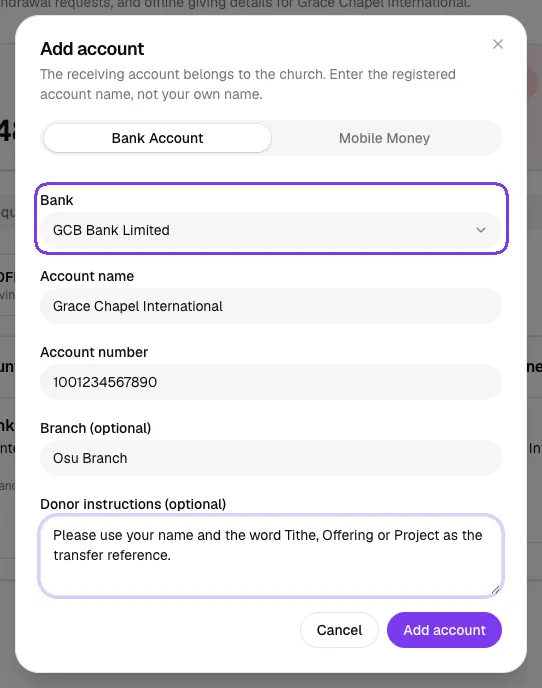
Click + Bank Account. In the form:
- Choose the Bank from the list.
- Type the Account name exactly as registered with the bank.
- Enter the Account number.
- Add the Branch (optional).
- Add Donor instructions (optional), for example: "Please use your name and the word Tithe, Offering or Project as the transfer reference."
Click Add account to save.
Step 3: Add a mobile money number
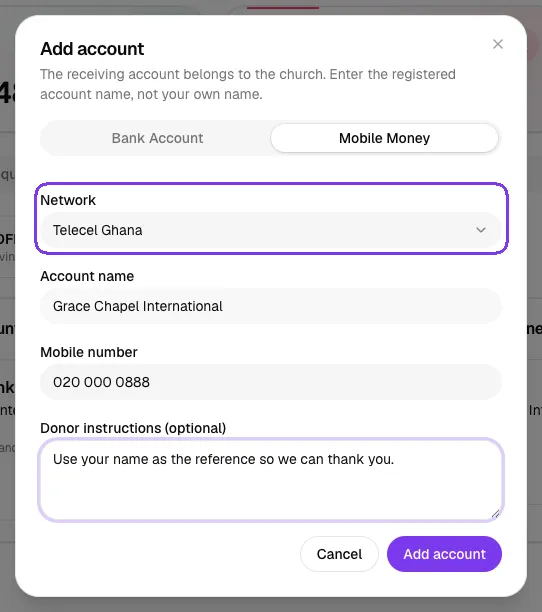
Click + Mobile Money. Choose the Network (MTN Ghana, Telecel Ghana or AirtelTigo), enter the registered Account name and the Mobile number, add any donor instructions, and click Add account.
Step 4: Manage your accounts
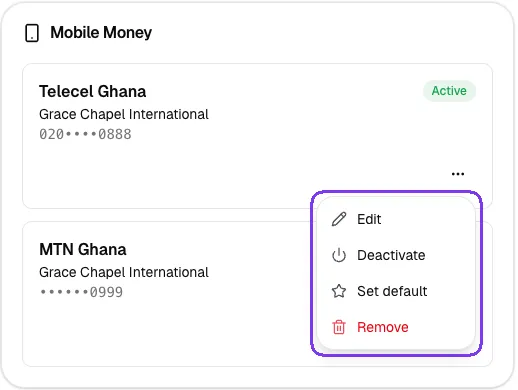
Each account appears as a card with its status (Active or Inactive). In this admin view, the number is partly hidden. Click the … button on a card to:
- Edit: change the details. Leave the account number blank to keep the current one.
- Deactivate or Activate: hide an account from donors for a while without deleting it.
- Set default: mark your main account. The default account carries a Default badge.
- Remove: delete the account.
Step 5: Turn Offline Giving on
Your accounts are only shown to donors once offline giving is switched on. Click the switch next to Offline Giving is OFF. It changes to Offline Giving is ON, with the message "Donors see these details on the Give page."
Step 6: Check what your members see
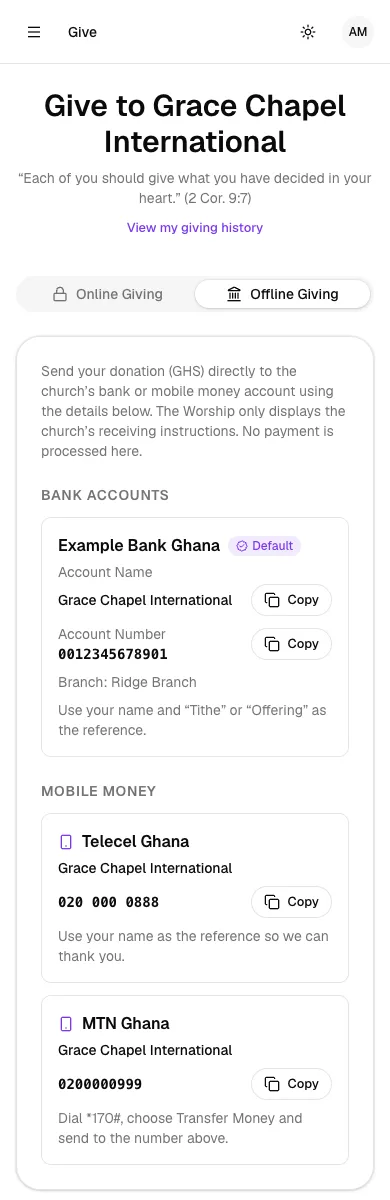
Open your Give page (the View site button at the top of the admin area takes you to your church page). Members choose the Offline Giving tab to see your bank and mobile money details, with a Copy button next to each number and your instructions underneath. If online giving isn't available for your church, the Give page opens on Offline Giving automatically.
Tips
- Write clear donor instructions so you can tell what each transfer is for, for example "Your name + Tithe".
- Set your most-used account as the default.
- Offline gifts go straight to your account. They don't pass through The Worship, so they don't appear in the Giving list or your Available balance. Keep a record of them in your usual books.
Troubleshooting and FAQ
My members can't see the accounts on the Give page.
Check that the switch shows Offline Giving is ON and that the accounts are Active. Inactive accounts are hidden from donors.
Can I pause an account without deleting it?
Yes. Choose Deactivate from the … menu, then Activate it again whenever you need it.
Is offline giving the same as payout accounts?
No. Offline giving accounts are where members send money directly. Payout accounts, on the Payout Accounts tab, are where The Worship sends your online giving balance when you request a withdrawal.



