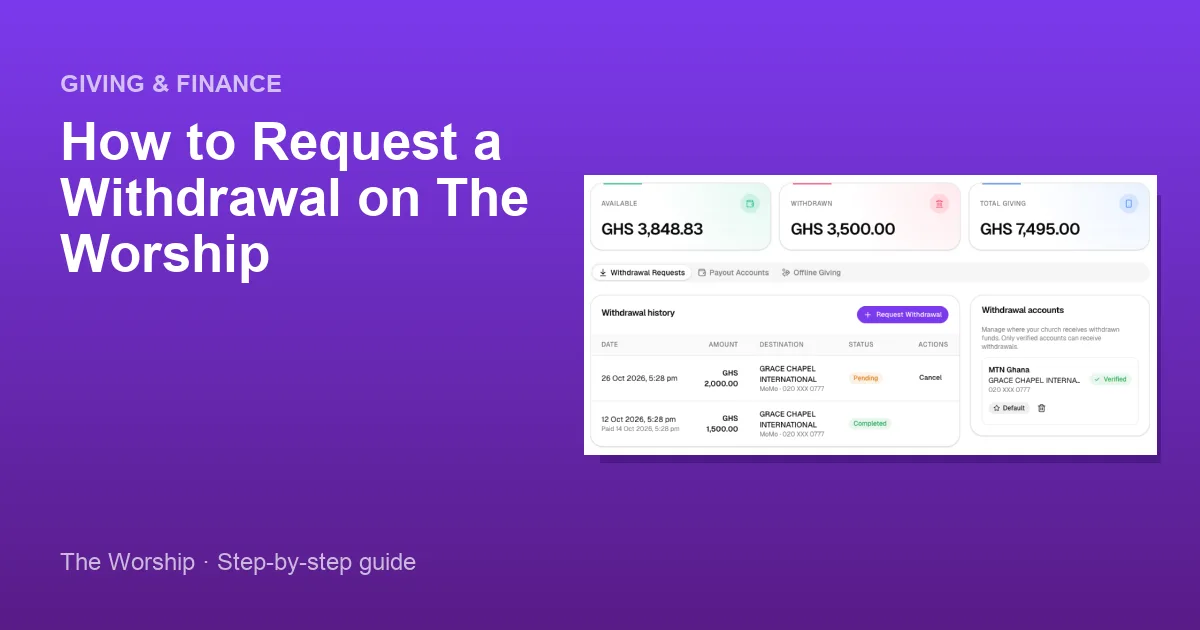
When members give online through The Worship, their gifts are added to your church's Available balance. To move that money into your church's mobile money wallet or bank account, you request a withdrawal. This guide shows you how to add and verify a payout account, request a withdrawal, and follow it until it is paid.
Before you start
- You need to be the church admin, or a staff member whose role can manage giving (for example a Finance role). Staff who can only view giving see the balances but cannot request withdrawals.
- You need an available balance, which comes from online gifts. See How to accept online giving.
- Have the church's mobile money number or bank account details ready. The account must be registered in the church's name.
Step 1: Open the Withdrawals page
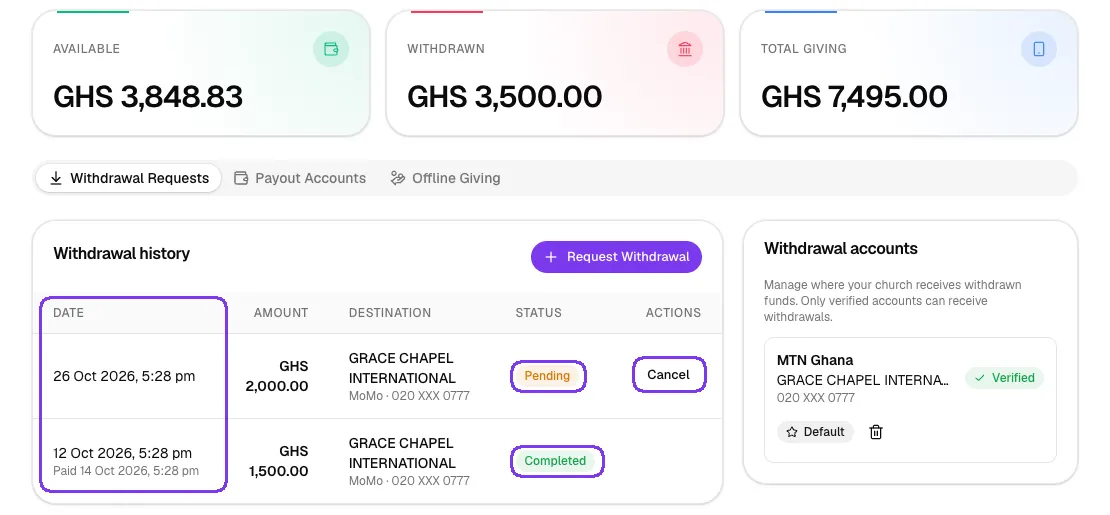
In the left menu, go to Finance → Withdrawals. The cards at the top show:
- Available: what you can withdraw now.
- Withdrawn: the total of your withdrawal requests, including any still being processed.
- Total giving: all completed online gifts.
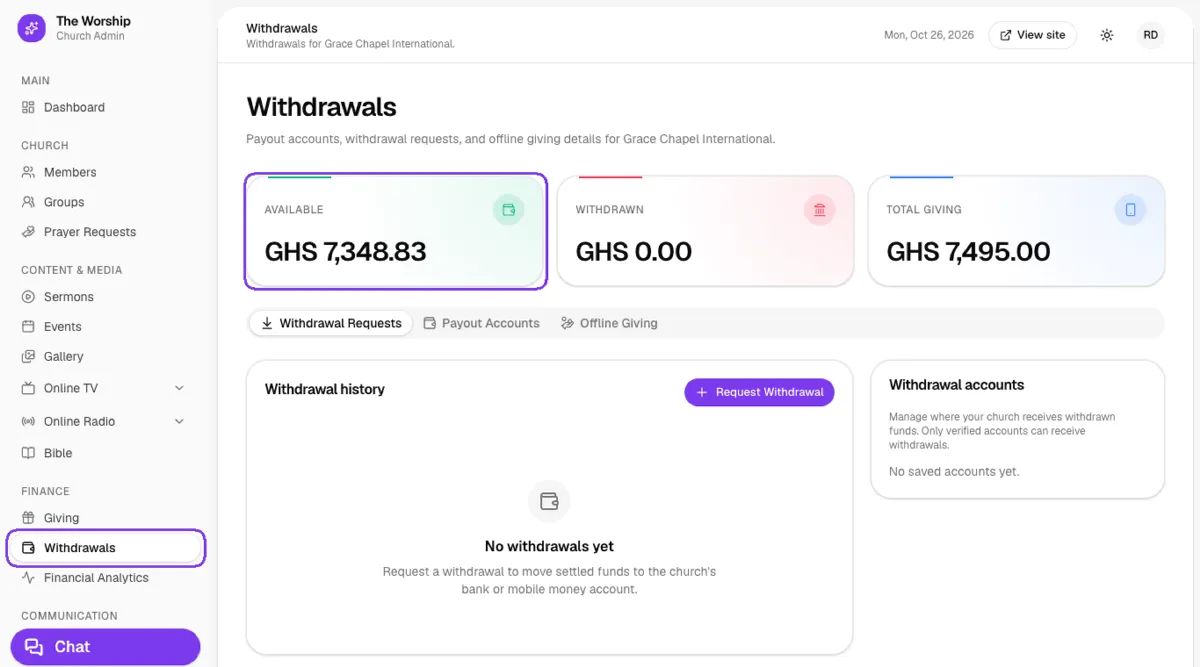
Step 2: Add a payout account
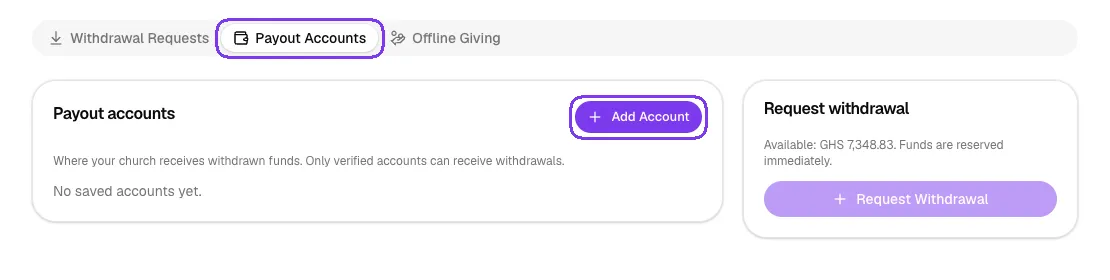
Open the Payout Accounts tab and click Add Account. Payout accounts are where your withdrawals are sent. Only verified accounts can receive withdrawals.
Step 3: Verify the account
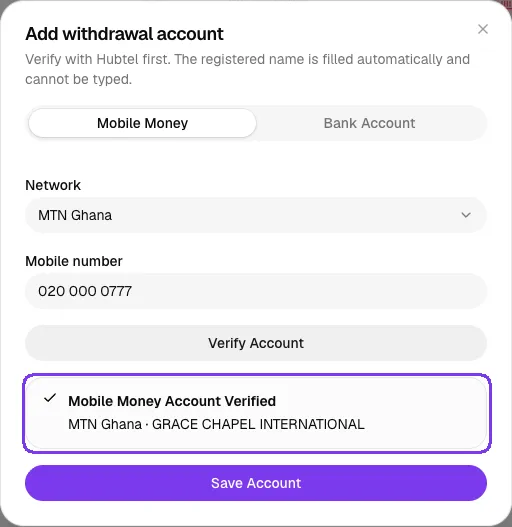
In the Add withdrawal account window:
- Choose Mobile Money (pick the network and enter the number) or Bank Account (pick the bank and enter the account number).
- Click Verify Account. The Worship checks the account with Hubtel and fills in the registered name automatically. You cannot type the name yourself, which protects your church from payouts to the wrong person.
- A Mobile Money Account Verified (or Bank Account Verified) message shows the network or bank and the registered name. Check that the name belongs to your church, then click Save Account.
If a bank account can't be verified, you may be offered Save as unverified. An unverified account is saved, but it cannot receive withdrawals until it is verified.
Step 4: Check your saved account
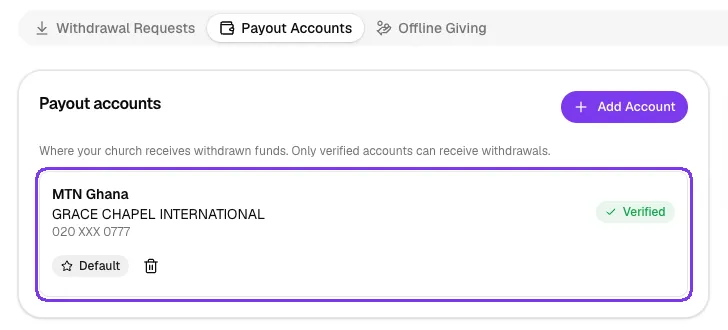
Your account now appears on the Payout Accounts tab with a Verified badge. The account you use most is marked Default. Use Set Default to change it, or the bin icon to remove an account.
Step 5: Request the withdrawal
Click Request Withdrawal (on the Withdrawal Requests tab or the Payout Accounts tab). In the window that opens:
- Enter the Amount (GHS). It cannot be more than your available balance.
- Under Receive funds in, choose the verified account.
- Click Confirm request.
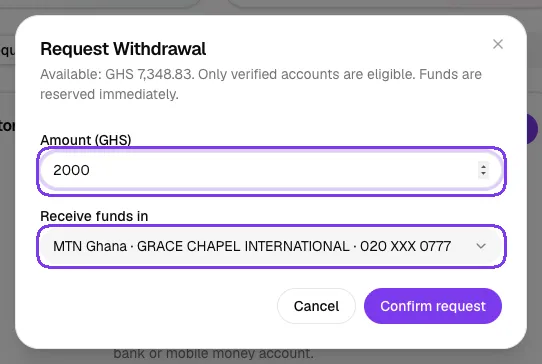
The amount is reserved immediately: it leaves your Available balance and is added to Withdrawn, so the same money can't be requested twice.
Step 6: Follow the status
Your request appears in Withdrawal history with the Date you requested it, the amount, the destination and the status. Dates and times are shown in your church's time zone, and a completed withdrawal also shows the day it was paid ("Paid …"). The platform team reviews each request and sends the payout. You will see one of these statuses:
- Pending: waiting for review. You can still click Cancel at this stage.
- Approved and Processing: the payout is on its way.
- Completed: the money has been sent to your account.
- Rejected, Failed or Cancelled: nothing was paid out, and the reserved amount goes back to your Available balance.
Tips
- Use an account registered in the church's name, so verification matches and your records stay clear.
- Set the account you use most as the default. It is selected automatically when you request a withdrawal.
- If your church receives online gifts directly into its own merchant account (after payment onboarding), that money is already in your account and doesn't need a withdrawal.
Troubleshooting and FAQ
My account doesn't appear under "Receive funds in".
Only verified accounts can receive withdrawals. If you see "No verified accounts yet. Add and verify one first.", add the account on the Payout Accounts tab and verify it.
I get "Insufficient available balance".
The amount is more than your Available balance. Lower the amount, or wait for more gifts to be confirmed.
How long does a withdrawal take?
The platform team reviews and pays out each request. The status in your Withdrawal history updates at every stage, so check there for progress.



