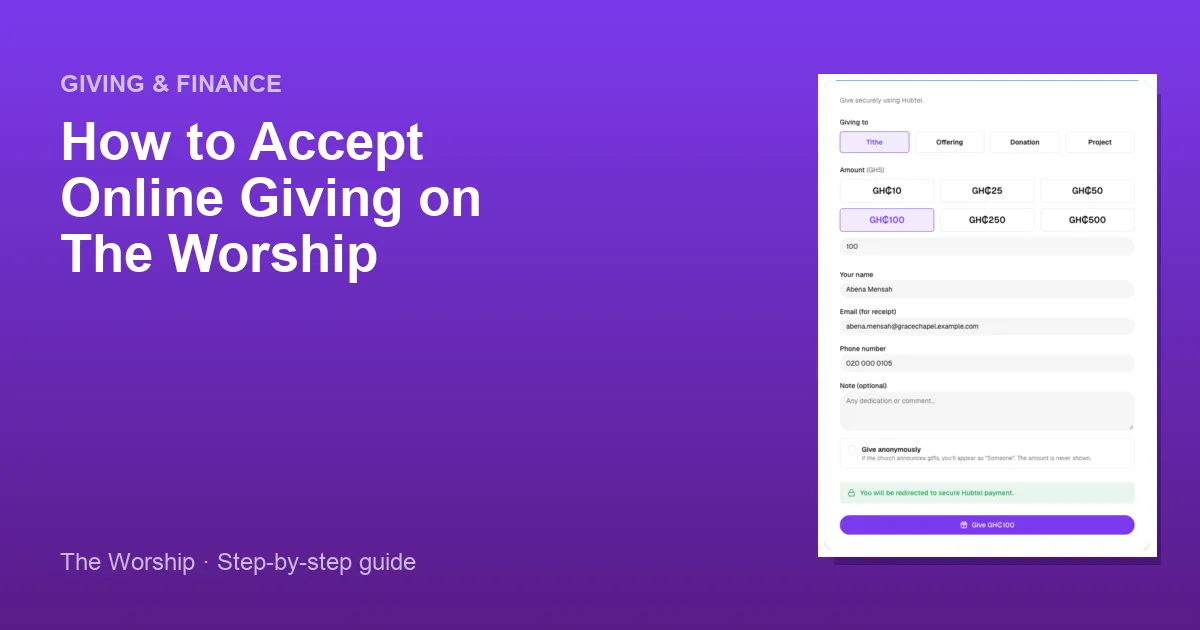
Online giving lets your members pay their tithes, offerings and project gifts from their phone or computer, at any time and from anywhere. On The Worship, every church gets its own Give page, and gifts made there are recorded for you automatically. This guide explains how online giving works, what your members see, and how to follow the money once it arrives.
Before you start
- You need to be the church admin, or a staff member whose role includes the giving permissions (for example a Finance role).
- Your plan must include Giving. If it does, you will see Giving, Withdrawals and Financial Analytics under Finance in the left menu.
- Online payments are made in Ghana cedis (GHS), so your church currency should be GHS.
Step 1: Understand how the money reaches your church
There are two ways online gifts can reach you:
- Through The Worship (the standard way). Members pay on a secure Hubtel checkout page. Each gift is added to your church's Available balance on the Giving page, and you move the money to your church's mobile money or bank account with a withdrawal request.
- Straight into your church's own merchant account. After your church is verified for payment onboarding and the platform team activates your merchant account, online gifts settle directly into that account instead.
You can start with the first option straight away and apply for the second whenever you are ready.
Step 2: Check your church currency
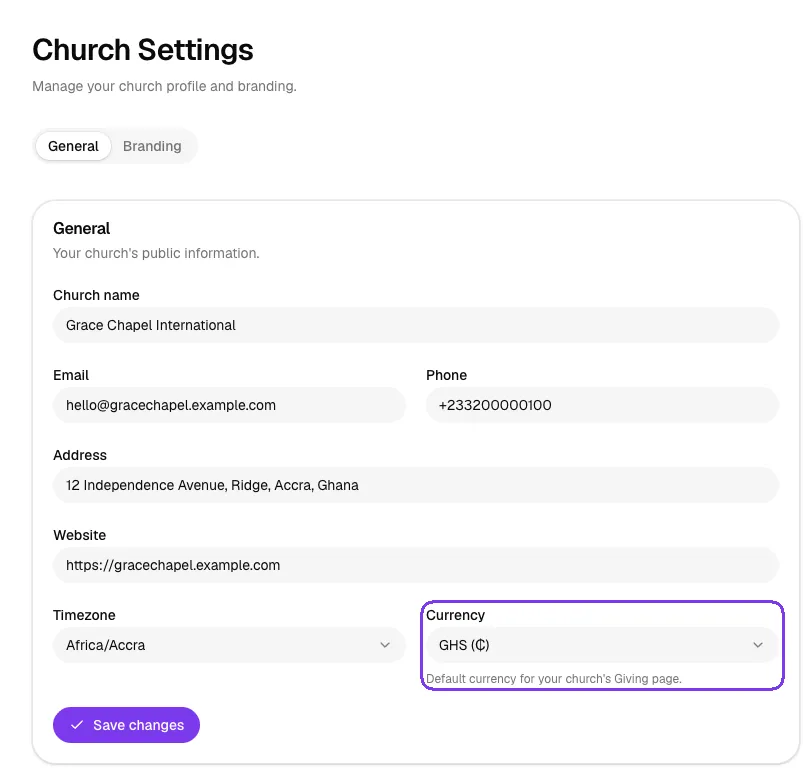
Go to Administration → Settings and look at the Currency field on the General tab. It sets the default currency for your church's Giving page. Keep it on GHS (₵) so members can give online. If you choose another currency, the Give page explains that online payments can only be made in cedis and points donors to your offline giving details instead.
Step 3: Share your Give page with members
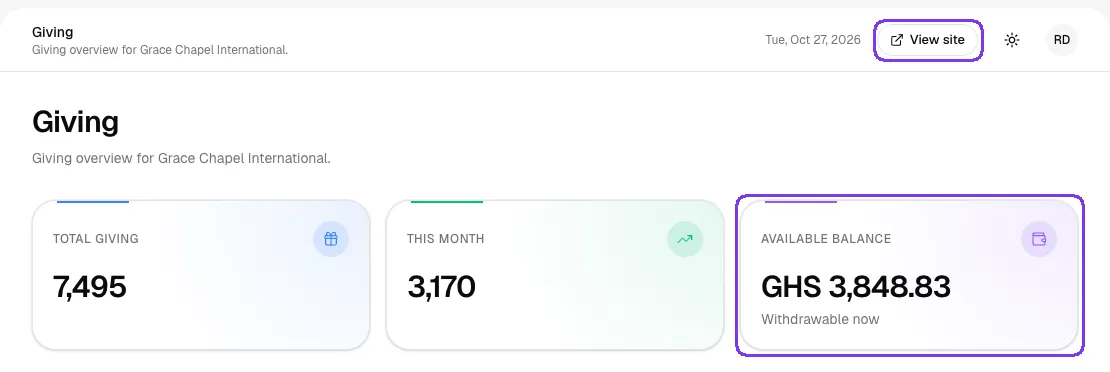
Every church has a Give page on its public church page. Members find it in their menu under Giving → Give. You can open your public church page from the admin area with the View site button at the top of the screen, then copy the Give page link to share on WhatsApp, in your bulletin or on the projector.
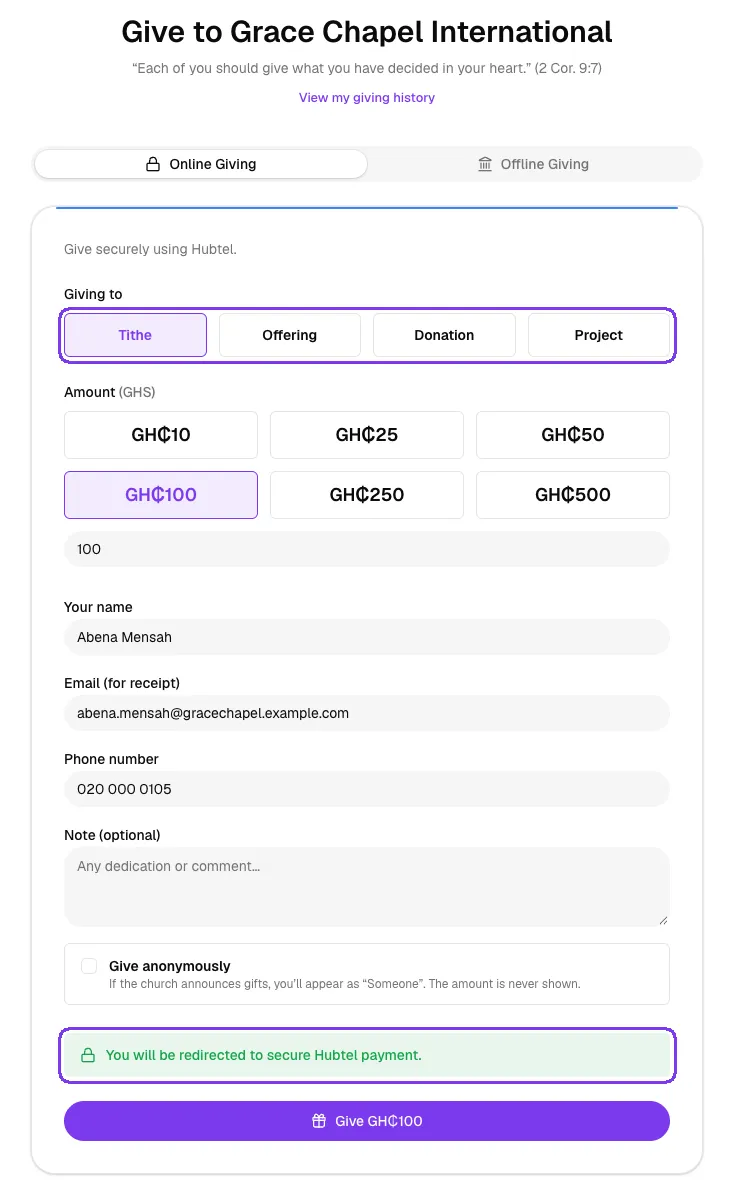
On the Give page, a member:
- Chooses what they are Giving to: Tithe, Offering, Donation or Project.
- Taps a quick amount (GH₵10 to GH₵500) or types a custom amount.
- Checks their name, email (for the receipt) and phone number. These are filled in automatically for signed-in members.
- Optionally adds a note, or ticks Give anonymously.
- Taps the Give button. The page explains: "You will be redirected to secure Hubtel payment."
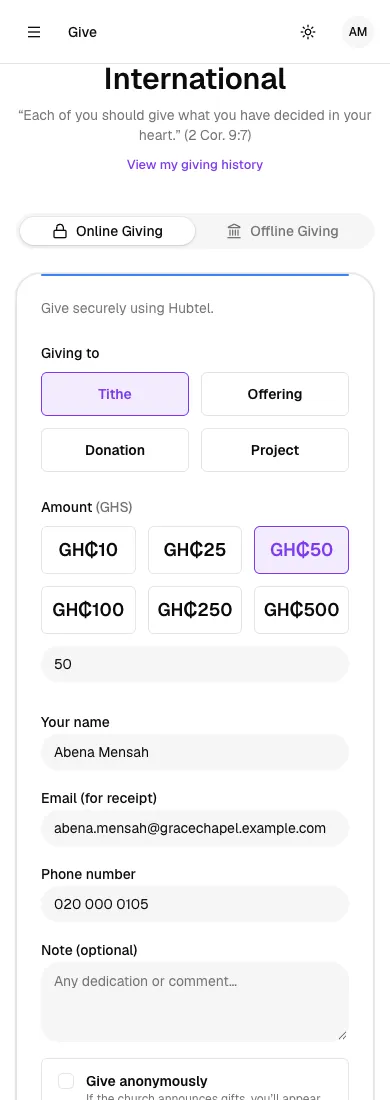
The page works just as well on a phone, which is how most members give.
Step 4: Watch gifts arrive on the Giving page
Go to Finance → Giving. Once a payment is confirmed, the gift appears in the list with the status Completed and the method Hubtel, and it is counted in Total giving, This month and its card under Giving by category. The Available balance card, marked "Withdrawable now", shows how much you can move to your church account today.
Step 5 (optional): Receive gifts in your own merchant account
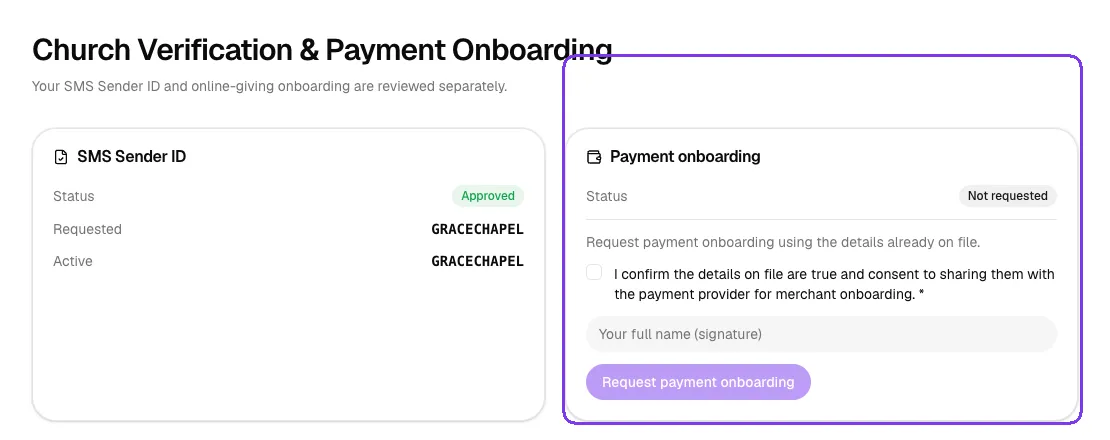
If you would like online gifts to go straight into your church's own merchant account, open Administration → Verification. The Payment onboarding card shows your status and lets you request onboarding. Once you are approved and your merchant account is active, the card shows Online giving via Payswitch: Active. The full process is in How to verify your church (KYC).
Step 6 (optional): Thank donors publicly
On the Giving page, the Announce gifts to members switch lets The Worship thank donors by name. Only the donor's name is shown, never the amount, and anyone who ticks Give anonymously appears as "Someone".

Tips
- Share the Give link after every service, and pin it in your church WhatsApp groups.
- Remind members to pick the right category (Tithe, Offering, Donation or Project) so your reports stay accurate.
- Also add your bank and mobile money details for members who prefer transfers. See How to set up offline giving accounts.
Troubleshooting and FAQ
A member paid, but the gift shows as Pending.
A gift is marked Completed only after the payment is confirmed. Pending gifts update on their own when the confirmation comes through. If one stays pending, contact The Worship support and share the reference shown under the donor's name.
Can members give in another currency?
No. Online giving is in Ghana cedis (GHS) only. Members abroad can use the details on your Offline Giving tab.
Why is my Available balance lower than Total giving?
Total giving counts every completed gift. The Available balance only shows what can be withdrawn right now, so money you have already withdrawn, or requested to withdraw, is not included.



