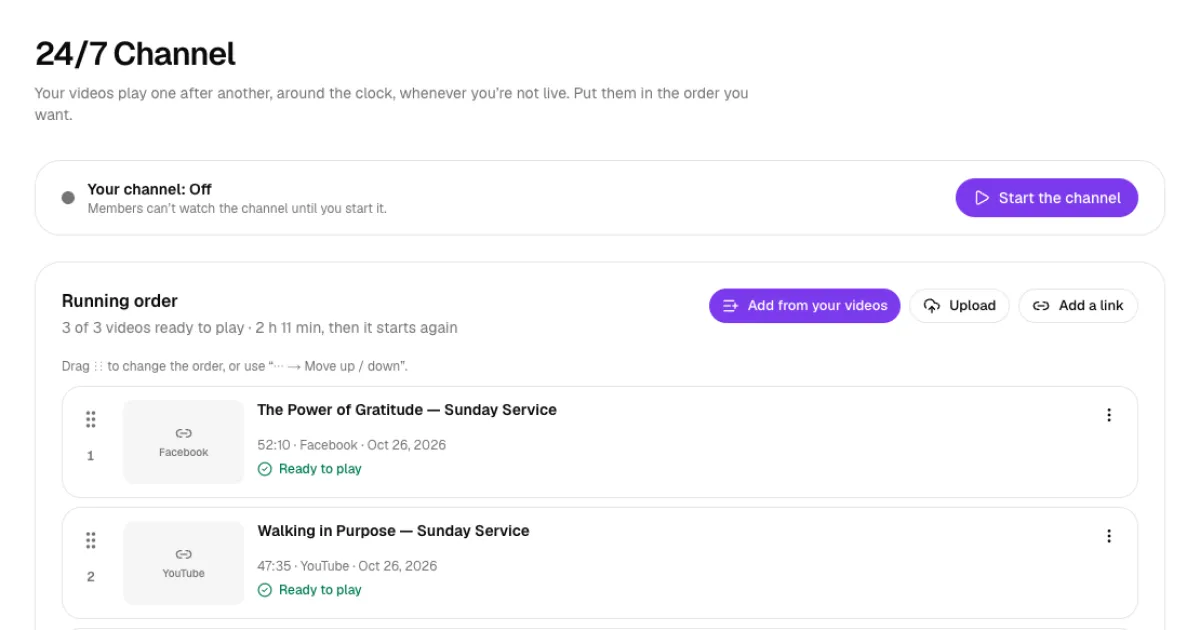
Your church does not have to be live for members to watch. The 24/7 channel plays your sermons and worship videos one after another, around the clock, whenever you are not streaming a live service. This guide shows you how to add videos, put them in order, start the channel and see who is watching.
Before you start
- Who can do this: church admins, and staff whose role includes Online TV permissions (for example a "Media Team" role).
- What you need: video files on your phone or computer (MP4 works best), or links to videos already on YouTube, Facebook or Vimeo.
Step 1: Open Videos
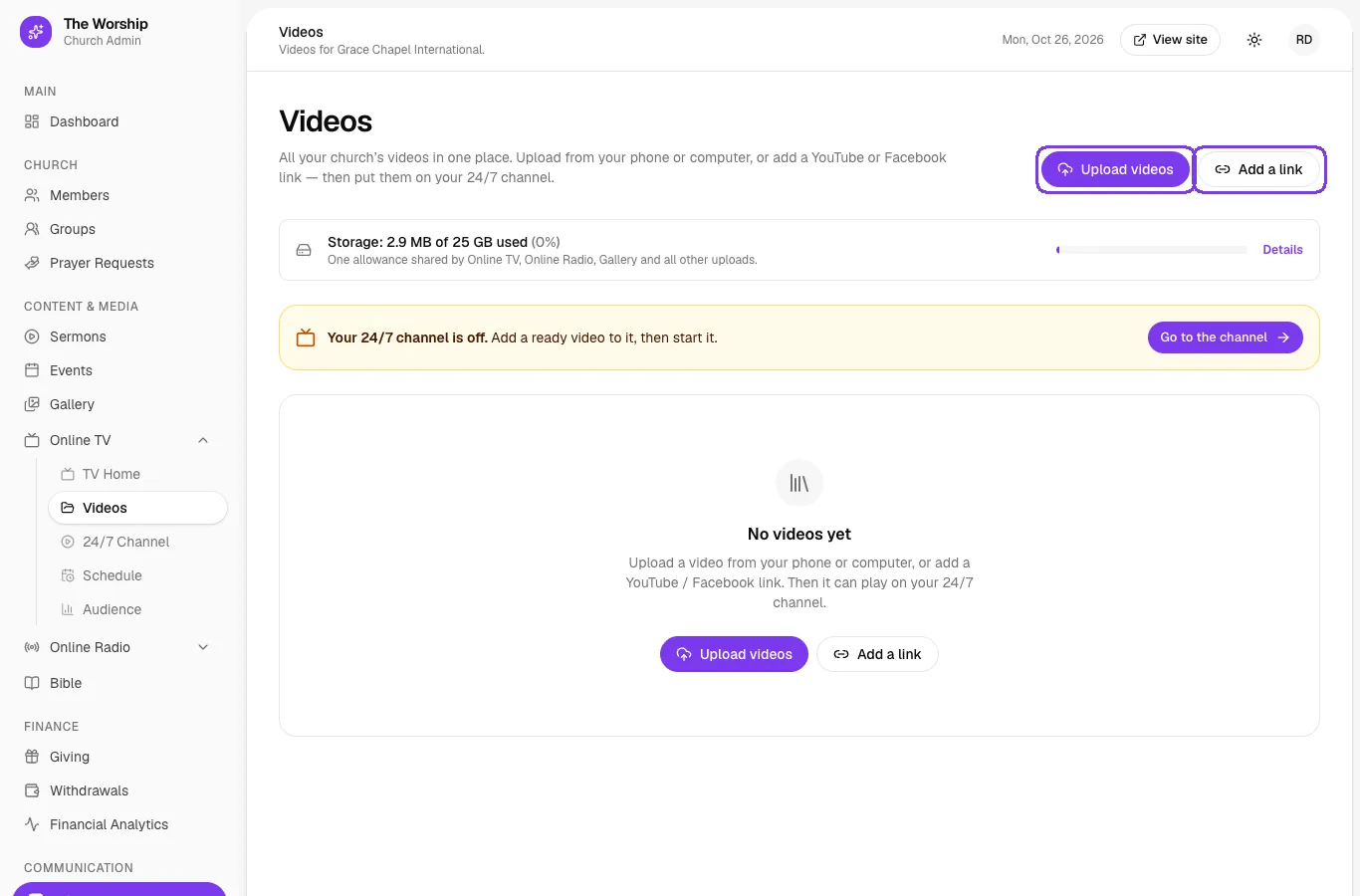
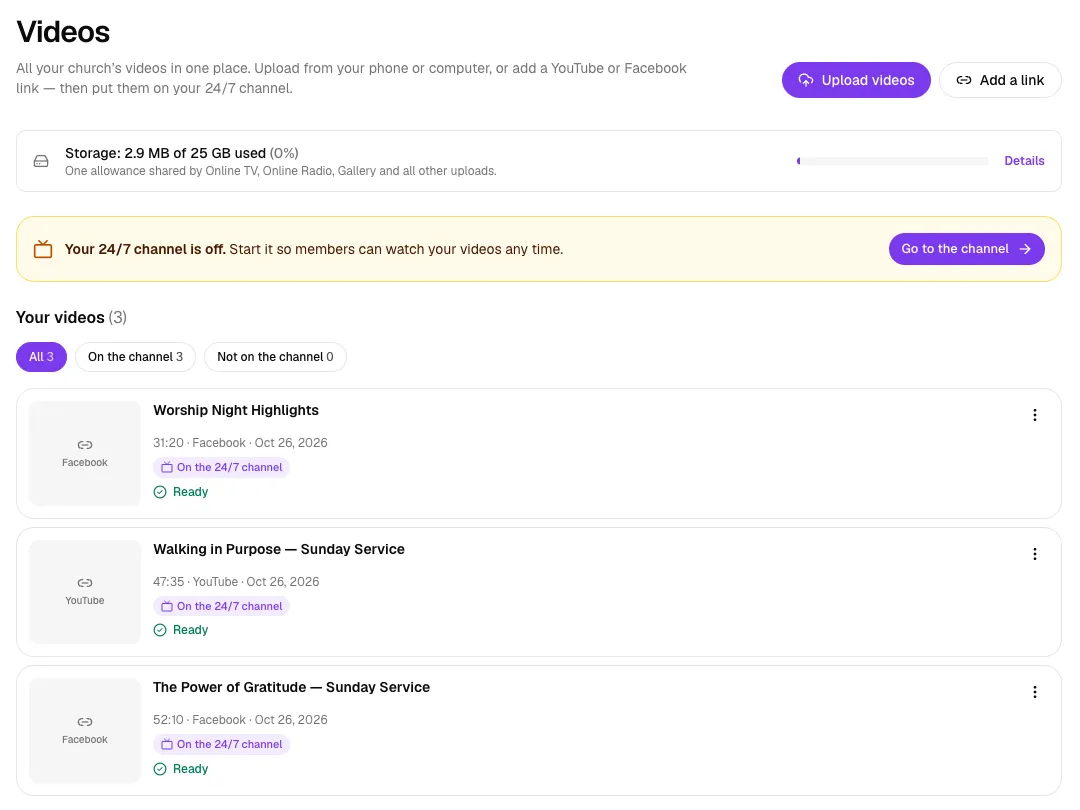
Go to Content & Media → Online TV → Videos. This is your church's video library. There are two ways to add videos:
- Upload videos: upload files from your phone or computer. They are stored by The Worship and use your church's storage.
- Add a link: add a video that is already on YouTube, Facebook or Vimeo. The video stays on that site, so it uses none of your storage.
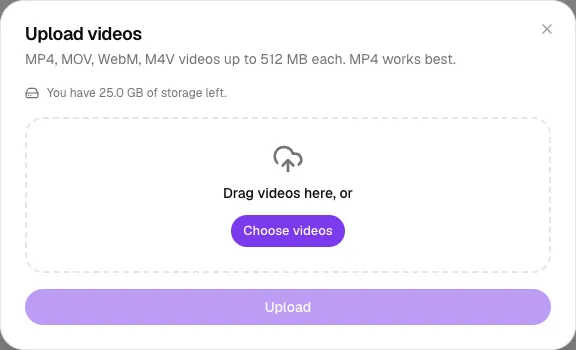
Step 2a: Upload video files
Click Upload videos, then drag your videos into the window or click Choose videos. You can upload MP4, MOV, WebM and M4V files of up to 512 MB each, and the window shows how much storage you have left. Click Upload. After uploading, each video is prepared for playback; it is ready to play when its status says Ready.
Step 2b: Add a video link
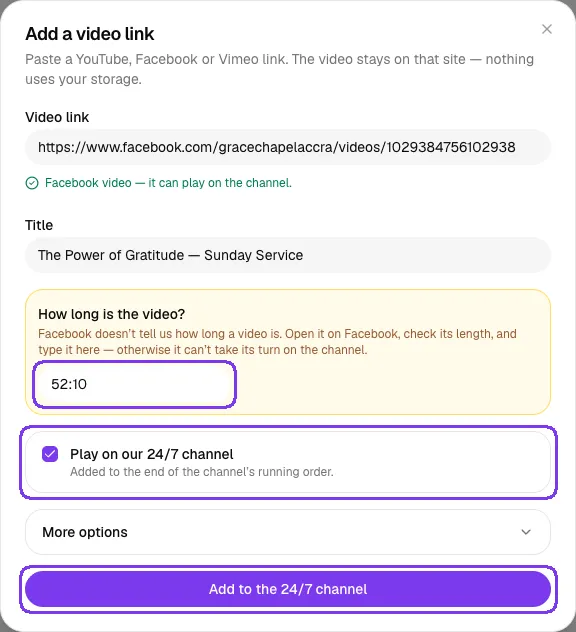
- Click Add a link and paste the video's address into Video link. A green message confirms the video can play on the channel.
- Check the Title. For YouTube, the title and length are usually filled in for you.
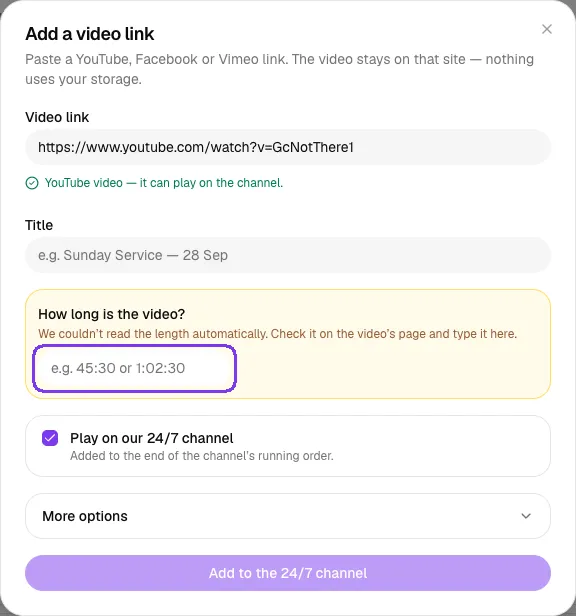
- For Facebook videos, type the length in How long is the video? (for example 52:10). Facebook does not tell us how long a video is, and without a length the video cannot take its turn on the channel.
- Keep Play on our 24/7 channel ticked to add the video to the end of the channel's running order.
- Click Add to the 24/7 channel.
Your library lists every video with its length, where it comes from and whether it is on the channel. Use the All, On the channel and Not on the channel filters to find videos quickly.
Step 3: Put the videos in order
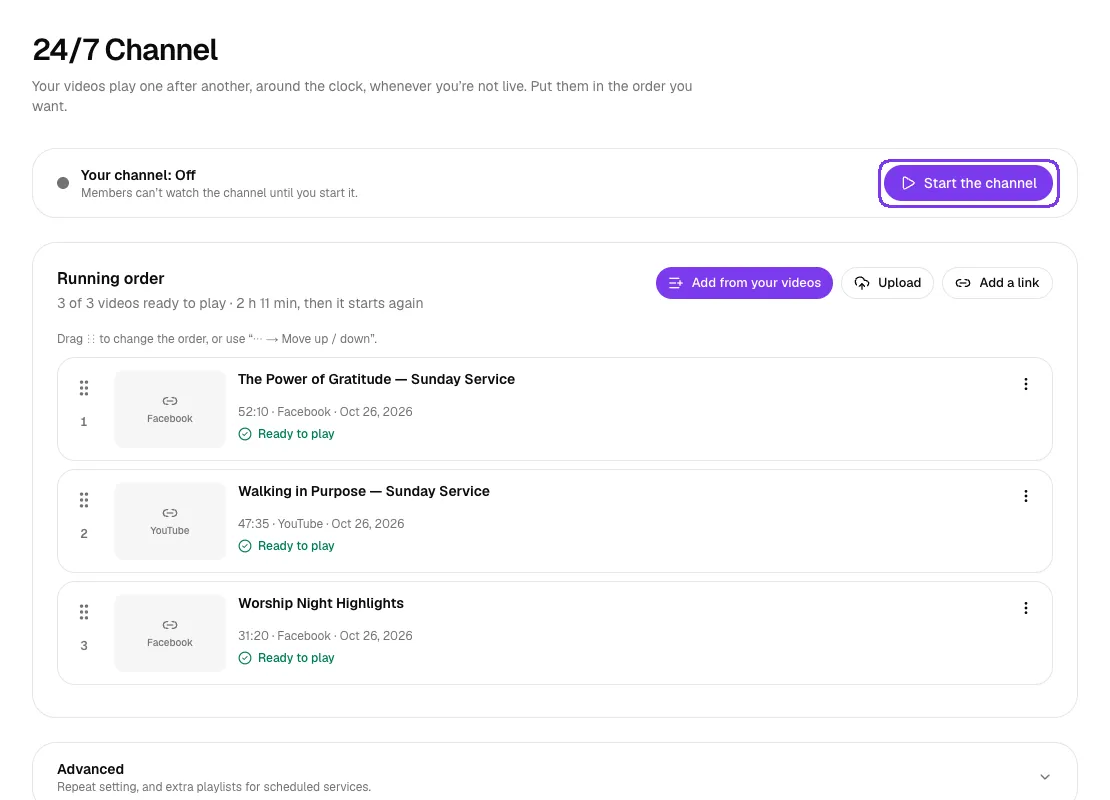
Go to Online TV → 24/7 Channel. Under Running order you see the videos in the order they will play, plus the total length (for example "3 of 3 videos ready to play · 2 h 11 min, then it starts again"). While the channel is off, each video shows Ready to play. Once you start the channel, they show On air · in the rotation and the summary says "playing".
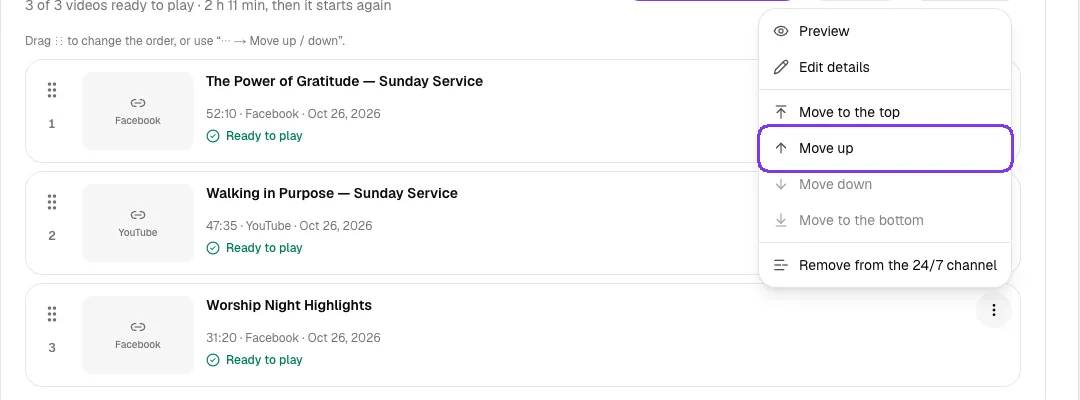
To change the order, drag a video by its handle (⠿). You can also click the ⋮ button on a video and choose Move to the top, Move up, Move down or Move to the bottom. The same menu lets you Preview a video, Edit details or Remove from the 24/7 channel (the video stays in your library).
Want to add more videos? Use Add from your videos to pick from your library, or Upload and Add a link to add new ones straight to the channel.
Step 4: Start the channel
Click Start the channel at the top of the 24/7 Channel page. The status changes to Your channel: On air, and members can watch straight away.
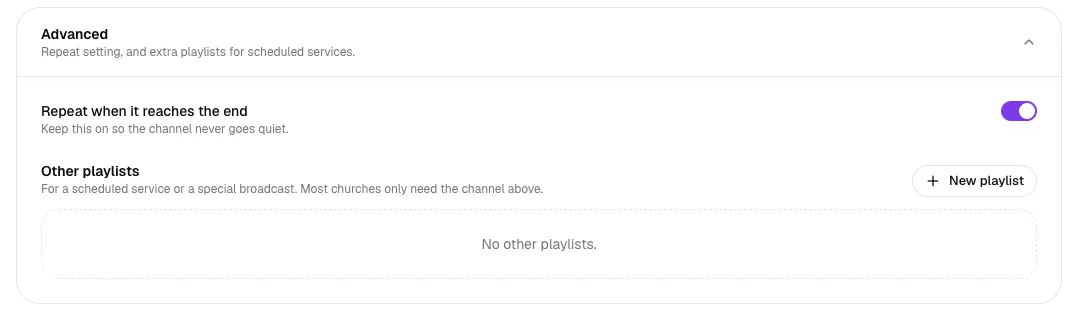
Under Advanced, keep Repeat when it reaches the end turned on so the channel never goes quiet. Here you can also create Other playlists for a scheduled service or a special broadcast; most churches only need the channel itself.
On TV Home, the card now shows ON AIR · 24/7 channel, with Now playing and Up next. When you go live, or when a scheduled service starts, the live service takes over automatically. The channel picks up again when the service ends.
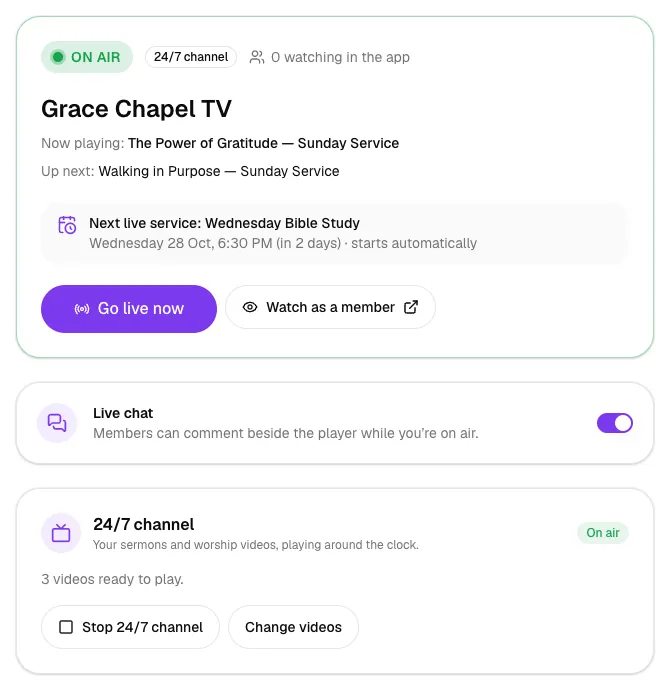
To stop the channel, click Stop 24/7 channel on TV Home, or Stop the channel on the 24/7 Channel page. Your videos and their order are kept, so you can start it again any time.
Step 5: See who is watching
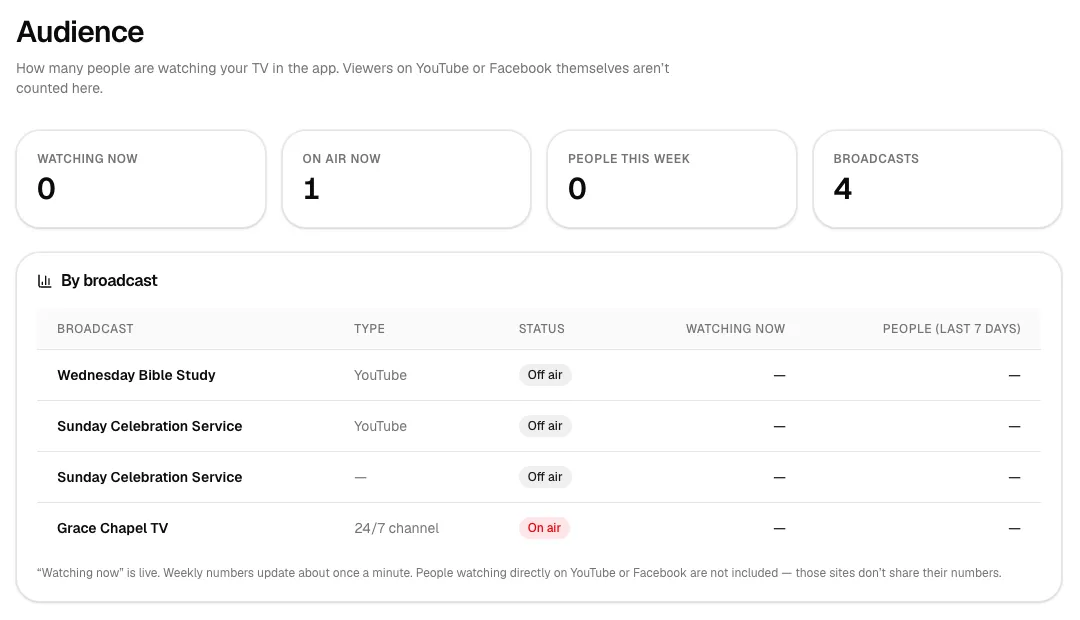
Go to Online TV → Audience to see:
- Watching now: people watching in the app at this moment.
- On air now: how many broadcasts are playing.
- People this week: different people who watched in the last seven days.
- By broadcast: each live service and the 24/7 channel with its status and viewers.
Weekly numbers update about once a minute. People watching directly on YouTube or Facebook are not included, because those sites don't share their numbers.
Tips
- Mix sermons, worship sessions and testimonies so the channel stays interesting.
- Put your newest sermon at the top of the running order each week.
- Upload MP4 files for the smoothest playback. If you are low on storage, add YouTube links instead of uploading.
- Videos must show Ready before they can play on the channel.
Troubleshooting
I can't start the channel
The channel needs at least one ready video. On TV Home, the Start 24/7 channel button stays greyed out until one is ready. Add a video to the running order and wait until it shows Ready, then start the channel.
The length didn't fill in for my video
If YouTube can't share a video's details (for example because it is private or has been removed), the window shows "We couldn't read the length automatically. Check it on the video's page and type it here." Open the video on YouTube, check how long it is and type the length in How long is the video?. Also make sure the video is public, otherwise it won't play for members.
My Facebook video won't add to the channel
Type its length in How long is the video? using minutes:seconds (45:30) or hours:minutes:seconds (1:02:30). Check the length on the video's Facebook page.
Members see "We'll be back soon" instead of the channel
The channel is off. Open Online TV → 24/7 Channel and click Start the channel.



