Your member list is the heart of The Worship. Once a person is on it, they can sign in to your church app, join groups, give online, register for events and receive your SMS and announcements. This guide shows you how to add a member, what happens when they sign in for the first time, and how to keep your list tidy.
Before you start
- You need to be the church admin, or a staff member whose role includes the members permissions (for example a Church Secretary).
- Have the person's full name and phone number. The phone number is how they will sign in, so make sure it is correct. Email is optional.
- Adding many people at once? Use the Excel import instead (see How to import church members from Excel).
Step 1: Open the Members page
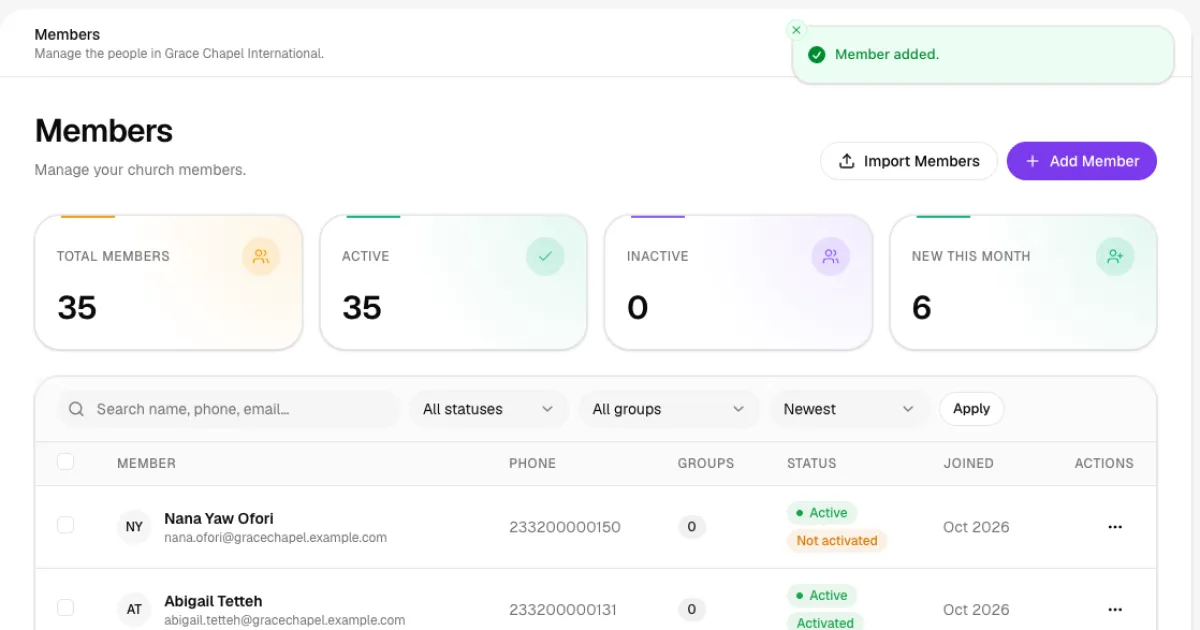
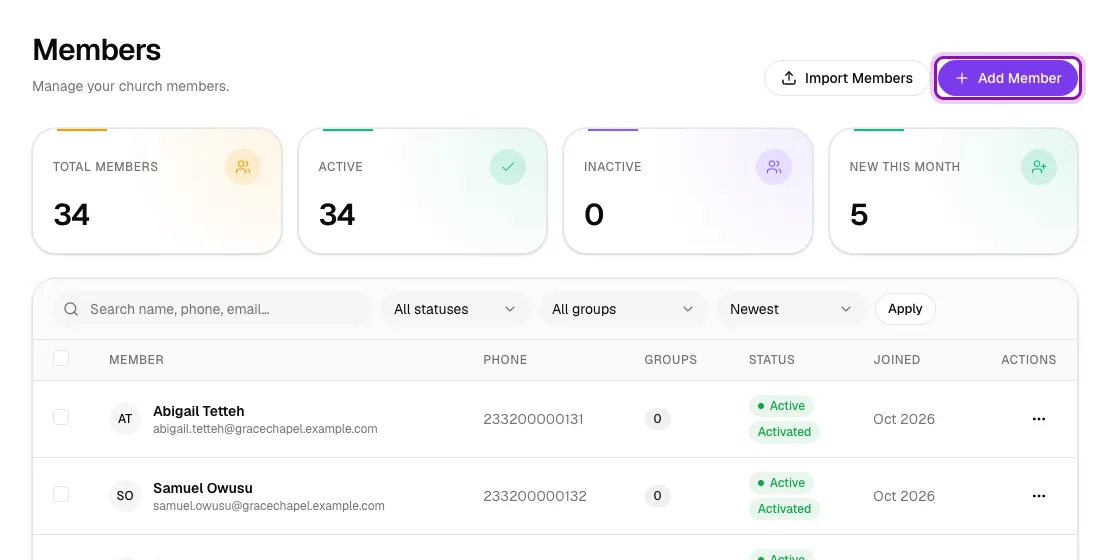
In the left menu, go to Church → Members. At the top you will see your totals (all members, active, inactive and new this month) and the full member list below. Click Add Member in the top-right corner.
Step 2: Fill in the member's details
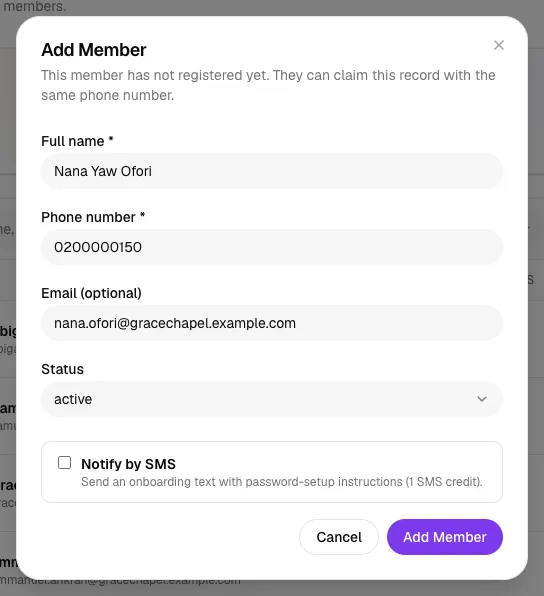
A small form opens. Fill in:
- Full name (required), for example Nana Yaw Ofori.
- Phone number (required). Local Ghana formats such as 024 123 4567 or +233 24 123 4567 are both fine.
- Email (optional).
- Status. Leave it on active for a normal member.
Tick Notify by SMS if you want The Worship to text the person with instructions for setting their password. This uses 1 SMS credit. Then click Add Member.
Step 3: Check the new member in your list
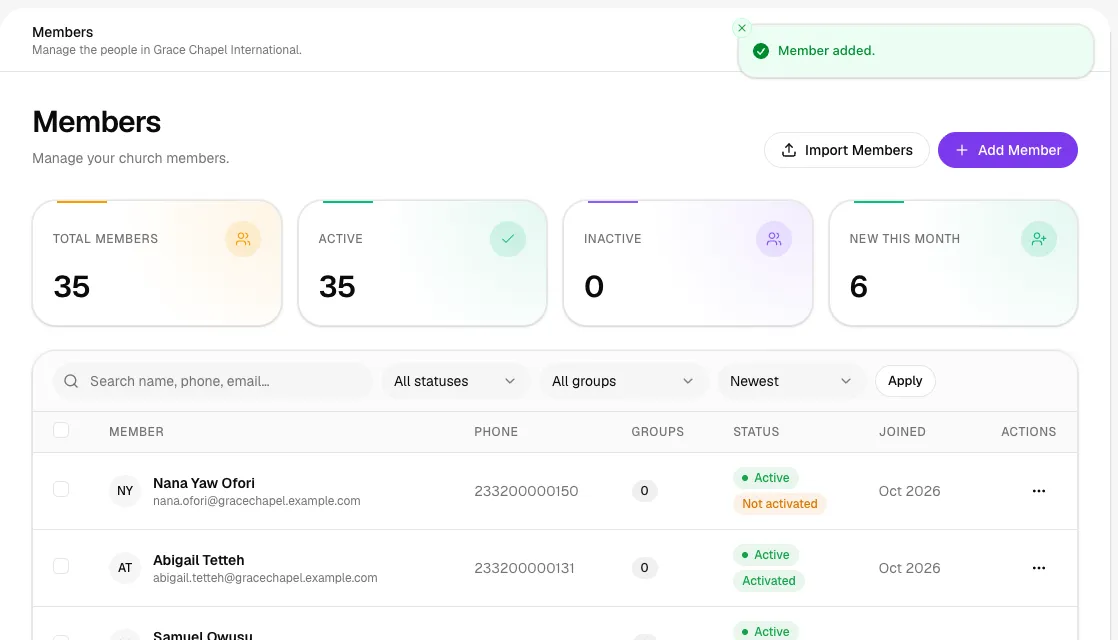
You will see a green Member added message, and the person appears at the top of the list. Their badge says Not activated until they sign in and set a password for the first time.
Step 4: How the member signs in for the first time
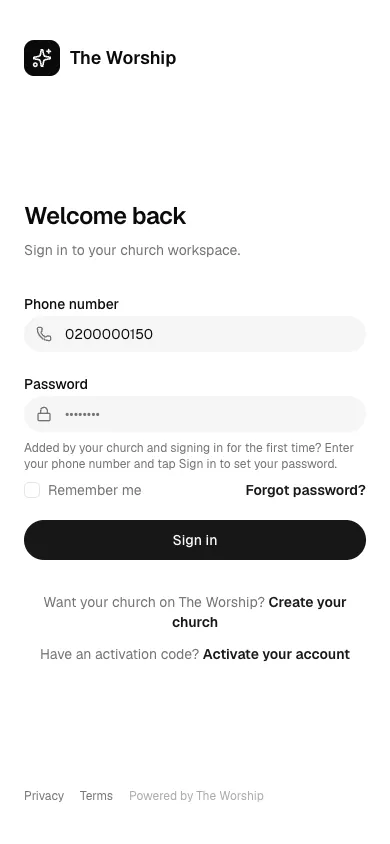
Tell the member to open your church app or website and choose Sign in. They type the phone number you added and tap Sign in. They do not need a password yet.
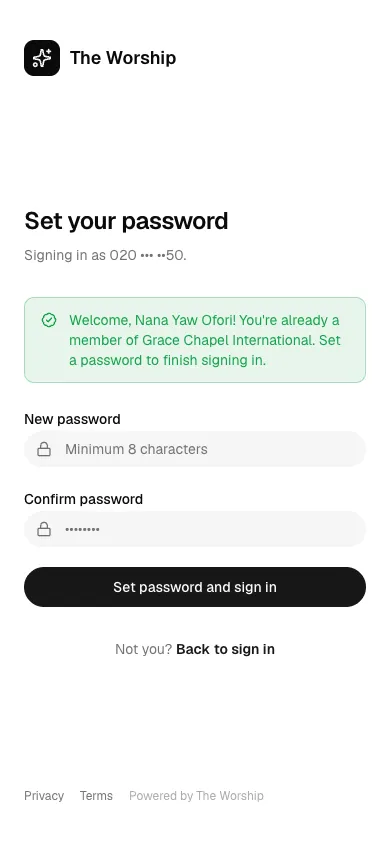
The Worship recognises them and welcomes them by name. They choose a password (at least 8 characters), confirm it and tap Set password and sign in. From then on, they sign in with their phone number and that password, and their badge changes to Activated.
Alternative: give the member an activation code
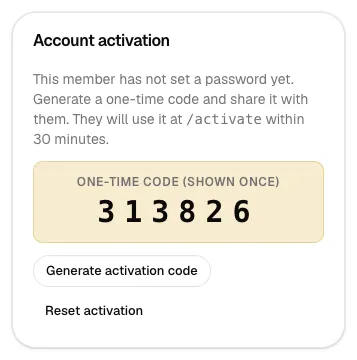
If a member is struggling to sign in, open their profile and use the Account activation card. Click Generate activation code and share the 6-digit code with them. They tap Activate your account on the sign-in page and enter the code within 30 minutes. The code is shown only once, so write it down before you leave the page.
Step 5: View and edit a member's profile
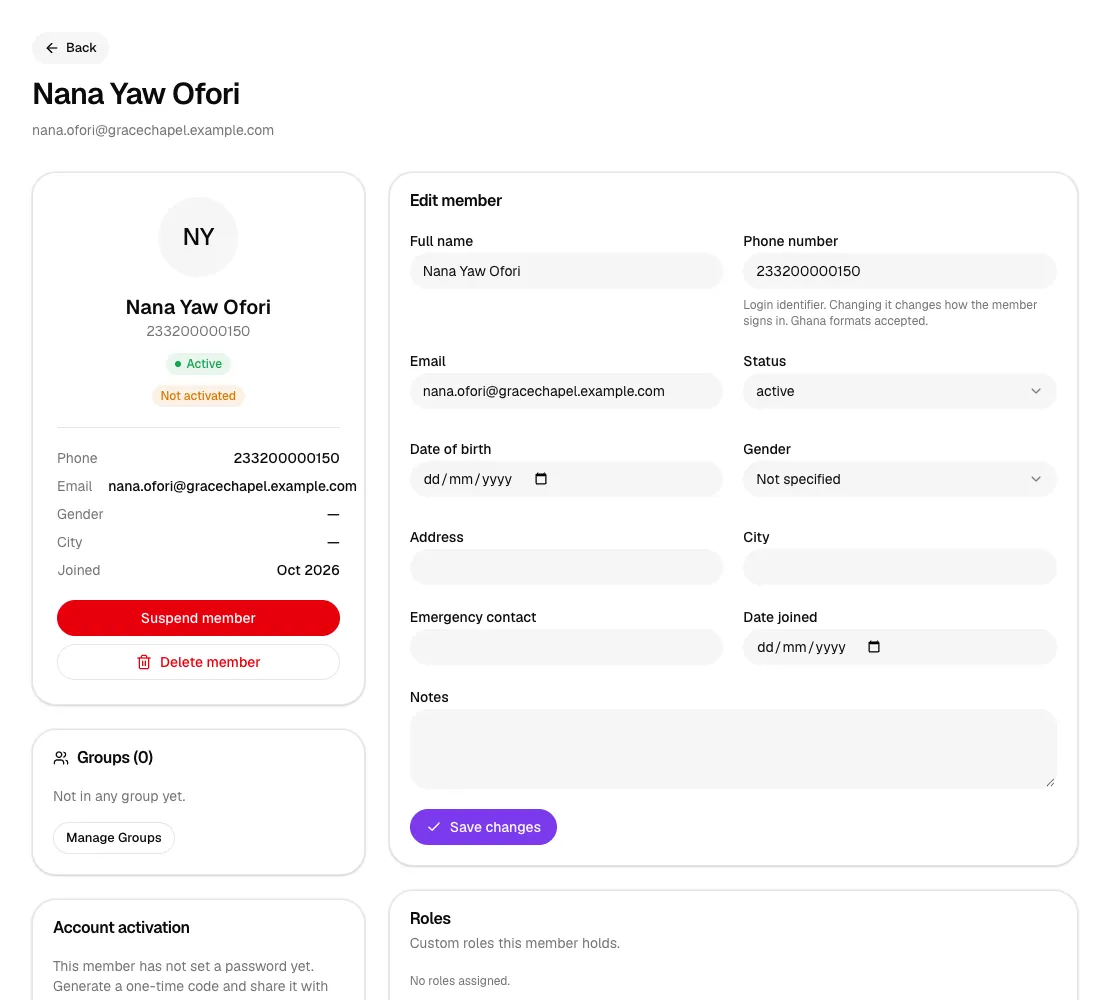
Click a member's row menu (…) and choose View. The profile page lets you:
- Update their details under Edit member: date of birth, gender, address, city, emergency contact, date joined and private notes. Click Save changes when done.
- Put them in groups with Manage Groups.
- Give them a staff role under Roles (see How to give staff access with roles and permissions).
- Use Suspend member to block their access immediately, or Delete member to remove them.
Step 6: Find members quickly
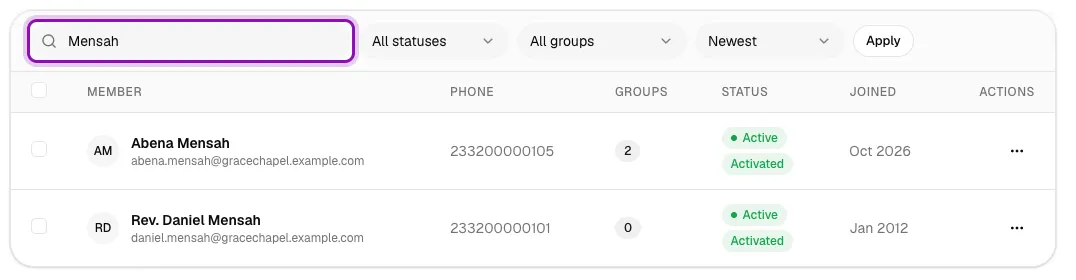
Use the search box above the list to search by name, phone number or email. You can also filter by status (for example active, inactive, transferred or deceased) and by group, and sort by newest, oldest or name. Click Apply to update the list.
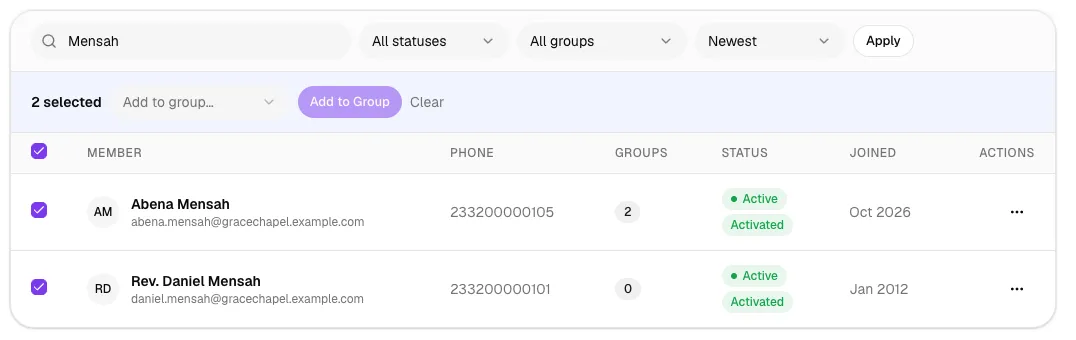
To put several people in a group at once, tick the boxes beside their names. Choose a group from Add to group… and click Add to Group.
Understanding member statuses
- Active: a normal member who can sign in and use everything.
- Inactive or pending: kept on your list but not currently taking part.
- Transferred or deceased: keeps the record for your history. Set these from the profile's Edit member form.
- Banned: Suspend member sets this. The person is signed out straight away and cannot sign in. Click Reactivate member to restore them.
Tips
- Double-check phone numbers. A wrong number means the real member cannot claim their record.
- Use the private Notes field for pastoral information only your team should see.
- Prefer changing a status over deleting, so you keep the person's giving and attendance history.
Troubleshooting
The member says "my phone number is not recognised".
Search for them by name and check the phone number on their profile. Fix it under Edit member and ask them to try again. The phone number is their sign-in identifier.
Someone already used my member's phone number to register.
Each phone number can belong to only one person. Search for the number to find the existing record and update that one instead of adding a new member.
"This email is already used by another account."
Another person on The Worship already uses that email address, and each email can belong to only one account. Check you typed it correctly, ask the member for a different email, or leave the email empty. The phone number is all they need to sign in.
The new member still shows "Not activated".
That is normal until they sign in for the first time. If they cannot, generate an activation code from their profile and share it with them.



