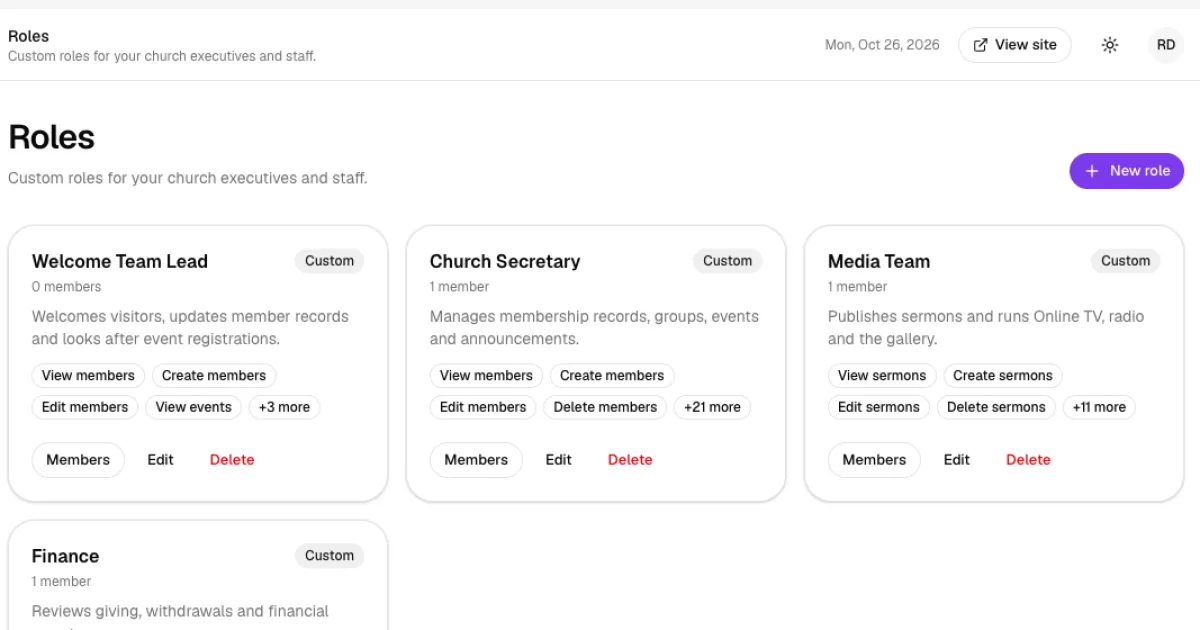
You don't have to run everything yourself. With roles you can give your church secretary, media team or finance team access to only the parts of The Worship they need, and nothing else. This guide shows you how to create a role, choose its permissions and give it to a member.
Before you start
- You need to be the church admin, or a staff member allowed to manage roles.
- The person must already be a member of your church (see How to add church members).
- The church admin always has full access. Roles are for everyone else on your team.
Step 1: Open Roles
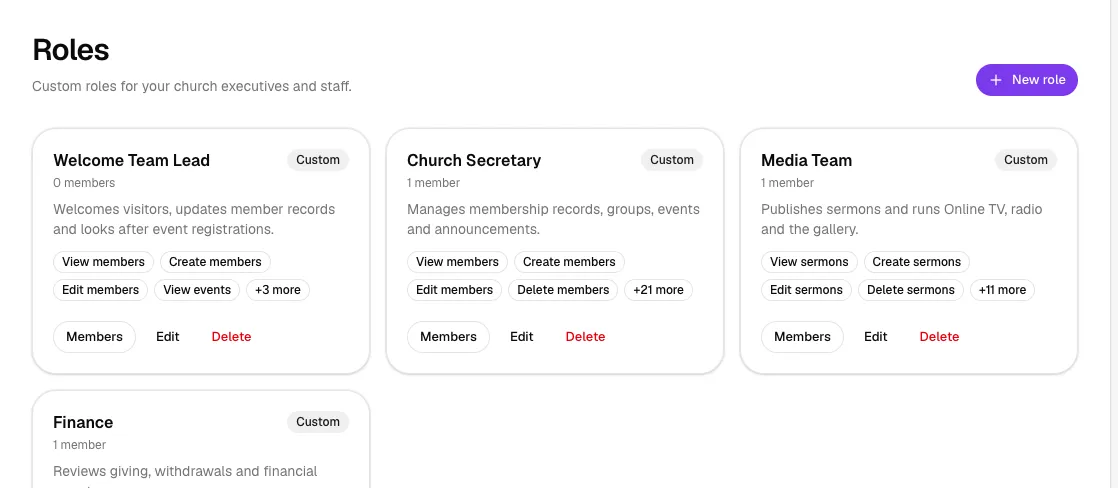
In the left menu, go to Administration → Roles. Each card shows a role, how many members hold it, its description and a summary of its permissions. Click New role to create one.
Step 2: Name and describe the role
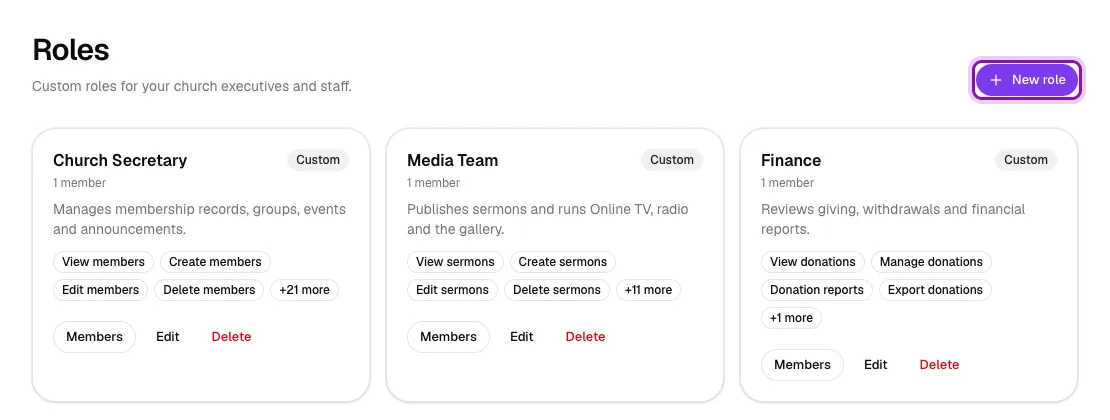
Under Role details, type a clear Role name, for example "Welcome Team Lead". Optionally add a short Description of what the role is responsible for.
Step 3: Choose the permissions
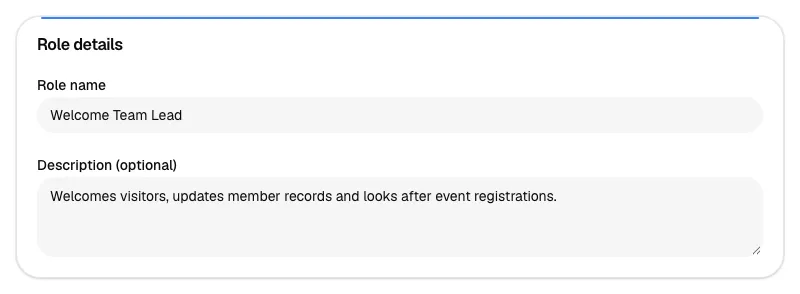
The Permissions section lists everything a role can do, grouped by area: Announcements, Chat, Donations, Events, Gallery, Groups, Livestream, Members, Notifications, Prayers, Radio, Roles, Sermons, Settings, SMS, Subscription, WhatsApp and Withdrawals. Tick each ability this role needs. Ticked boxes turn purple.
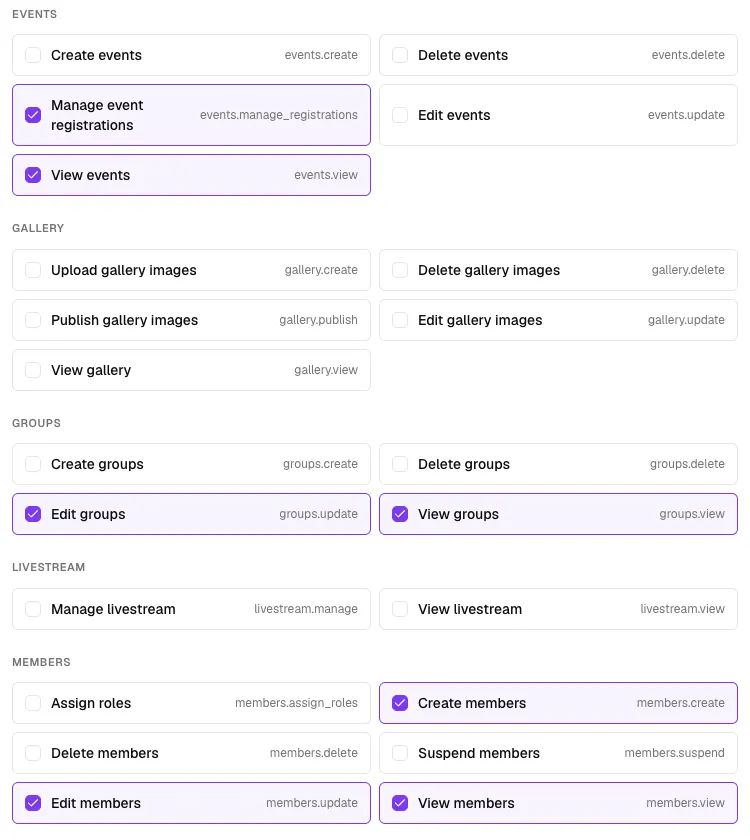
Some useful rules of thumb:
- Always include the View permission for an area. Staff need it to see that area in their menu.
- Give Delete and Suspend permissions only to people you fully trust.
- Money-related permissions (Donations and Withdrawals) are best kept for your finance team.
Click Create role at the bottom of the page.
Step 4: Check the new role
You return to the Roles page and see your new role with 0 members. Use Edit to change its permissions later, or Delete to remove it.
Step 5: Give the role to a member
The easiest way is from the member's profile:
- Go to Church → Members, find the person and click View.
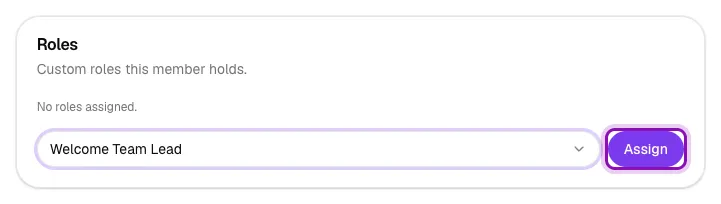
- Scroll to the Roles card. Open Assign a role… and pick the role.
- Click Assign.
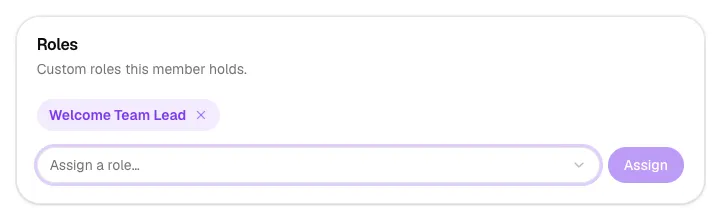
The role appears as a purple tag on their profile. Click the small × on the tag to take the role away again.
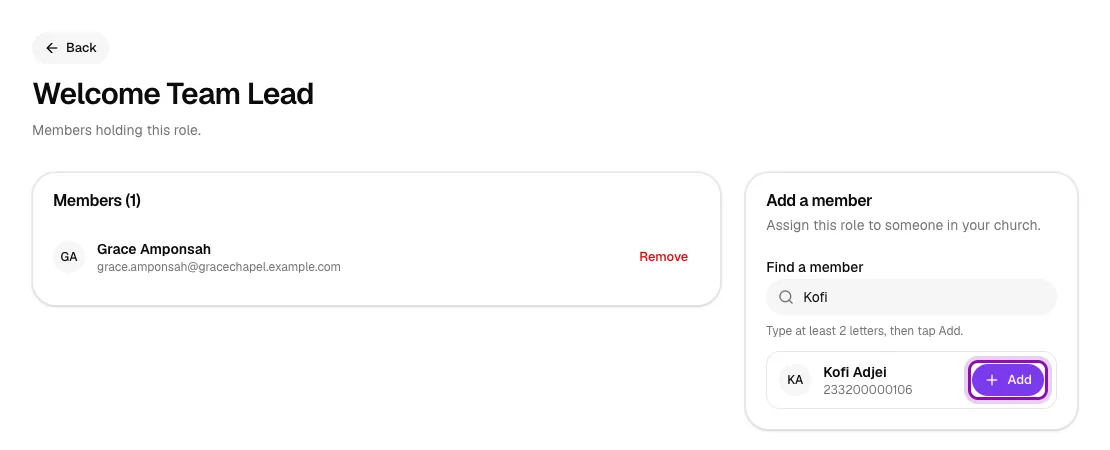
You can also work from the role itself. Click Members on a role card to see everyone who holds that role and remove people from it. To add someone, type at least two letters of their name, phone number or email in Find a member, then click Add next to the right person. People who already hold the role don't appear in the results.
What your staff member sees
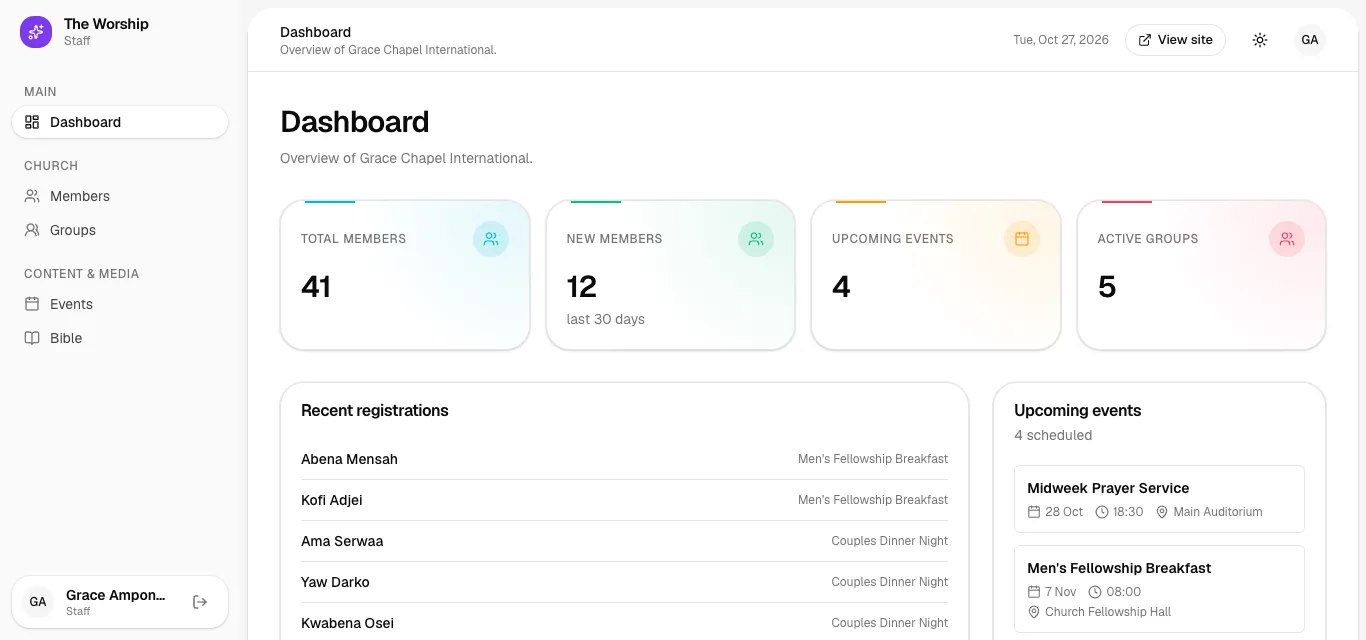
Next time the staff member signs in, they can open the church admin area. Their menu shows only the areas their role allows. In this example, that is Dashboard, Members, Groups, Events and Bible. Under the logo and next to their name they see Staff, not Church Admin. Their dashboard also shows only the figures they are allowed to see. For example, there are no giving totals for a Welcome Team Lead.
Tips
- Create roles around jobs (Church Secretary, Media Team, Finance), not around people. Then you can reuse them when volunteers change.
- A person can hold more than one role. Their access is everything their roles allow combined.
- When someone leaves a ministry, remove their role straight away. Their member account stays as it is.
- Staff can never reach platform-wide settings. Only church-level abilities can be granted.
Troubleshooting
My staff member can't see an area I gave them.
Check that the role includes the View permission for that area (for example "View events"). Then ask them to refresh the page or sign in again.
Can a staff member give themselves more access?
No. Staff who are allowed to assign roles can only hand out abilities they already hold. They can never act on the church admin.
I can't find someone in "Find a member".
The search only shows members of your church who don't hold the role yet. Check the spelling, or try their phone number instead. If they already hold the role, they are listed under Members on the left.
What's next
Filed underGetting StartedGuides



