Already have your members in an Excel sheet or a register? You don't need to type them in one by one. The Worship's import wizard reads your Excel or CSV file, checks every row and adds the valid members to your church in one go. This guide walks you through it.
Before you start
- You need to be the church admin or a staff member with the members permissions.
- Your file must be Excel (.xlsx) or CSV, no larger than 10 MB, with at most 5,000 rows.
- Every member needs a name and a phone number. Everything else is optional.
Step 1: Open the import page
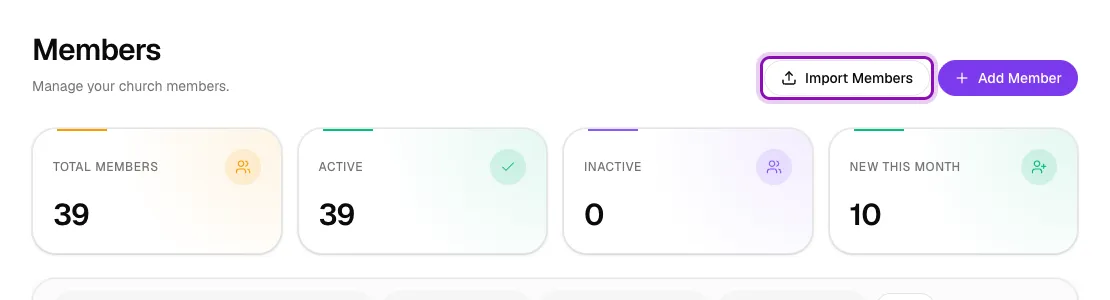
Go to Church → Members and click Import Members at the top of the page.
Step 2: Download the template (recommended)
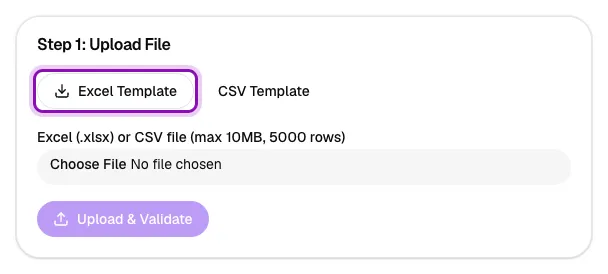
Under Step 1: Upload File, click Excel Template (or CSV Template). The template already has the right column headings: Full Name, Phone Number, Email, Gender, Date of Birth, Address and Emergency Contact. The Excel version also has an Instructions sheet.
When filling the sheet:
- Put one member per row and keep the headings as they are.
- Phone numbers can be written as 0241234567, +233241234567 or 233241234567. The Worship converts them automatically.
- Gender must be male, female or other.
- Write dates as YYYY-MM-DD, for example 1990-05-14.
You can also upload your own existing spreadsheet. The Worship recognises common headings such as "Member Name", "Mobile", "Telephone", "Birthday" or "Next of kin".
Step 3: Upload your file
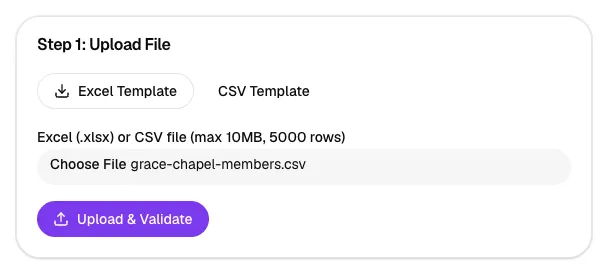
Click Choose File, pick your spreadsheet, then click Upload & Validate. Nothing is added to your church yet. The Worship only reads and checks the file at this stage.
Step 4: Match your columns
Under Step 2: Map Columns, you see each heading from your file with the field it will fill. The Worship guesses the matches for you. Check each one and change any that are wrong using the drop-down. Columns you don't need, such as "Ministry" in the example below, can be set to Ignore column.
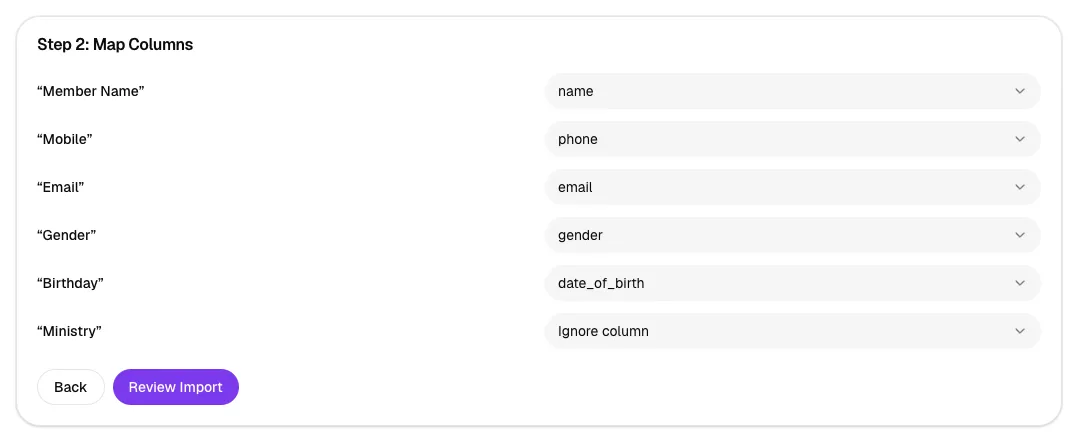
Click Review Import when the matches look right.
Step 5: Review the results
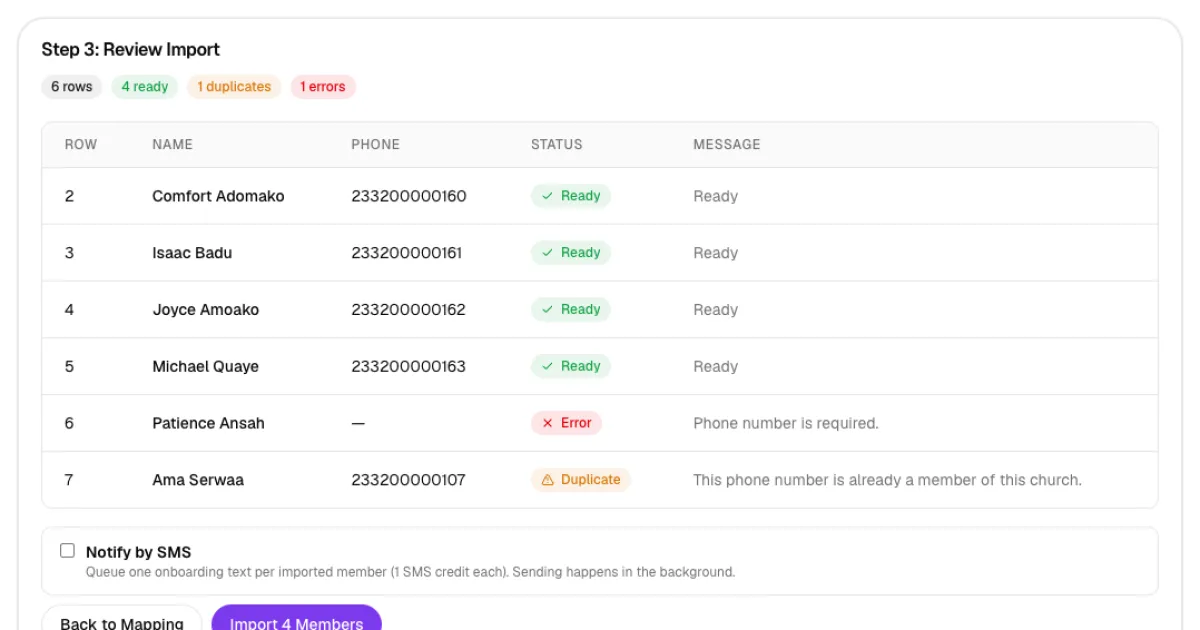
Step 3: Review Import shows every row with a status:
- Ready: the row will be imported.
- Duplicate: the phone number is already a member of your church, or appears twice in the file. It will be skipped.
- Error: something needs fixing, for example "Phone number is required." It will be skipped.
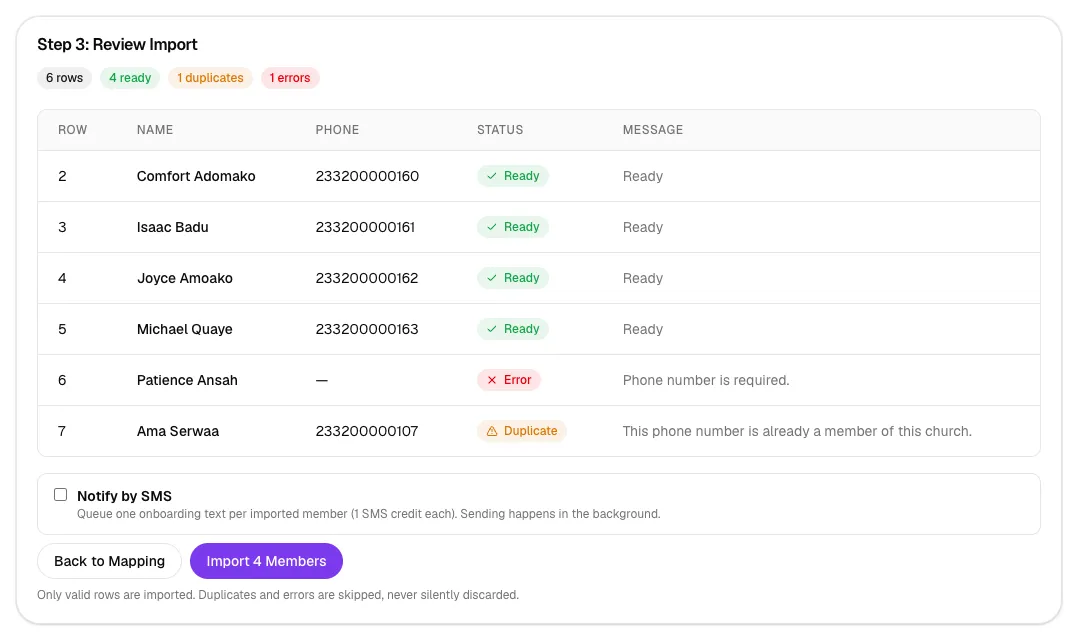
If you want each new member to get a text with password-setup instructions, tick Notify by SMS. Each message uses 1 SMS credit and the texts go out in the background. Then click Import … Members. The button shows how many rows are ready.
Step 6: Finish and check
Step 4: Import Complete tells you how many members were imported and how many rows were skipped. Click View Members to see them in your list.
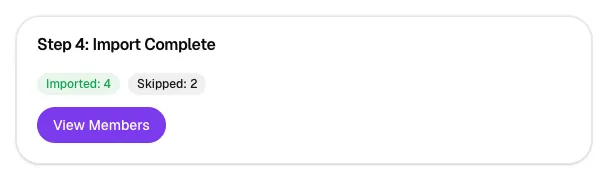
Imported members show as Not activated until they sign in for the first time with their phone number and set a password. This works exactly like members you add by hand.

Tips
- Fix skipped rows in your spreadsheet and upload the file again. Rows that were already imported now show as duplicates and are skipped automatically, so nobody is added twice.
- Import a small test file of 5 to 10 rows first to check your column matches.
- Don't add columns for passwords, roles or church. They are ignored. Everyone joins your church as an ordinary member, and you can give staff roles afterwards.
- If a phone number already has a The Worship account with another church, that person isn't copied. They are invited and join your church after confirming their number.
Troubleshooting
"Invalid phone number."
Check the number has the right number of digits for Ghana and no letters or extra symbols. Numbers stored by Excel as scientific notation (for example 2.33E+11) should be formatted as text.
"Invalid date of birth (use YYYY-MM-DD)."
Change the date column format to text and type dates like 1990-05-14.
"Status must be: active, pending."
New members can only be imported as active or pending. Set other statuses, such as transferred, from each member's profile after the import.
"This phone number is already a member of this church."
That person is already on your list, so the row is safely skipped.
"This email is already used by another account." or "Duplicate email in this file."
Each email can belong to only one person. The first message means someone else on The Worship already uses that email; the second means the same email appears on an earlier row of your file (the row number is shown). Correct the email or clear it for that row, then import again. The other rows are not affected.
What's next
Filed underGuidesMembers & Groups



