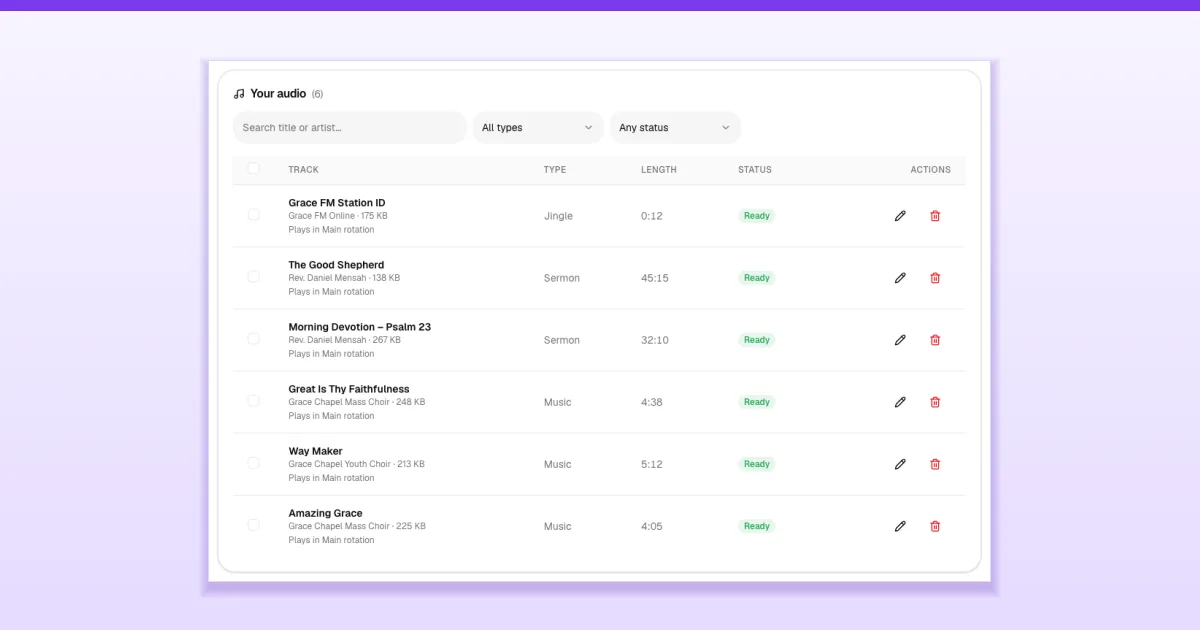
When your church uses The Worship Radio, the station plays your own music and sermons automatically, shuffled, day and night. You manage all of that audio on one page, Music & Sermons: upload songs and sermons, give them clear names, and group them into playlists for different times of the week.
Before you start
- Who can do this: the church admin, or a staff member whose role includes Upload radio media (and Manage radio playlists for playlists).
- Your station must be on The Worship Radio. If your radio plays a link from another provider, the page shows a note: your uploads won't play until you choose The Worship Radio → Our uploaded music & sermons on the Online Radio page. See How to set up Online Radio on The Worship.
- Your files: MP3, M4A, WAV, OGG, AAC or FLAC, up to 100 MB each. You can pick many files at once.
- Storage: uploads use your church's storage allowance, which is shared with Online TV, the gallery and other uploads. The bar on the page shows how much you've used.
Step 1: Open Music & Sermons
In the church admin menu, open Online Radio → Music & Sermons. At the top is the upload area, and below it, Your audio lists everything you've uploaded.
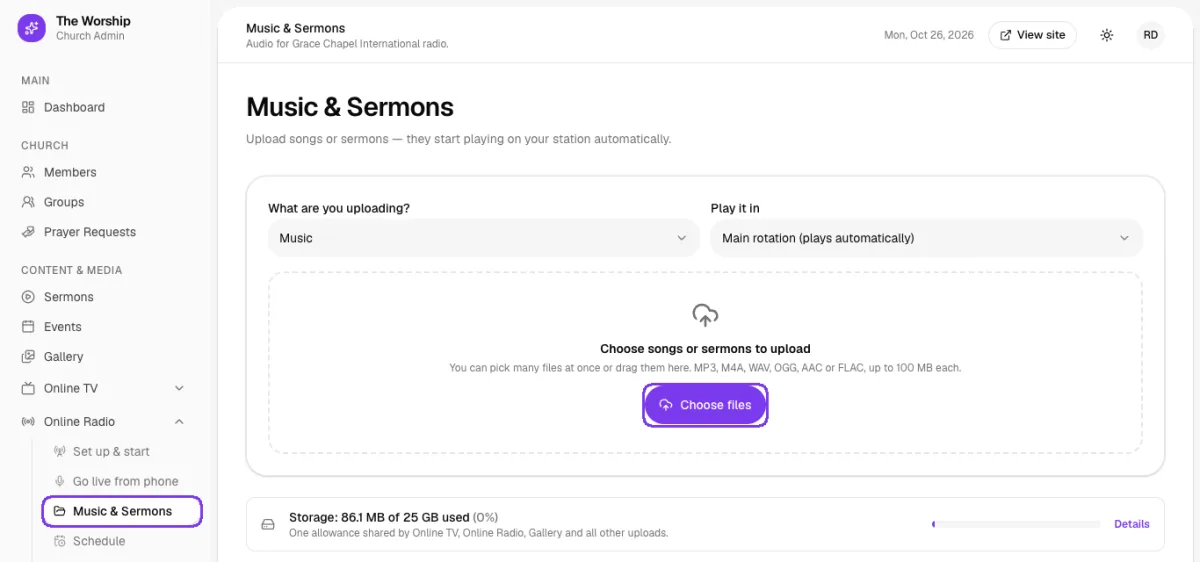
Step 2: Choose what you're uploading
Before picking files, set the two boxes above the upload area:
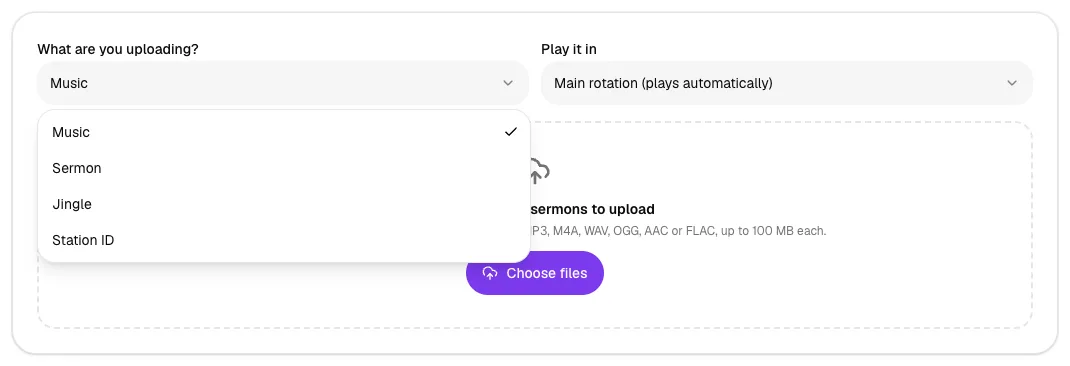
- What are you uploading? — Music, Sermon, Jingle or Station ID. This helps you find and filter tracks later.
- Play it in — Main rotation (plays automatically) adds the files to the station straight away. Choose Don't add to a playlist yet if you want to prepare files before they play, or pick one of your own playlists.
Step 3: Upload your files
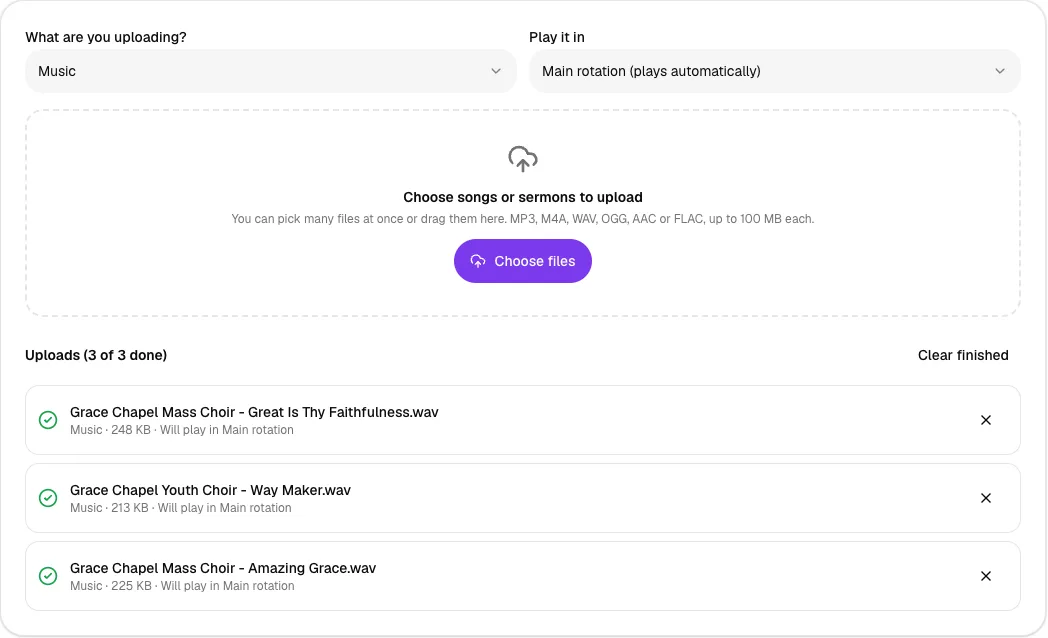
Tap Choose files, or drag files onto the dashed area. Each file shows its progress, and a green tick with "Will play in Main rotation" when it's done. Tap Clear finished to tidy the list.
Step 4: Name your tracks clearly
Each file starts with its file name as the title. To tidy it up, tap the pencil next to a track. In Edit track you can set the Title, the Artist or preacher and the Type — for example, mark a recorded message as a Sermon. Turn off Play on Auto DJ to keep a track in your library without playing it. Under More you'll find the album, genre and year, plus How often it plays (More often, Normal, Less often or Rarely).
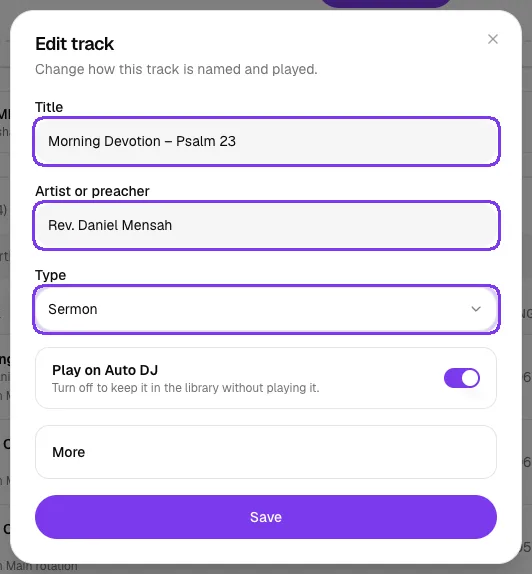
Tap Save. The list now shows each track's type, length and status.
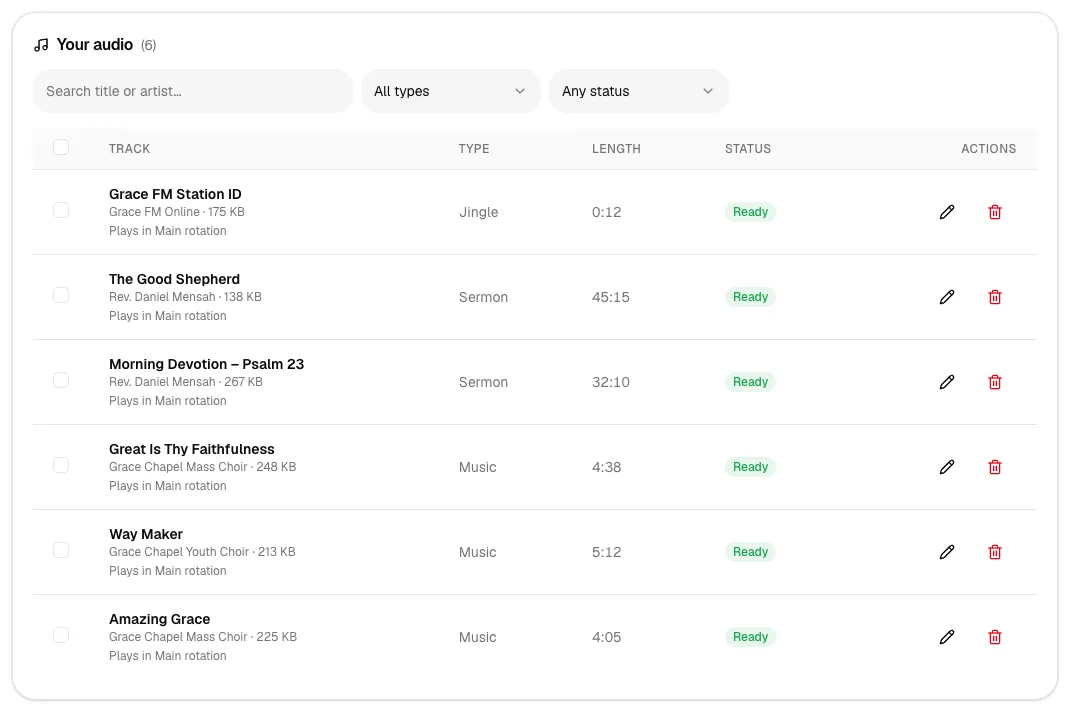
Step 5: Create a playlist (optional)
Everything you upload goes into Main rotation, which is all most churches need. To play a special selection at certain times — such as praise songs on Sunday morning — create a playlist. Open Advanced: playlists at the bottom of the page and tap New playlist.
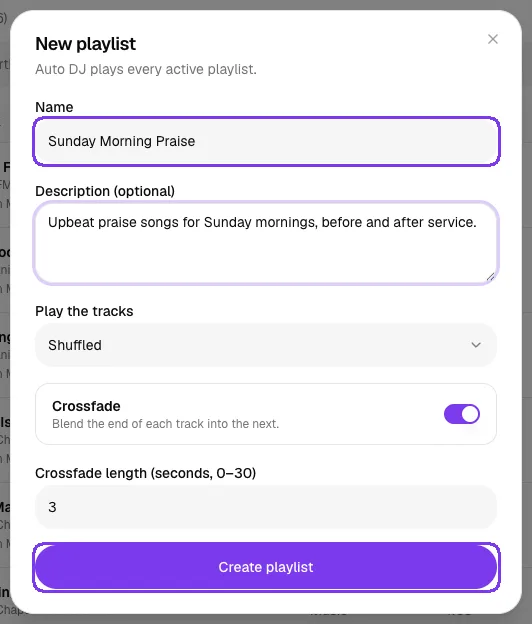
Choose whether to play the tracks Shuffled or In the order I set, and whether to Crossfade (blend the end of each track into the next, 0–30 seconds). Tap Create playlist.
Step 6: Add tracks to the playlist
In Your audio, tick the tracks you want. A bar appears showing how many are selected. Choose your playlist in the box and tap Add to playlist.
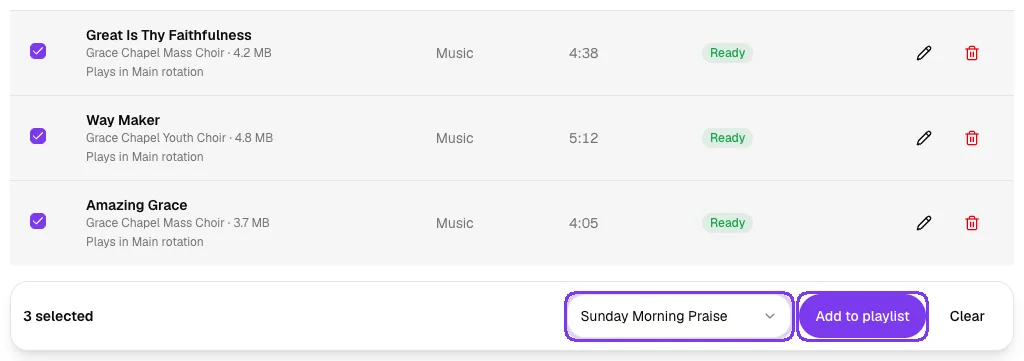
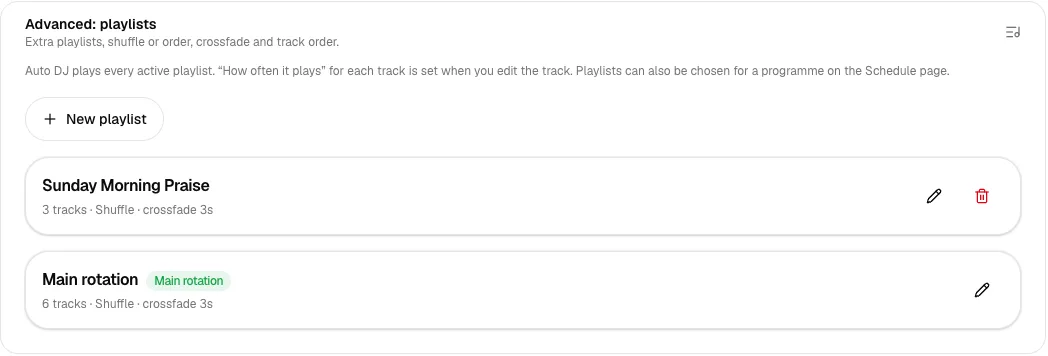
Your playlists appear under Advanced: playlists with their track count. Tap the pencil to rename a playlist, change the order or crossfade, or pause it with the Playing switch without deleting it.
Step 7: Choose what the station plays
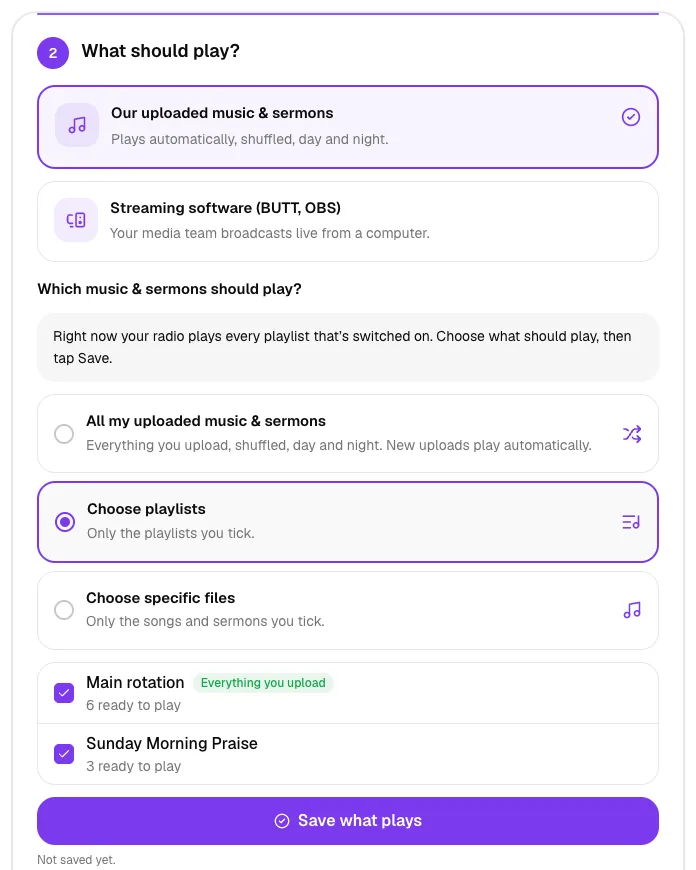
Back on Online Radio → Set up & start, under Which music & sermons should play?, choose All my uploaded music & sermons, Choose playlists or Choose specific files. Then tap Save what plays.
To play different playlists at different times of the week, use the Schedule — see How to schedule radio programmes.
Tips
- Record a short station ID ("You're listening to Grace FM Online") and upload it as a Station ID. It sounds professional between songs.
- Upload Sunday's sermon on Monday morning so members who missed church can hear it during the week.
- Use Less often or Rarely for long sermons so the station stays mostly musical.
- Only upload music your church has the right to broadcast.
Troubleshooting and FAQ
An upload failed with "This isn't an audio file we can play".
The file isn't one of the supported audio formats: MP3, M4A, WAV, OGG, AAC or FLAC. Recordings from phone voice recorders (M4A) and studio files (WAV) upload as they are. If the file is a video or another format, save or export the audio as MP3 and upload it again.
I uploaded songs but the station doesn't play them.
Check that your station uses The Worship Radio → Our uploaded music & sermons, that the track's Play on Auto DJ switch is on, and that the radio is started on the Online Radio page.
Can I remove a track without deleting it?
Yes. Edit the track and turn off Play on Auto DJ. It stays in your library for later.



