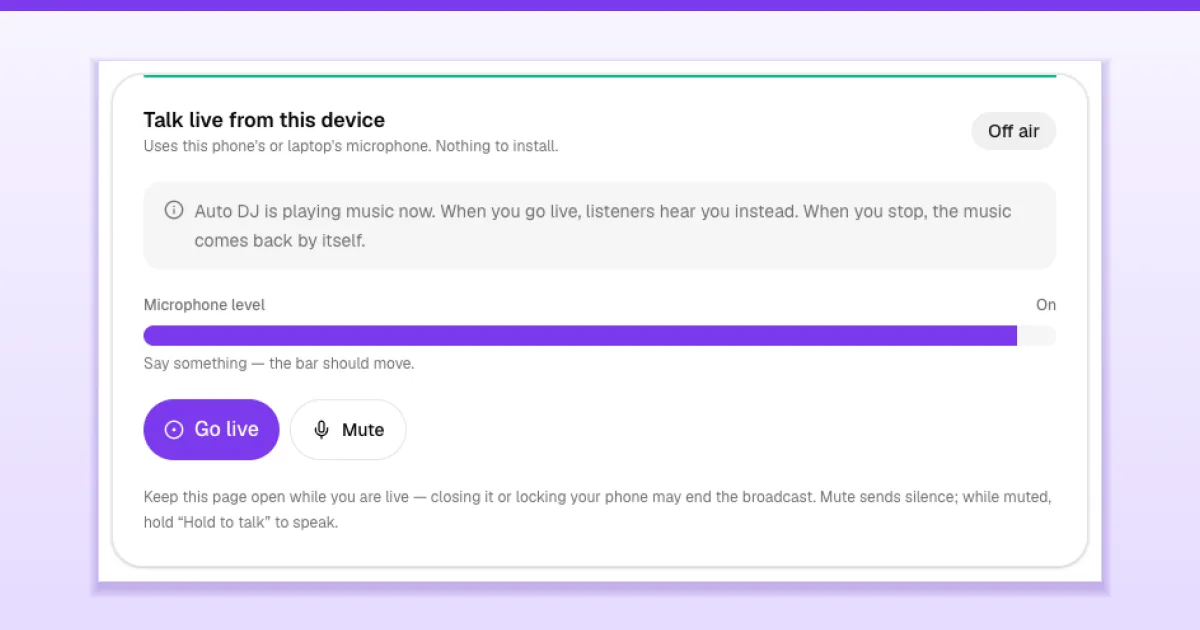
With The Worship Radio, your pastor or presenter can talk to listeners live using nothing more than a phone or laptop. There's nothing to install: open the Go live page, turn on the microphone and tap Go live. While you're live, listeners hear you instead of the music. When you stop, the music comes back by itself.
This guide shows you what you need, how to go live, and how to fix the most common problems.
Before you start
- Your station must be on The Worship Radio and playing your uploaded music and sermons. If your radio plays a link from another provider, you go live through that provider instead (see the FAQ below). To set up your station, follow How to set up Online Radio on The Worship.
- Going live from a phone or laptop must be switched on for your church. If the page says "Going live from a phone or laptop isn't switched on yet", ask The Worship support team to switch on the live studio.
- Permission: the person going live needs a role that includes Broadcast live from the studio. The church admin can always go live.
- A current browser: Chrome, Edge or Firefox work best. Some older versions of Safari can't send audio to the station.
- A quiet room and a steady internet connection. Wi-Fi or strong mobile data works well.
Step 1: Give your presenters permission
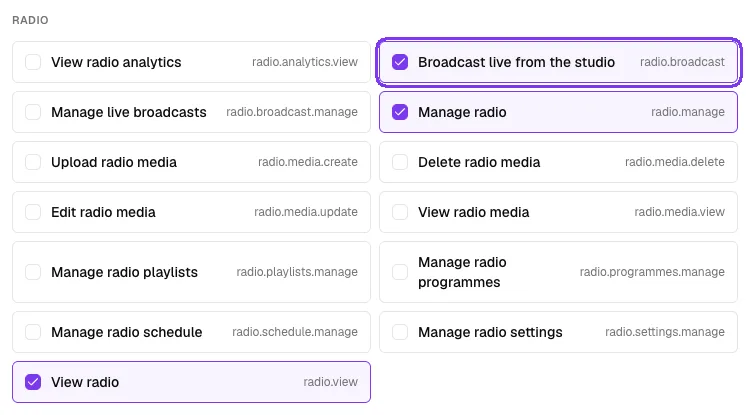
Go to Roles in the church menu and edit the role your presenters use, or create a new one for them. Under Radio, tick Broadcast live from the studio. Save the role and assign it to the people who will present.
For more about roles, see How to give staff access with roles and permissions.
Step 2: Open the Go live page
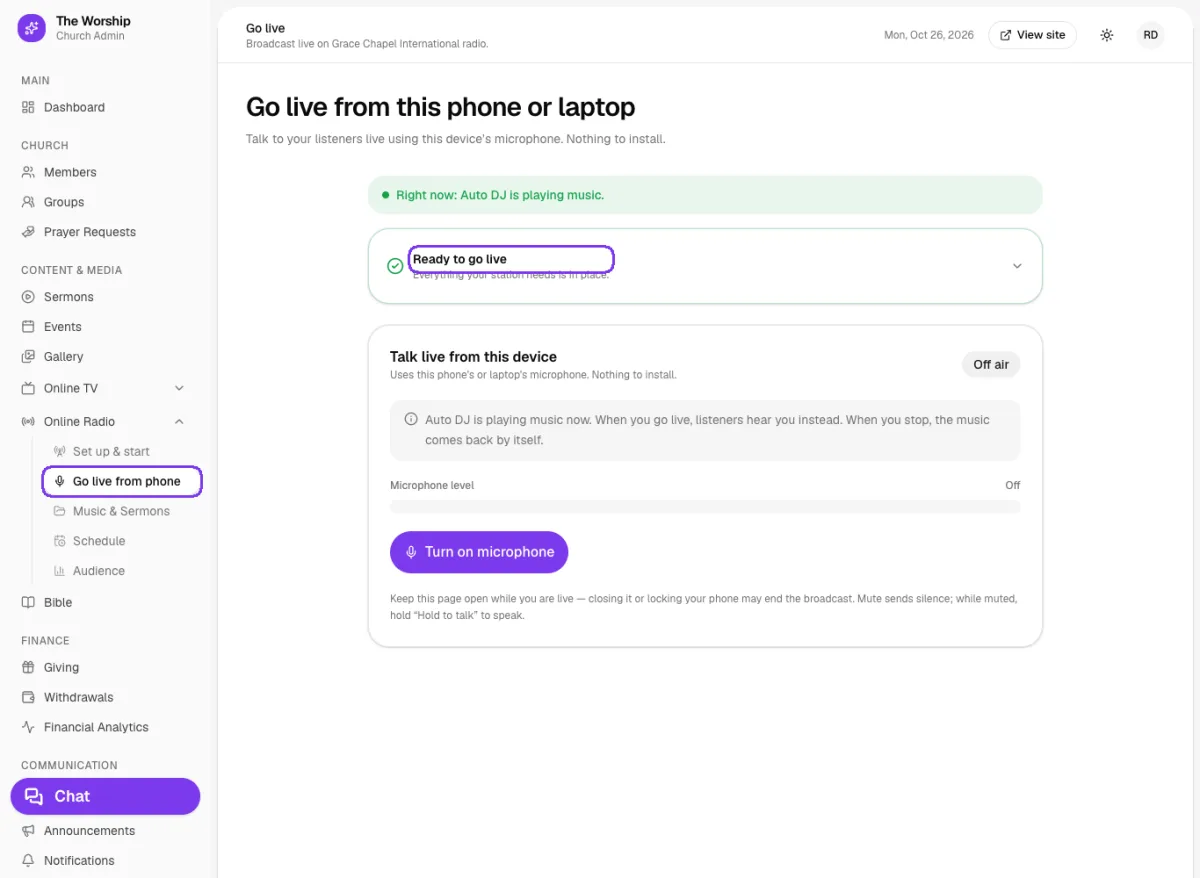
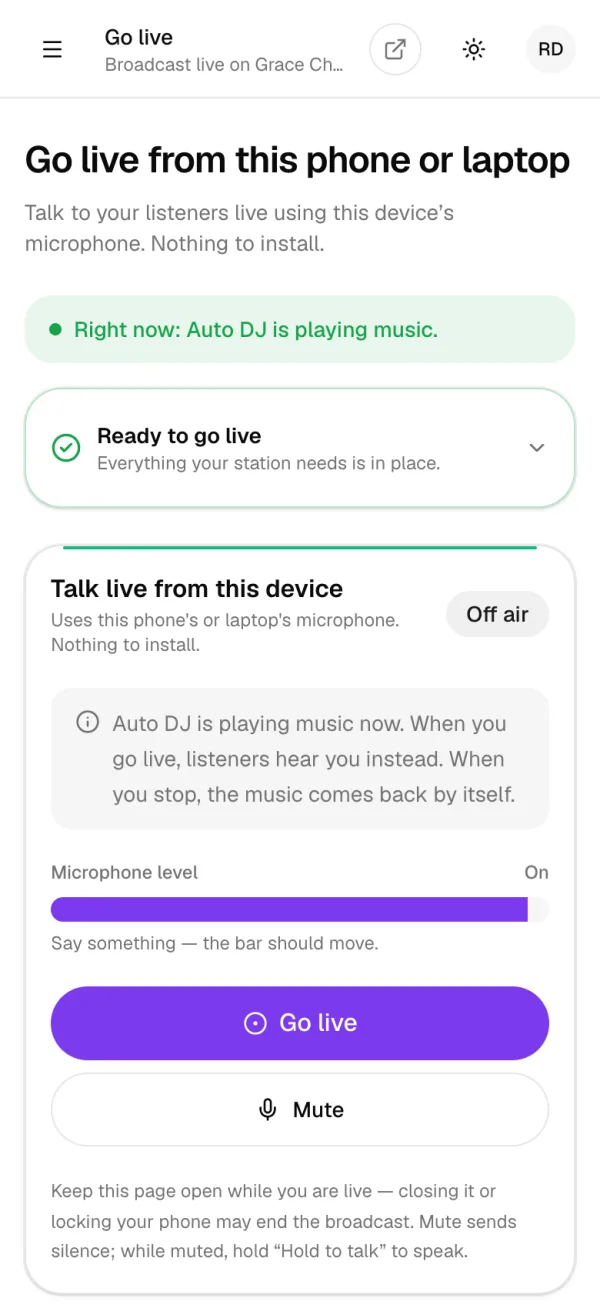
On the phone or laptop you'll use, sign in and open Online Radio → Go live from phone. At the top you'll see what's playing right now — for example "Right now: Auto DJ is playing music."
Step 3: Check that you're ready
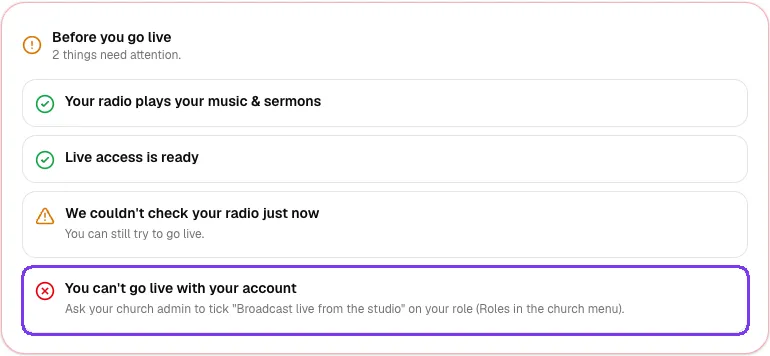
The page checks everything your station needs before you go live. When all is well it says Ready to go live. Tap it to see each check.
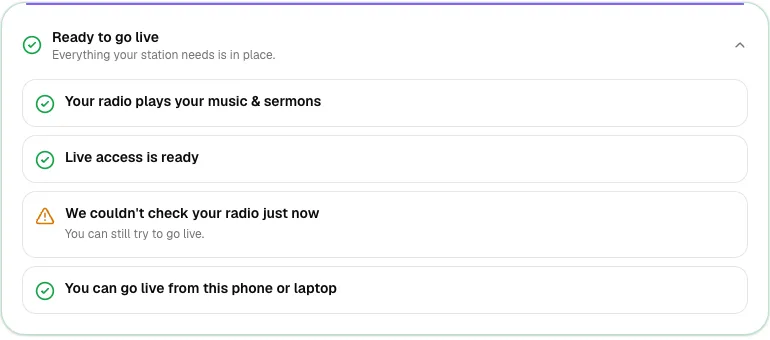
If something needs attention, the page tells you exactly what to do, for example: Ask your church admin to tick "Broadcast live from the studio" on your role (Roles in the church menu). Some checks have a Try again button.
Step 4: Turn on your microphone
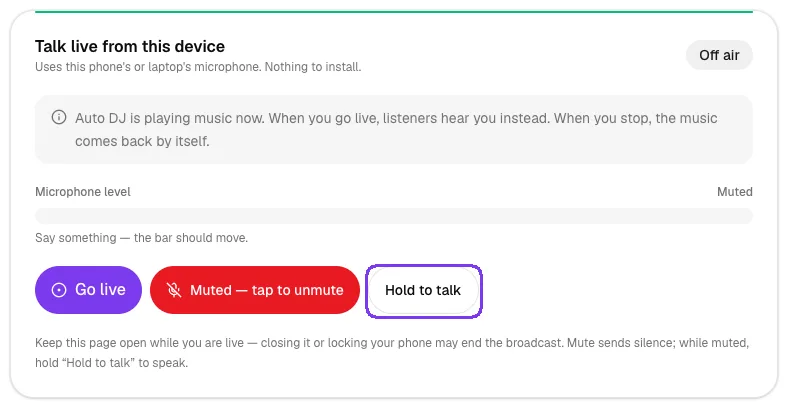
In Talk live from this device, tap Turn on microphone. Your browser asks for permission to use the microphone — tap Allow.
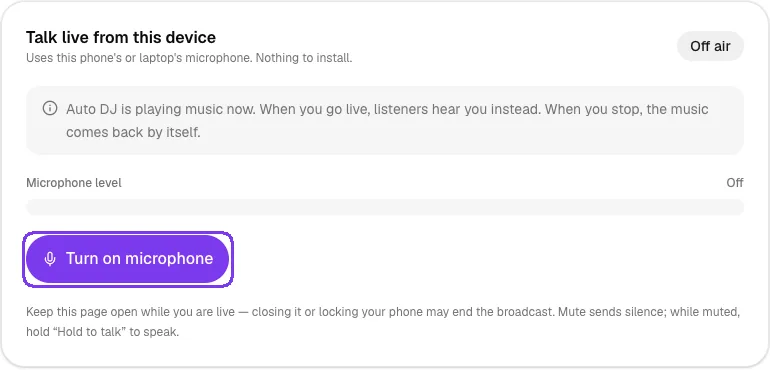
Say something and watch the Microphone level bar. If it moves, your listeners will hear you.
Step 5: Go live
Tap Go live. The button shows "Getting ready…" and then "Connecting to your station…" for a few seconds. When you're on air, the button changes to Stop broadcast. Listeners now hear you instead of the music.
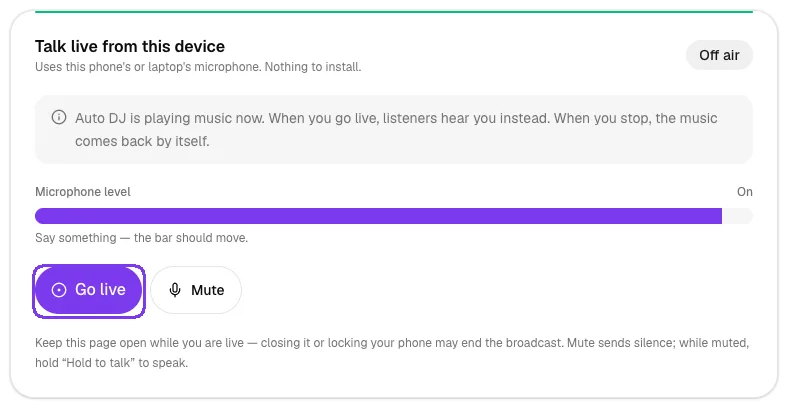
Keep the page open while you're live. Closing it or locking your phone may end the broadcast.
Step 6: Mute or hold to talk
Need a moment off air — to cough, or to pause between readings? Tap Mute. While muted, your listeners hear silence and the button reads Muted — tap to unmute. You can also press and hold Hold to talk to speak briefly while staying muted.
Step 7: Stop your broadcast
When you've finished, tap Stop broadcast. Your station goes straight back to your music and sermons — there's nothing else to do.
Tips
- Do a short test on a weekday before your first live programme.
- Plug in a headset or earphones with a microphone for clearer sound than the phone's speaker microphone.
- Turn on "Do not disturb" so calls and notifications don't interrupt the broadcast.
- Add your live show to the schedule so listeners know when to tune in — see How to schedule radio programmes.
Troubleshooting and FAQ
It says "You can't go live with your account".
Your role doesn't include Broadcast live from the studio. Ask your church admin to add it (see step 1).
The microphone is blocked or not found.
Tap the lock or settings icon next to the web address, allow the microphone, then try again. If no microphone is found, plug one in or use a phone. If another app (such as a call) is using the microphone, close it first.
It says someone else is already live.
Only one person can be live at a time. Wait for them to tap Stop broadcast, then try again.
My station plays our existing stream. Can I still go live here?
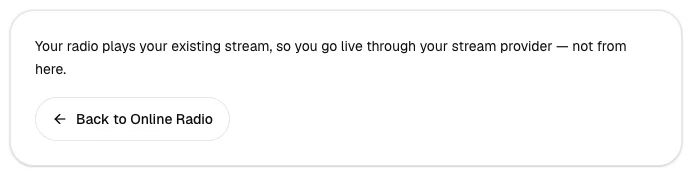
No. When your radio plays a link from another provider, the page says "Your radio plays your existing stream, so you go live through your stream provider — not from here." Go live using your provider's tools, or switch to The Worship Radio.