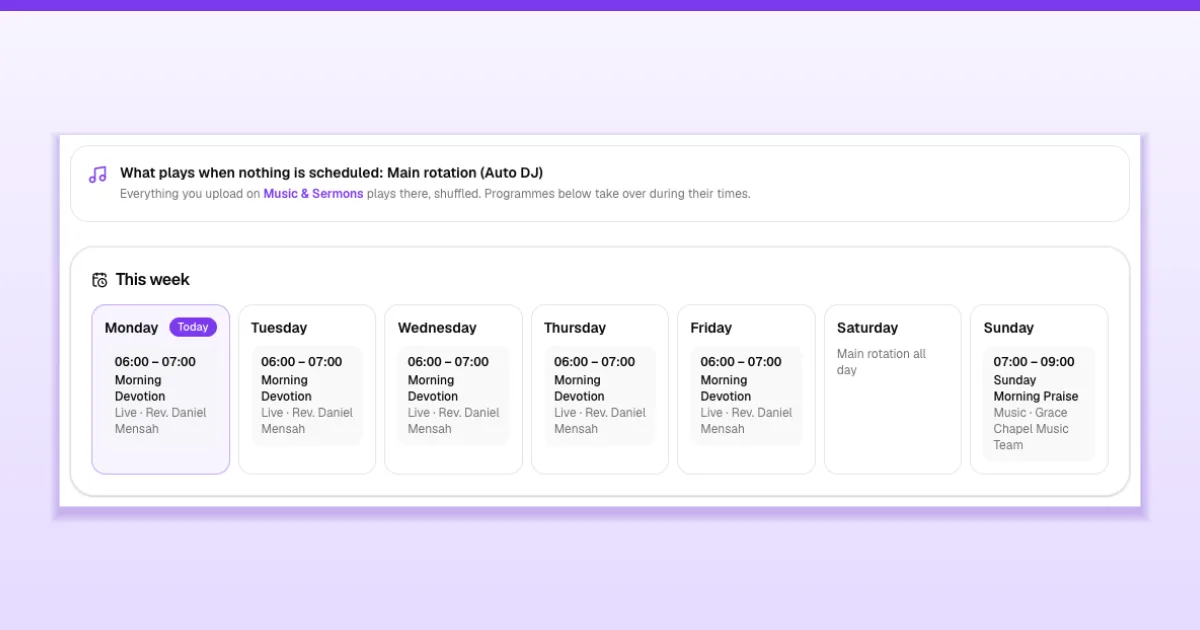
A schedule turns your church radio into a real station: Morning Devotion on weekdays at six, praise music before Sunday service, a youth show on Friday evenings. On The Worship you plan the whole week on the Schedule page. Whenever nothing is scheduled, your station keeps playing your music and sermons automatically.
Before you start
- Who can do this: the church admin, or a staff member whose role includes Manage radio programmes or Manage radio schedule.
- Your station should use The Worship Radio, because the schedule decides what our station plays. If your radio plays a link from another provider, that provider controls what plays. See How to set up Online Radio on The Worship.
- Upload some audio first, and create playlists if you want special music for certain times. See How to add music and sermons to your church radio.
- Times use your station's time zone, shown at the top of the page (for example Africa/Accra).
Step 1: Open the Schedule
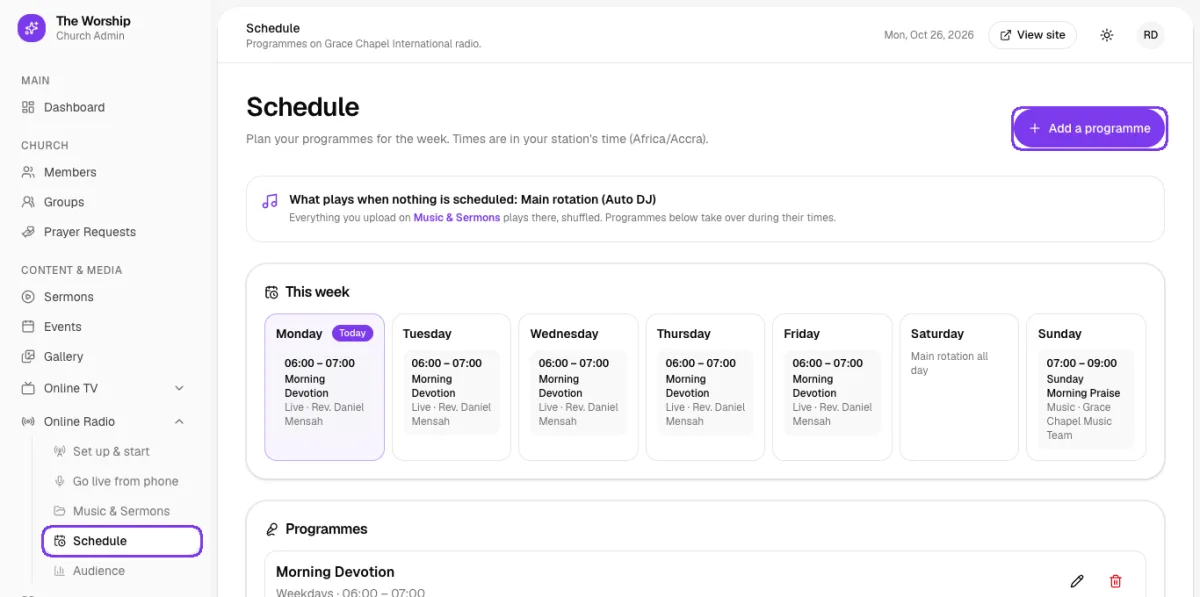
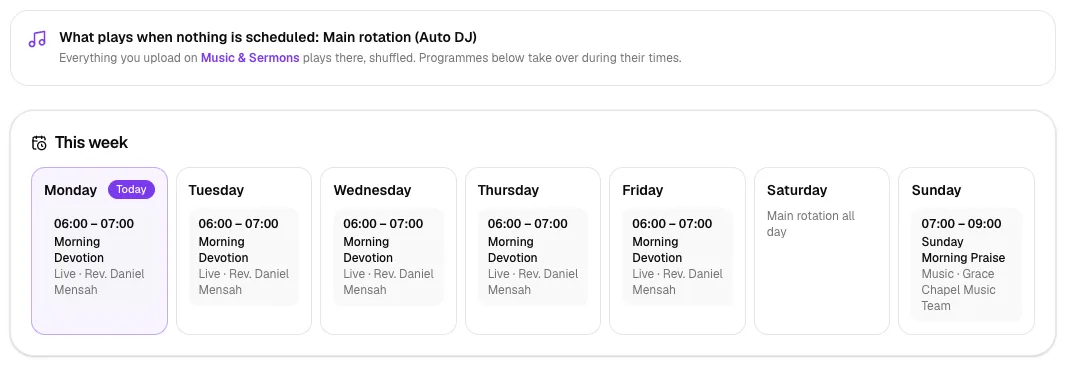
In the church admin menu, open Online Radio → Schedule. The page shows:
- What plays when nothing is scheduled — normally Main rotation (Auto DJ), which is everything you've uploaded, shuffled.
- This week — a day-by-day view of your programmes.
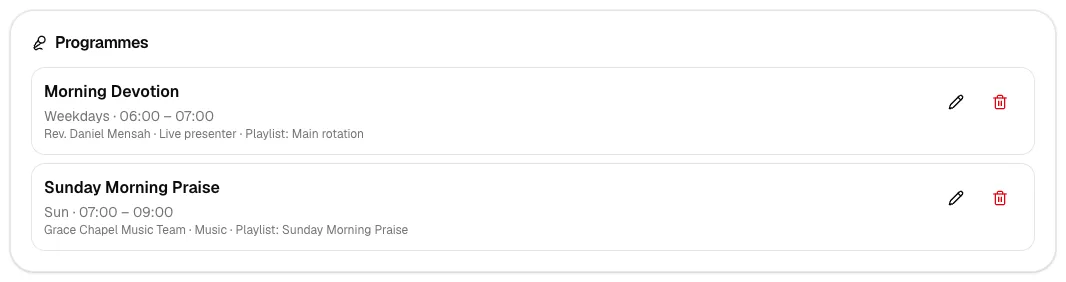
- Programmes — the list of shows you've created.
Step 2: Add a live programme
Tap Add a programme and fill in:
- Programme name — for example "Morning Devotion".
- Presenter (optional) — who leads it.
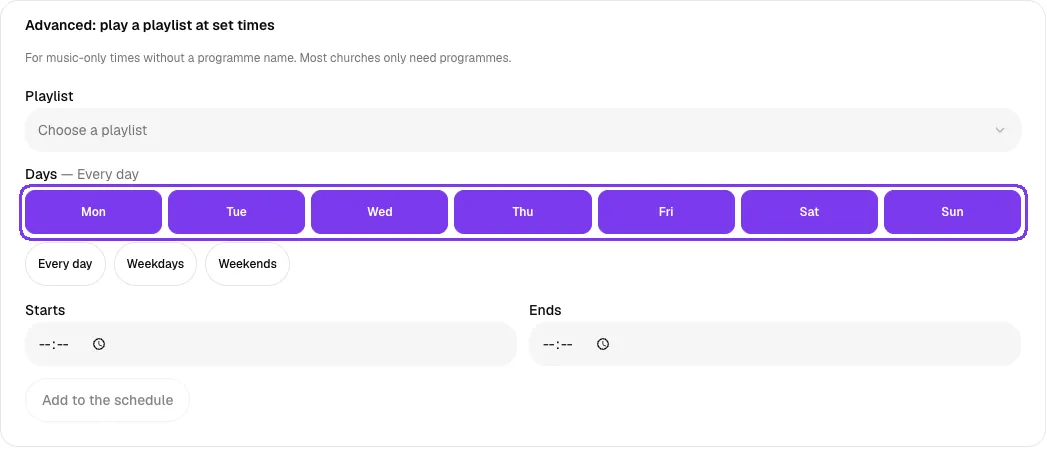
- Days — tap a day to turn it on or off, or use Every day, Weekdays or Weekends. The days that are coloured in are the ones the programme runs on, and the label next to Days sums them up (for example "Weekdays" or "Mon, Wed, Fri").
- Starts and Ends — the time slot.
Under What plays during this programme?, choose A live presenter if someone will speak live. Until they go live, music from the playlist you pick below keeps playing.
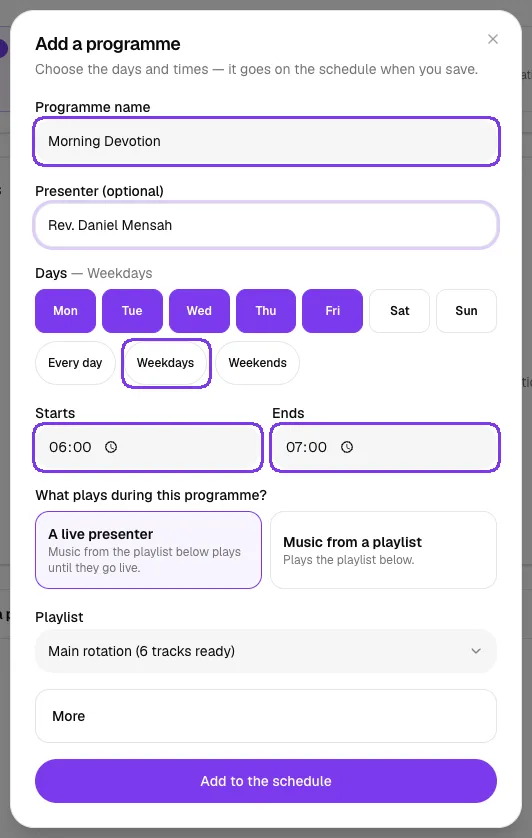
Tap Add to the schedule. To present the show, follow How to go live on your church radio from your phone.
Step 3: Add a music programme
For a music-only show, add another programme and choose Music from a playlist, then pick the playlist. In this example, the "Sunday Morning Praise" playlist plays every Sunday from 07:00 to 09:00.
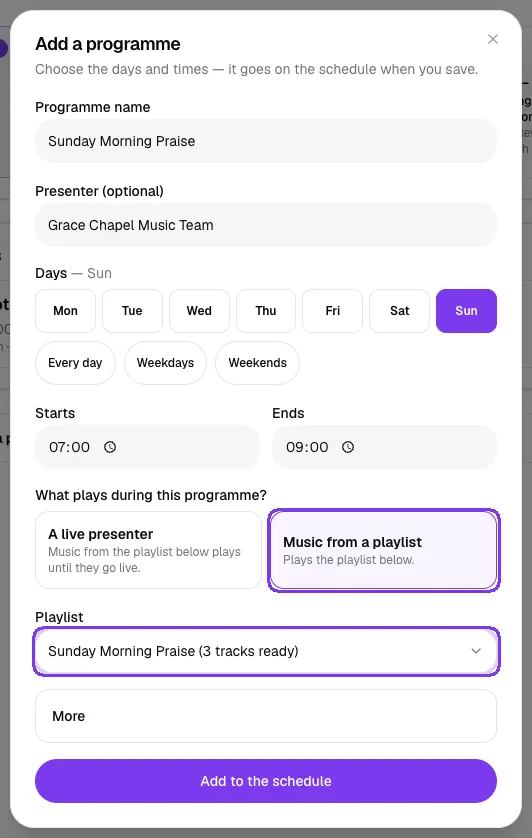
Open More in the same window to add a Description, or turn off On the air to pause a programme without deleting it.
Step 4: Check your week
Your programmes now appear in This week, with today marked. Days with nothing planned show "Main rotation all day".
The Programmes list shows each show's days, times, presenter and playlist. Tap the pencil to change a programme, or the bin to delete it.
Step 5: Play a playlist at set times (advanced)
If you only want a playlist to play at certain times, without a named programme, open Advanced: play a playlist at set times. Choose the playlist, the days and the times, then tap Add to the schedule. All seven days start selected (Every day); tap a day to leave it out. Most churches only need programmes.
Tips
- Match your radio schedule to church life: devotion in the morning, sermons in the evening, praise before Sunday service.
- Keep programmes from overlapping so listeners always know what's on.
- Share your weekly schedule with members on WhatsApp so they know when to tune in.
- Use On the air to pause a programme during holidays instead of deleting it.
Troubleshooting and FAQ
What plays between programmes?
Whatever is shown under What plays when nothing is scheduled — normally Main rotation, which shuffles everything you've uploaded.
The times look wrong.
Times use your station's time zone, shown at the top of the Schedule page. It comes from your church's time zone. If it's wrong, correct the time zone in your church settings, then open Online Radio → Set up & start → Station details and tap Save details to apply it to the station.
The presenter didn't go live. What did listeners hear?
For a live programme, music from the chosen playlist keeps playing until the presenter goes live, so your station is never silent.



