Getting your church onto The Worship takes just a few minutes. You fill in one short form, confirm your phone number with a code, and you become your church's first church admin. A setup guide then walks you through everything else. Here is exactly what to expect.
Before you start
- A mobile phone that can receive SMS. Your phone number becomes your sign-in.
- Your church's name, plus an email and phone number visitors can use to reach you (optional, and you can add them later).
- A password of at least 8 characters.
Step 1: Open "Create your church"
Go to The Worship website and choose Create your church. You will also find this link under the sign-in button on the login page ("Want your church on The Worship? Create your church").
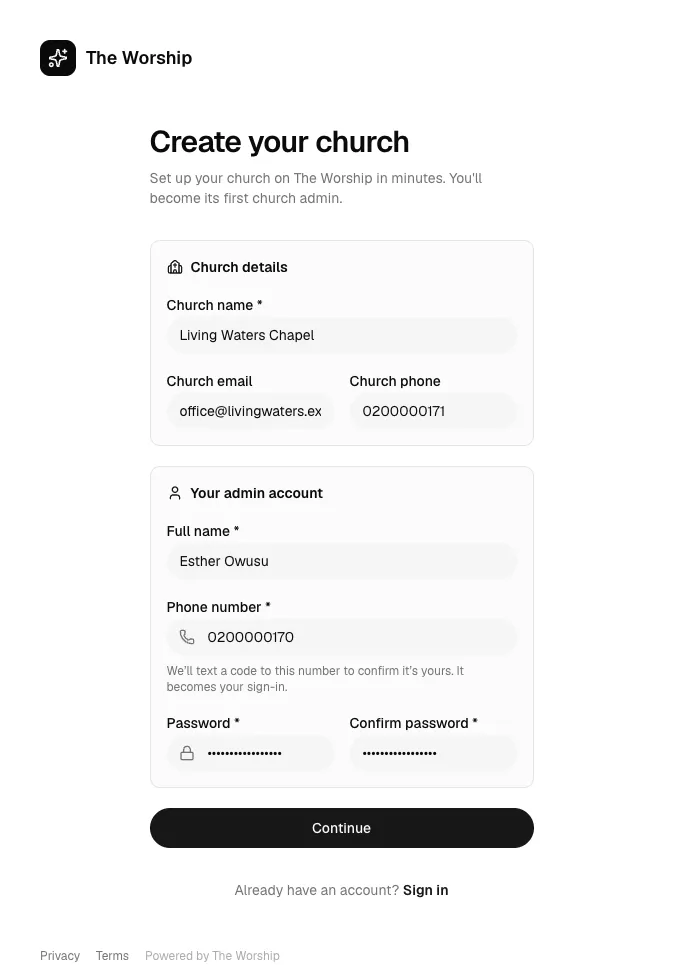
Step 2: Fill in your church and admin details
The form has two parts:
- Church details: Church name (required), Church email and Church phone.
- Your admin account: your Full name, your Phone number, and a Password typed twice.
Double-check your phone number. The Worship texts a code to it, and you use it to sign in from then on. Click Continue.
Step 3: Verify your phone
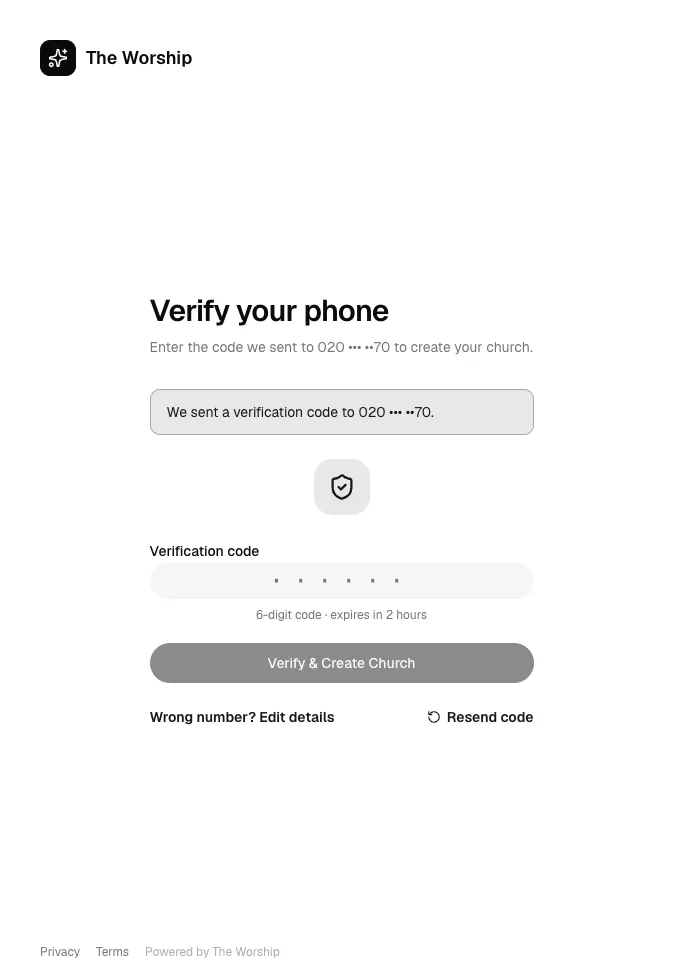
You will receive a 6-digit code by SMS. Type it into Verification code and click Verify & Create Church. The code expires after 2 hours.
- Didn't get it? Wait a minute, then click Resend code.
- Typed the wrong number? Click Wrong number? Edit details to go back and fix it.
Once the code is accepted, your church is created and you are signed in to your church admin area. If you chose a plan on our Pricing page first, the welcome message also tells you your free trial of that plan has started.
Step 4: Follow the setup guide
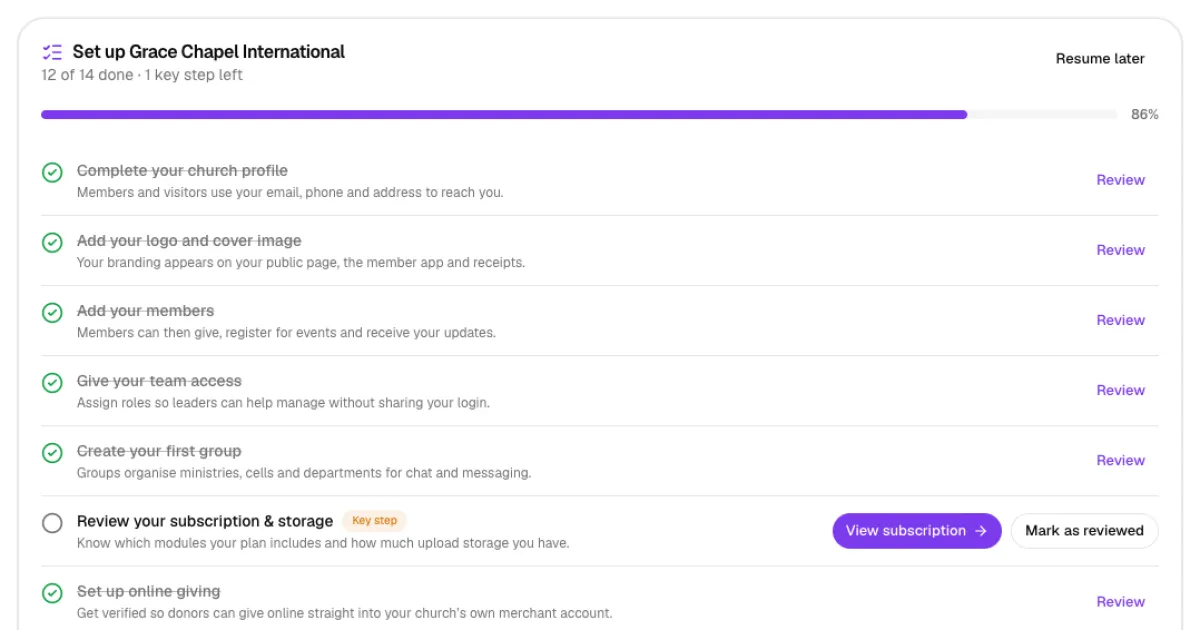
Your Dashboard opens with a checklist called Set up your church name. It shows how many steps are done and a progress bar. Each step explains why it matters and has a button that takes you straight to the right page:
- Complete your church profile, and add your logo and cover image.
- Add your members and give your team access.
- Create your first group.
- Review your subscription and storage. This is a key step.
- Set up online giving and apply for an SMS Sender ID.
- Preview your public church page.
- Publish your first sermon, and add service times and events.
- Set up Online TV and Online Radio.
- Share your first announcement.
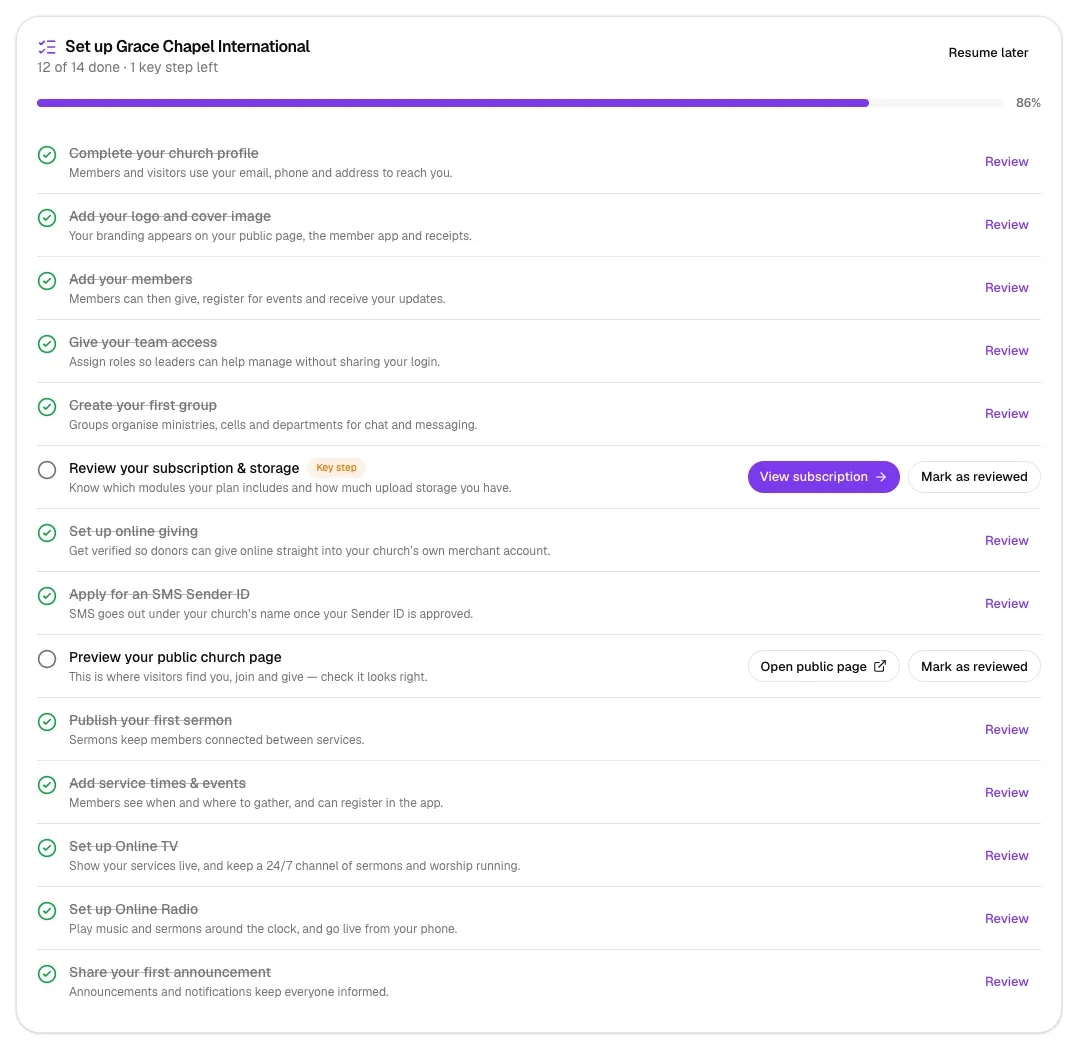
Steps tick themselves off once the work is done. For example, "Add your members" is ticked as soon as you add someone. A few steps, such as previewing your public page, have a Mark as reviewed button you click once you have checked them.
Step 5: Finish (or pause) setup
You don't have to do everything at once. Click Resume later to hide the checklist; a small reminder stays on your dashboard while key steps remain. When the key steps are done, a Finish setup button appears. Click it to close the guide.

Want the checklist back later? Click Restart setup guide at the top of your dashboard.

Tips
- Use a phone number you will keep. It is your sign-in, and The Worship uses it to send you codes.
- Do the profile and branding steps first. They make your public page look complete before you share it with your congregation.
- Invite a trusted colleague as staff (with a role) rather than sharing your admin password.
Troubleshooting
"Your signup session has expired. Please start again."
The form was left open too long before you entered the code. Go back to Create your church and fill it in again.
I never received the SMS code.
Check the number on the verification screen (only the last digits are shown). If it is wrong, use Edit details. If it is right, wait a minute and click Resend code.
"This phone number is already in use. Please sign in instead."
That number already has a The Worship account, for example as a member of another church. Each phone number belongs to one person, so use a different number for the new church's admin, or contact The Worship support for help.



