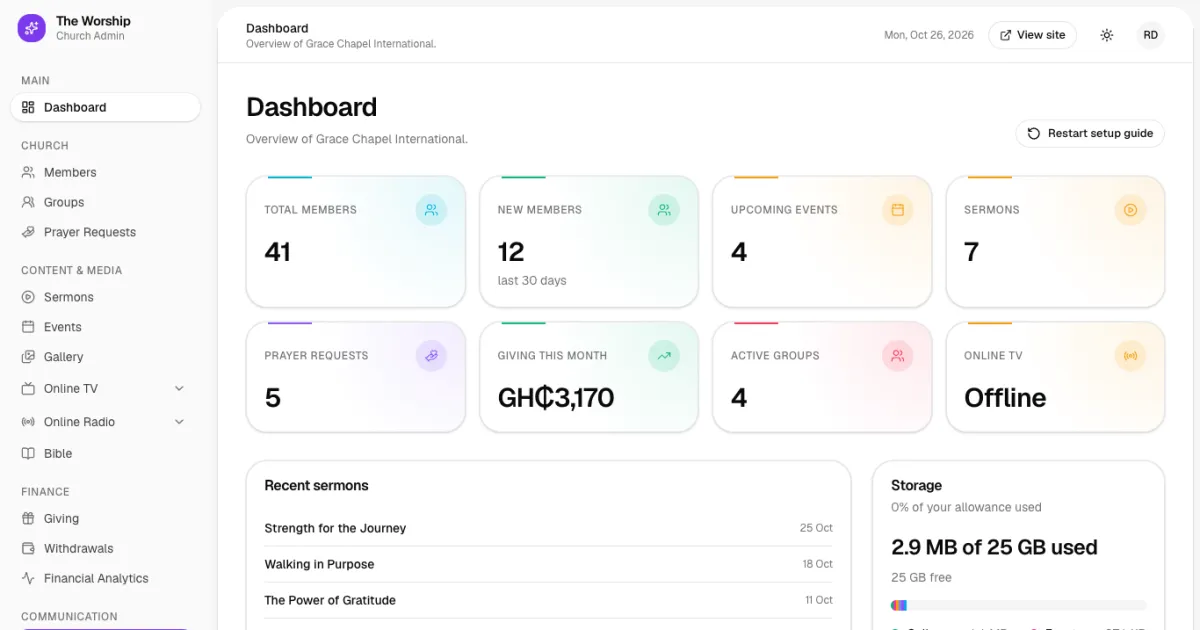
New to The Worship? This short tour shows you around your church admin area: what the dashboard tells you at a glance, what each section of the menu is for, and where to go when you need help. Ten minutes here will save you a lot of searching later.
Before you start
- Sign in with your phone number and password. Church admins go straight to the admin area. You can also reach it any time by opening /manage on your church's The Worship address.
- This tour shows what the church admin sees, with Church Admin under the logo. Staff members see Staff there instead, and only the parts their role allows (see roles and permissions).
The dashboard at a glance
The Dashboard is your home page. The left side holds the main menu; the large area on the right shows how your church is doing today.
Summary cards
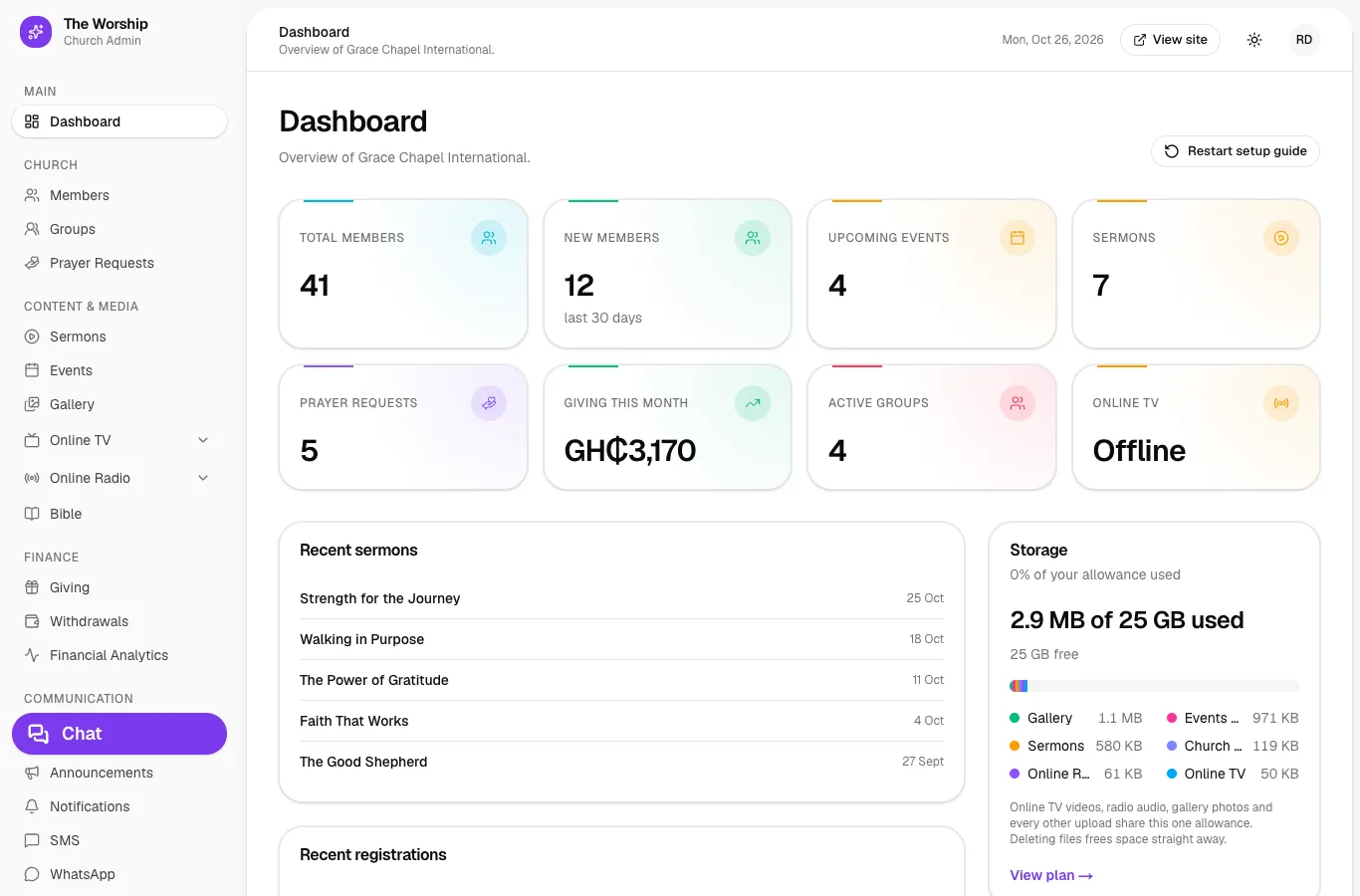
The cards at the top give you the key numbers:
- Total members, and New members in the last 30 days.
- Upcoming events and Sermons published.
- Prayer requests received.
- Giving this month, shown in your currency (for example GH₵).
- Active groups.
- Online TV: whether you are live or offline right now.
Recent activity, storage and what's coming up
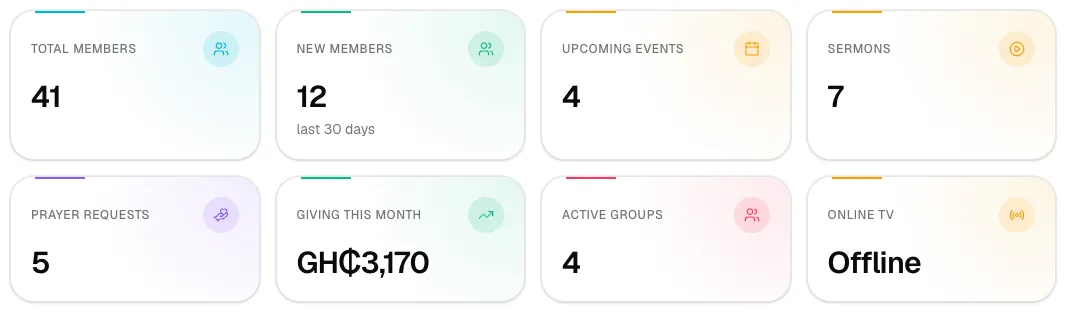
Below the cards you will find:
- Recent sermons, Recent registrations for your events, and Latest announcements.
- Storage: how much of your upload allowance you have used, split into gallery, sermons, events, branding, radio and TV. Deleting files frees space straight away. Click View plan to see your subscription.
- Upcoming events with dates, times and venues.
- Prayer requests needing review: new requests waiting for your approval.
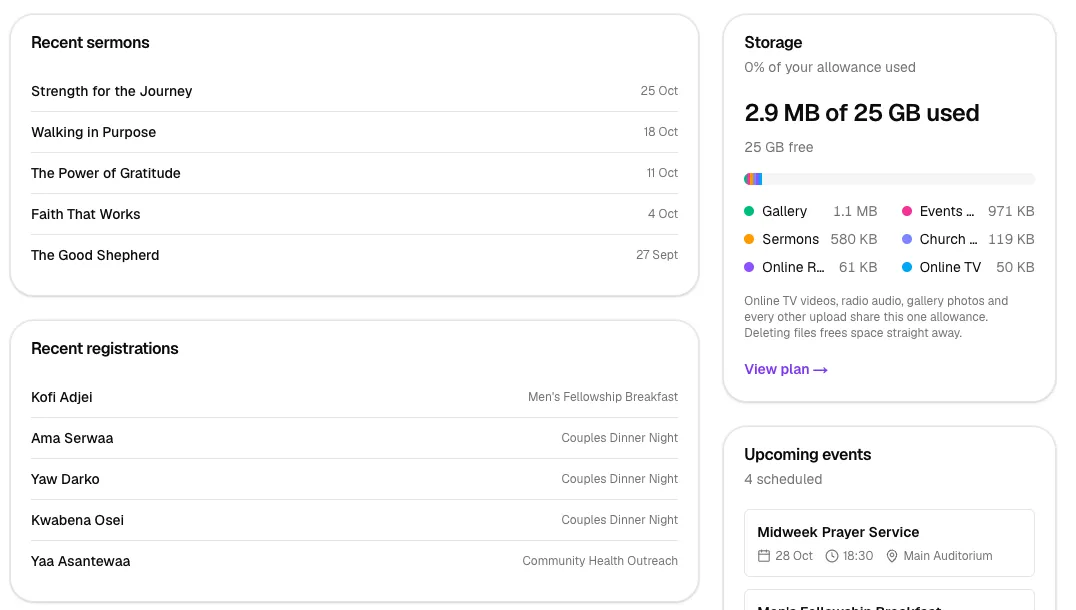
If your church is new, a setup guide checklist also appears at the top of the dashboard (see How to create your church).
The main menu
The menu on the left is grouped into sections. Online TV and Online Radio open up to show more pages.
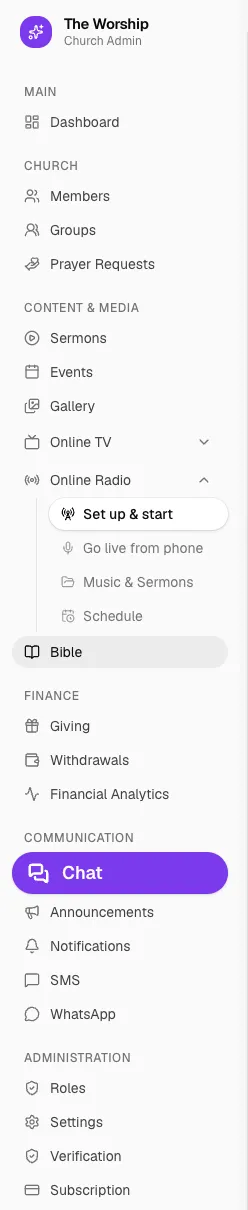
Church
- Members: add, import and manage your members (see How to add church members).
- Groups: ministries, fellowships and teams.
- Prayer Requests: review requests before they appear on the prayer wall.
Content & Media
- Sermons, Events and Gallery: everything members watch, attend and look back on.
- Online TV: TV Home, Videos, 24/7 Channel, Schedule and Audience, for live services and a round-the-clock channel.
- Online Radio: Set up & start, Go live from phone, Music & Sermons, and Schedule.
- Bible: the same Bible reader your members use.
Finance
- Giving: online and offline gifts.
- Withdrawals: move online giving into your church account.
- Financial Analytics: trends and reports.
Communication
- Chat: message members and staff, one-to-one or in groups.
- Announcements and Notifications: keep everyone informed.
- SMS and WhatsApp: reach members on their phones.
Administration
- Roles: give staff access to the parts they need.
- Settings: your church profile and branding.
- Verification: get verified for online giving and an SMS Sender ID.
- Subscription: your plan, what it includes and storage.
Your name appears at the bottom of the menu, with a sign-out button beside it.
The top bar
At the top of every page you will see the page name, today's date and a few handy controls:
- View site opens your public church page in a new tab, so you can see what visitors see.
- The sun/moon button switches between light mode, dark mode and your device's setting.
- Your initials open your account menu, where you can sign out.

Tips
- Check the dashboard after each service: new members, registrations and prayer requests all show up here.
- Keep an eye on Storage if you upload a lot of videos. Delete old files you no longer need.
- Bookmark your admin area on your phone. Every page works on mobile too; tap the menu icon at the top left to open the menu.
Where to find help
- The setup guide on your dashboard links to the next thing to do. Click Restart setup guide to bring it back.
- Our step-by-step guides on The Worship blog cover every area of the platform. The links in "What's next" below are a good place to start.
- Still stuck? Contact The Worship support team from our website.
- Your members have their own Help page under Account in their menu. It shows your church's email, phone, address and website, so keep those up to date in Settings.
Troubleshooting
A menu item I expected is missing.
Staff only see the areas their role allows. Some areas also depend on your subscription plan; locked items point you to Subscription so you can see which plan includes them.
The numbers on the dashboard look out of date.
Refresh the page. The dashboard shows your church's latest figures each time it loads.



