SMS is still the surest way to reach every member, including those who don't use smartphones or the app. With The Worship you send texts from your own church name (for example GRACECHAPEL) to individual members, whole groups, imported contact lists or numbers you type in. This guide walks you through buying credits, writing a message and checking that it was delivered.
Before you start
- Who can do this: the church admin, or a staff member whose role includes the SMS permissions.
- An approved Sender ID: the name your members see as the sender. You apply for it once under Verification. See How to verify your church (KYC).
- SMS credits: 1 credit sends one SMS segment to one person. You buy credits with mobile money.
Step 1: Open the SMS page
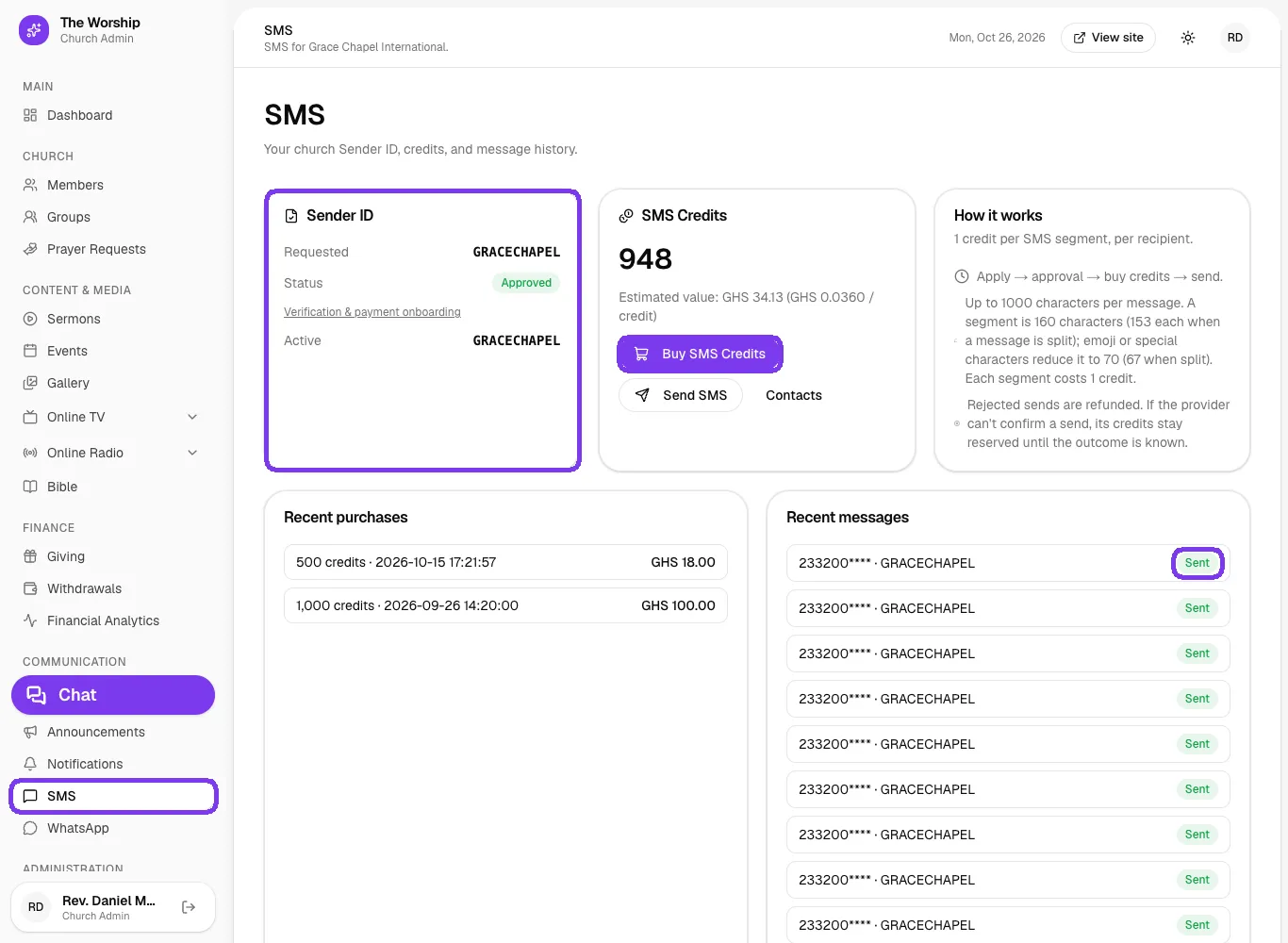
In the admin menu, under Communication, click SMS. The page shows your Sender ID and its status, your SMS Credits balance, recent purchases and recent messages.
Step 2: Buy SMS credits
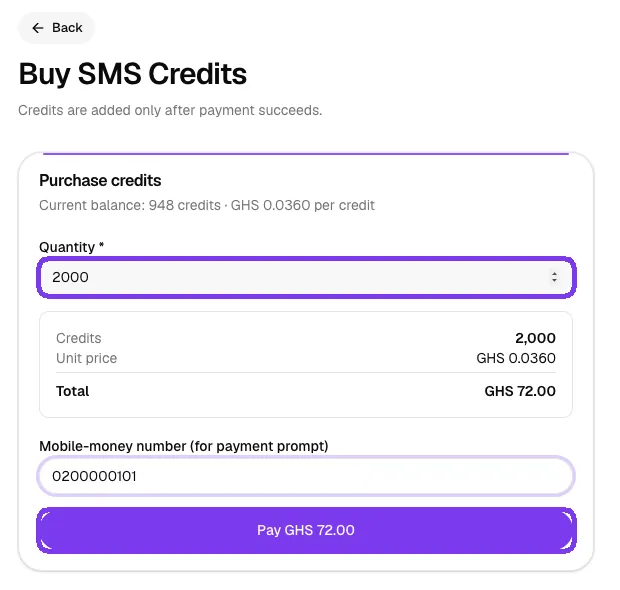
Click Buy SMS Credits. Enter the Quantity of credits you need; the page works out the total for you. Enter the Mobile-money number that should receive the payment prompt, then click Pay and approve the prompt on your phone.
Step 3: Choose who receives the message
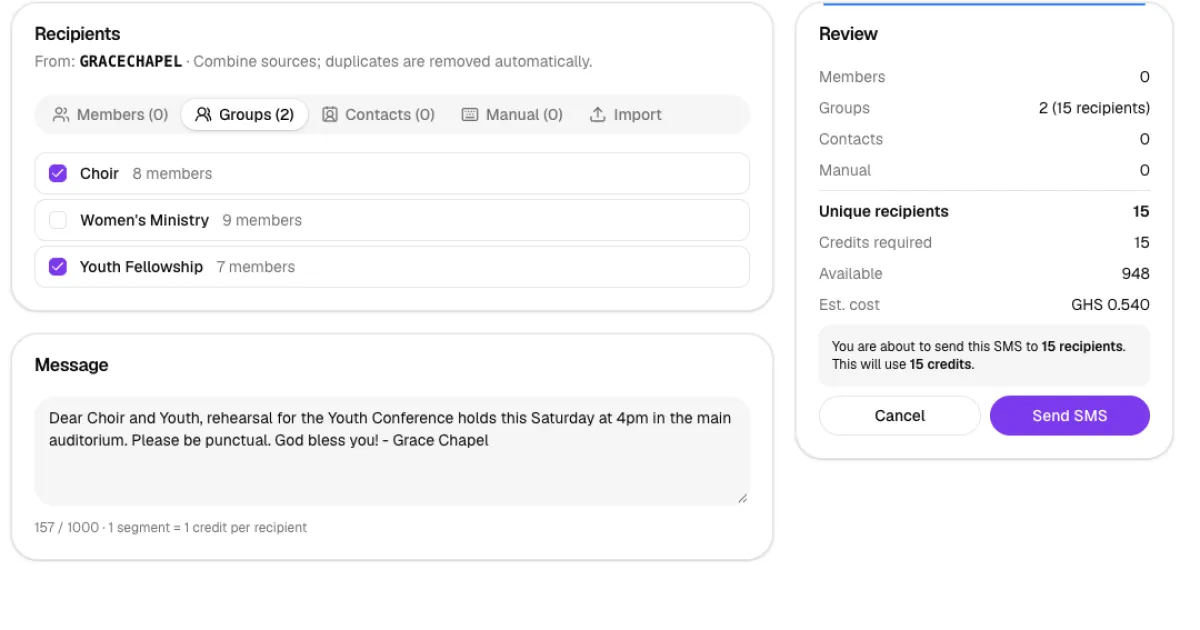
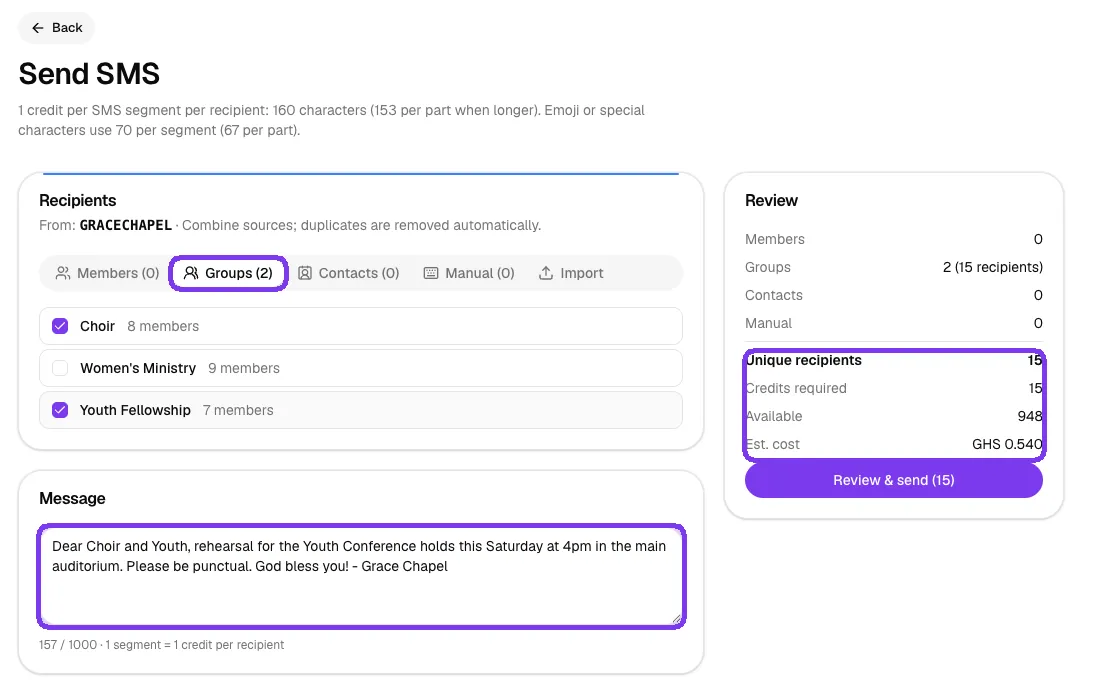
Back on the SMS page, click Send SMS. Under Recipients you can combine several sources. Duplicate numbers are removed automatically, so nobody gets the same text twice.
- Members: search by name or phone, tick individual people, or use Select all members.
- Groups: tick one or more groups, such as the Choir or Youth Fellowship.
- Contacts: people you imported for SMS only. They are not members and cannot log in.
- Manual: type numbers yourself.
- Import: upload a CSV file of names and numbers.
Step 4: Write your message
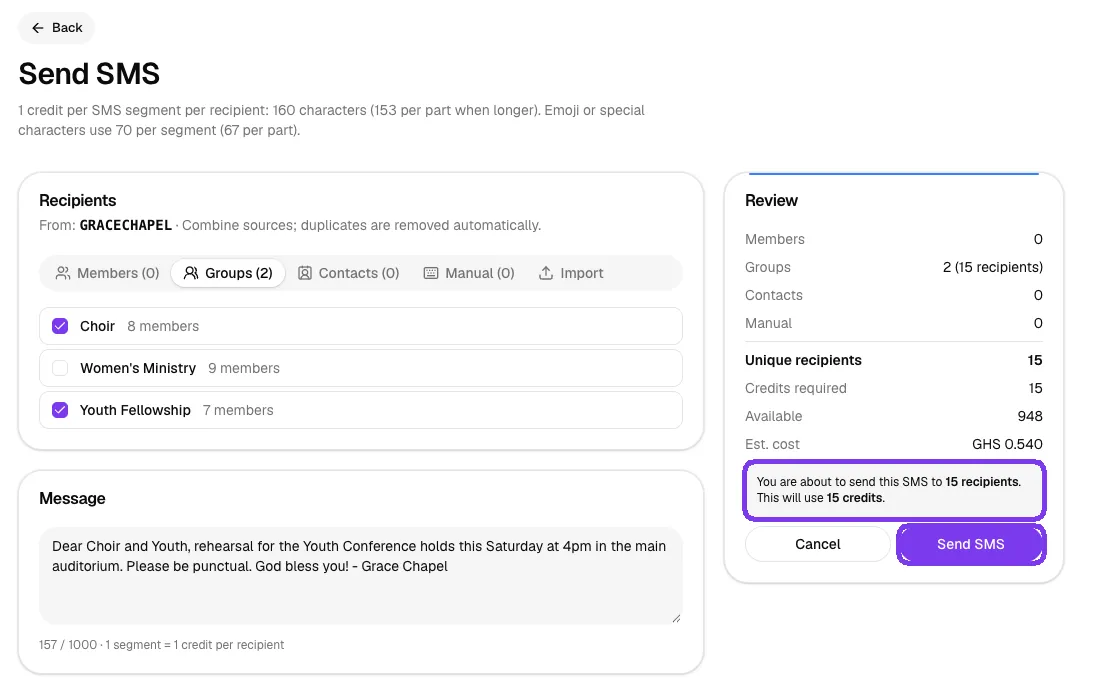
Type your text in the Message box. Under the box you can see the number of characters and how many segments the message uses. The Review panel on the right updates as you go: Unique recipients, Credits required, your Available balance and the estimated cost.
How credits are counted:
- One segment holds up to 160 characters. Longer messages are split into parts of 153 characters each.
- Emoji and some special characters reduce a segment to 70 characters (67 when split).
- A message can be up to 1,000 characters long.
Step 5: Review and send
Click Review & send. The panel tells you exactly how many people will receive the SMS and how many credits it will use. Click Send SMS to send it, or Cancel to make changes.
Adding numbers by hand
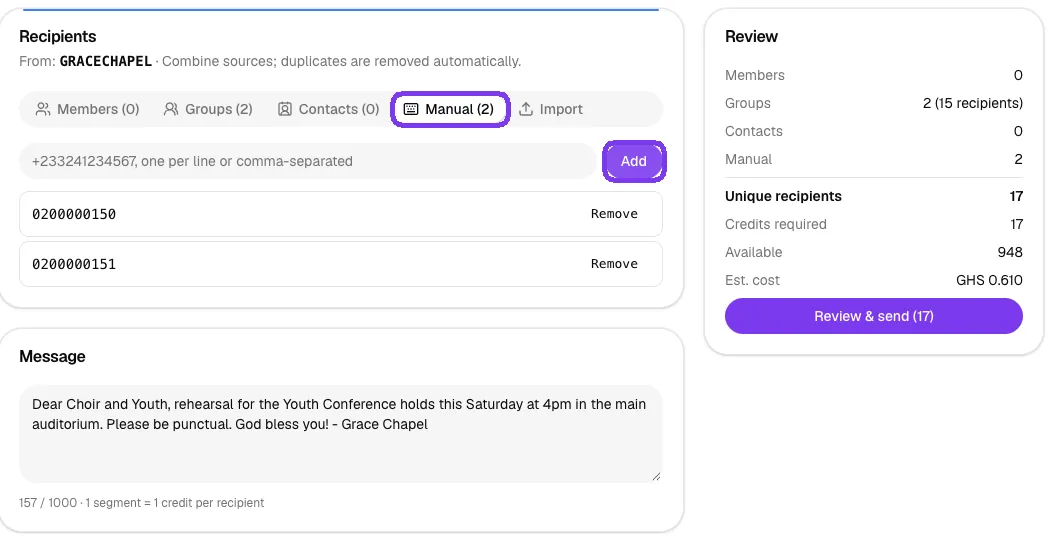
On the Manual tab, type one or more numbers, separated by commas or one per line, and click Add. Each number appears in a list with a Remove button.
Importing a contact list
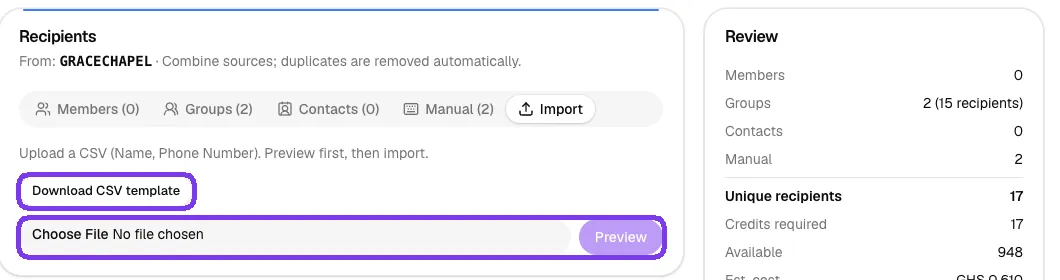
On the Import tab, click Download CSV template, fill in the names and phone numbers, then choose the file and click Preview. The preview shows how many rows are valid and any errors. Click Import to save the contacts. You can find them later on the Contacts tab and under SMS → Contacts.
Step 6: Check delivery
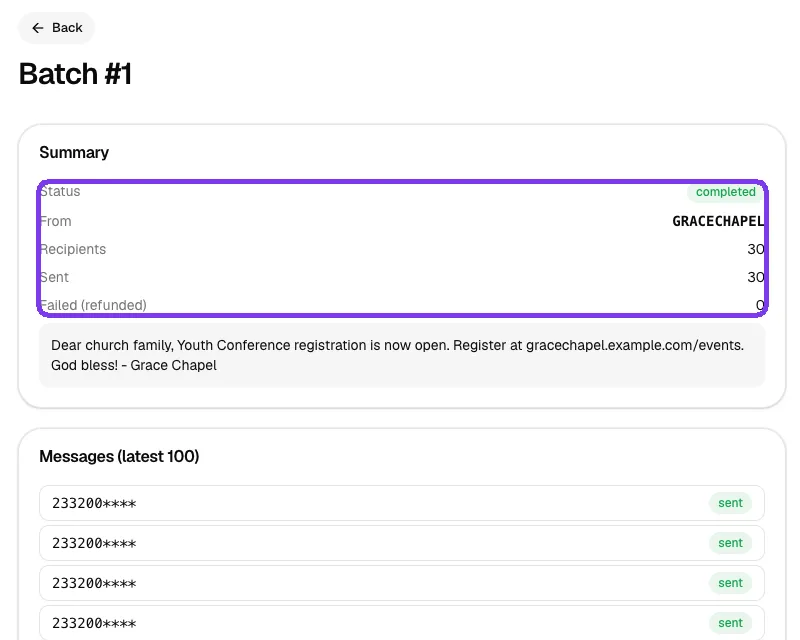
After you send, you're taken to the batch page. It shows the status, sender name, number of recipients, how many were sent, and how many failed. Failed messages are refunded. Below the summary is a list of each message with its status.
The Recent messages list on the SMS page shows each message's own status:
- Queued: waiting its turn to go out.
- Sending: being handed to the network right now.
- Sent (green): the network accepted the message.
- Failed (red): the message could not be sent, and its credit is refunded.
- Unconfirmed: the network has not confirmed it yet. Its credits stay reserved until the outcome is known.
Tips
- Keep messages under 160 characters and avoid emoji to use one credit per person.
- Sign off with your church name so members recognise the message.
- Send to groups for ministry announcements, and use Select all members only for church-wide news.
- Contacts who have opted out are skipped automatically by every bulk send.
Troubleshooting and FAQ
The Send SMS page won't let me send. Why?
You need an approved Sender ID and enough credits for the recipients you selected. Check the Credits required and Available lines in the Review panel.
I paid but my credits haven't appeared.
Credits are added only after the mobile-money payment succeeds. If you didn't approve the prompt on your phone, start a new purchase.
Some messages failed. Do I lose those credits?
No. Messages the network rejects are refunded. If the network can't confirm a message yet, its credit stays reserved until the result is known.



