The Worship gives your church a prayer wall. Members share prayer requests from the church app, your team reviews each one, and approved requests appear on the wall so the congregation can pray together. This guide covers both sides: how members submit requests and how you review them.
Before you start
- To review requests you need to be the church admin, or a staff member with the "Moderate prayer requests" permission. Deleting needs "Delete prayer requests".
- Members must be signed in to share a request.
How members share a prayer request
Step 1: Open Prayer Requests
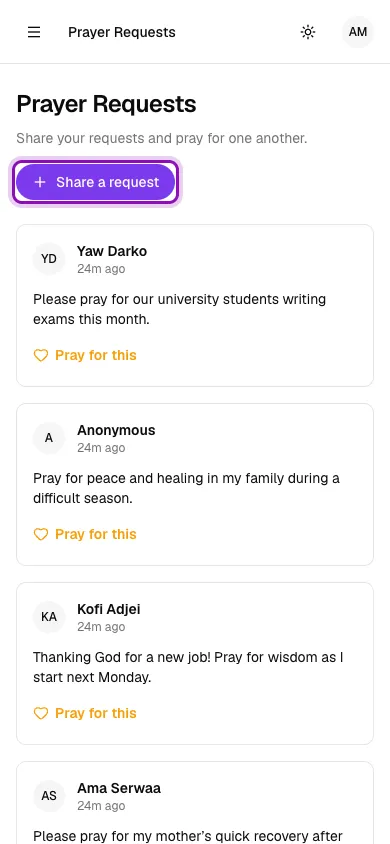
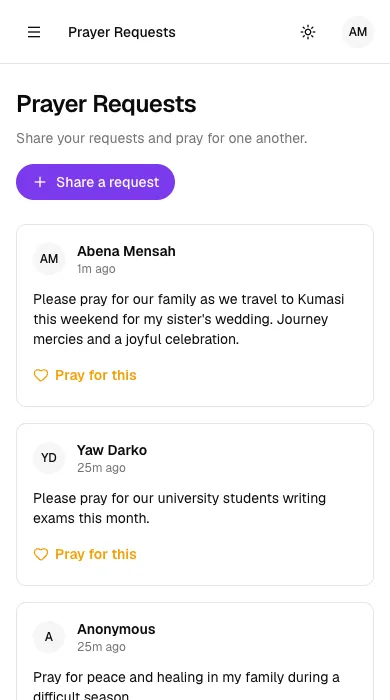
In the church app, members go to Prayer Requests in the menu. They see the prayer wall with every approved request and can tap Pray for this on any of them. To add their own, they tap Share a request.
Step 2: Write the request
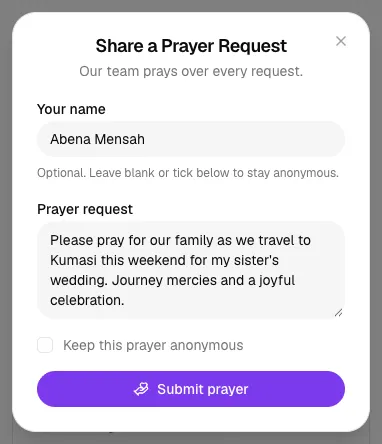
In Share a Prayer Request, the member's name is filled in for them. They can clear it, or tick Keep this prayer anonymous, if they would rather not be named. They type the request and tap Submit prayer.
Step 3: The request waits for review
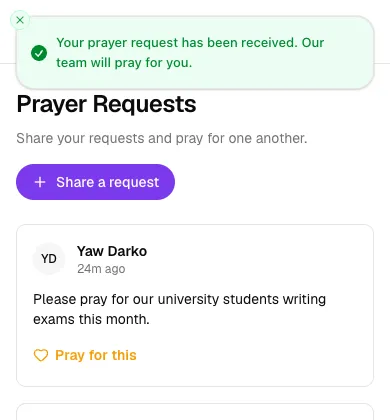
The member sees "Your prayer request has been received. Our team will pray for you." The request does not appear on the wall yet. It waits for your team to approve it first, so nothing inappropriate or too personal is shown publicly by mistake.
How your team reviews requests
Step 4: Spot new requests on the dashboard
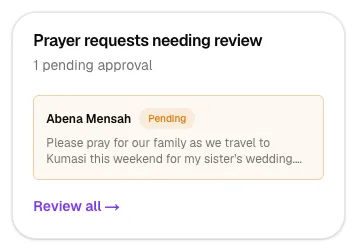
Your admin Dashboard has a Prayer requests needing review card showing how many requests are waiting. Click Review all to open the full list.
Step 5: Approve (or remove) the request
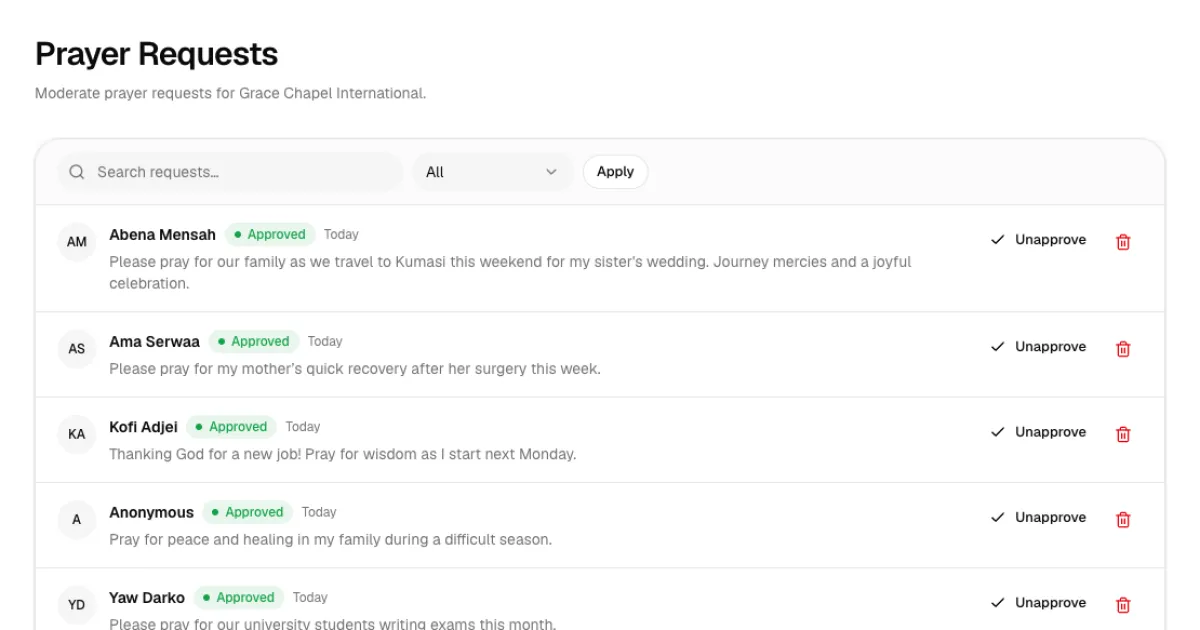
Go to Church → Prayer Requests. New requests are marked Pending. Read each one and:
- Click Approve to publish it on the prayer wall.
- Click the red bin icon to delete a request that shouldn't be shown, for example one that is spam or shares someone else's private details.
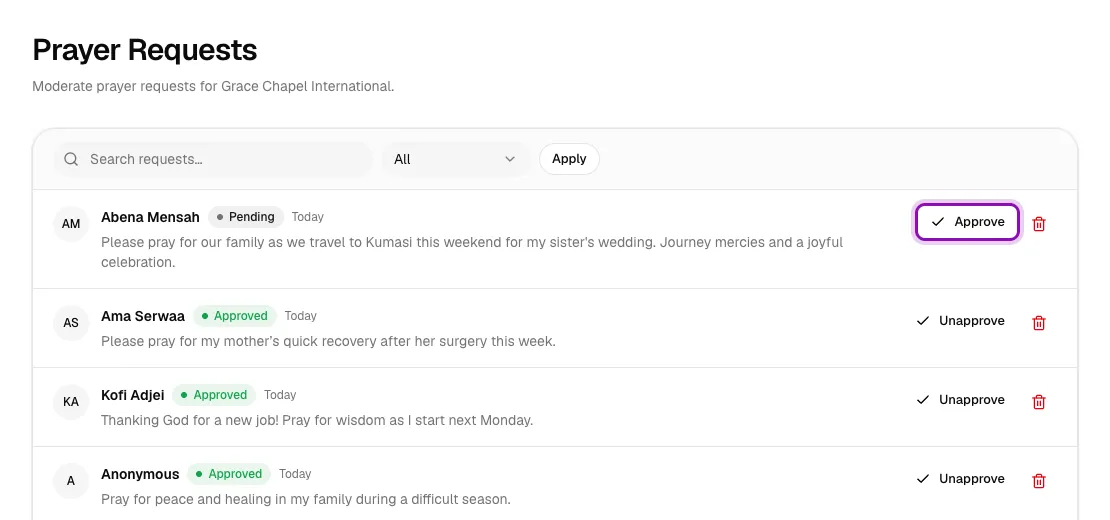
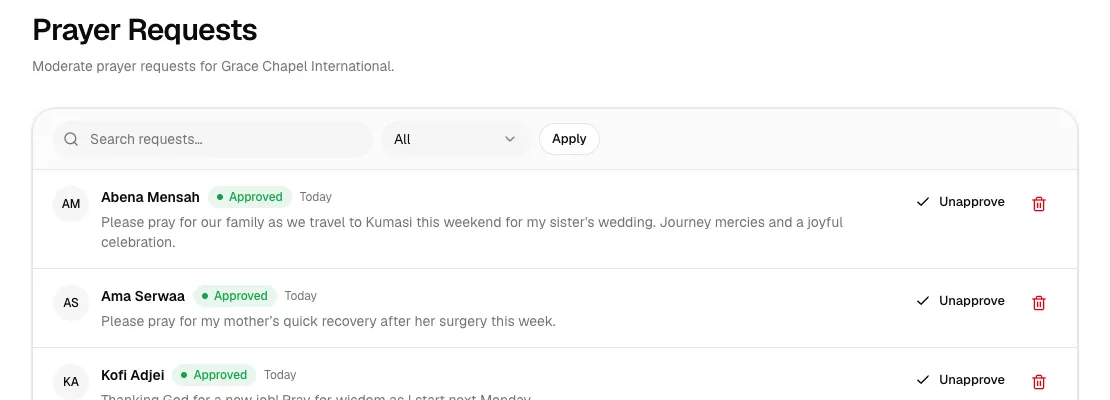
Approved requests show a green Approved badge, and requests still waiting show Pending. Changed your mind? Click Unapprove to take a request off the wall without deleting it. Use the search box and the status filter (All, Pending review or Approved) to find requests quickly.
Step 6: The request appears on the wall
Once approved, the request appears at the top of the member prayer wall for everyone in your church to see and pray over.
Tips
- Check the dashboard card daily so members aren't left waiting for their requests to go up.
- Give a trusted prayer team leader the "View prayer requests" and "Moderate prayer requests" permissions, so they can review without full admin access (see roles and permissions).
- If a request is very personal, consider following up privately (for example through chat) instead of approving it for the wall.
Troubleshooting
A member says their request isn't on the wall.
New requests only appear after approval. Look for it under the Pending review filter and approve it.
Can members see who sent an anonymous request?
No. Anonymous requests show as "Anonymous" on the wall and in your admin list.
I approved a request by mistake.
Click Unapprove. The request comes off the wall immediately and stays in your list.



