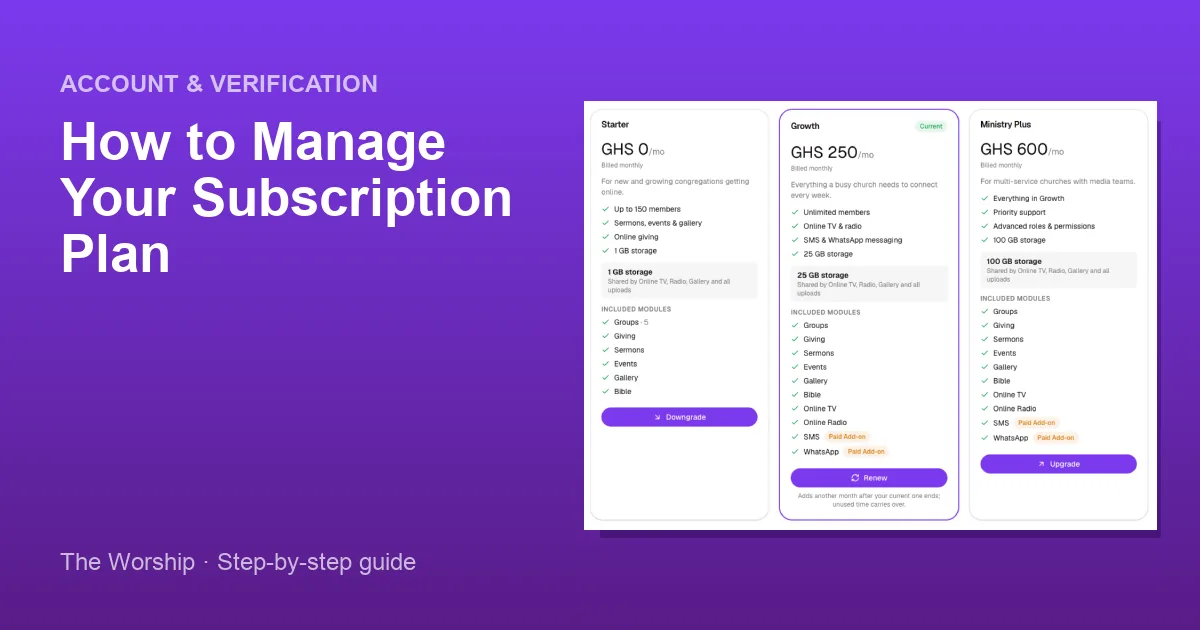
Your subscription decides which features your church can use on The Worship, such as Online TV, radio and messaging, and how much storage you have for photos, videos and audio. This guide shows you how to check your current plan, understand your storage, compare plans, and renew, switch or upgrade when your church is ready.
Before you start
- You need to be the church admin, or a staff member whose role includes access to the subscription.
- Payments are made through a secure Hubtel checkout, and your new plan is activated automatically once the payment is confirmed. Have your payment method ready.
Step 1: Check your current subscription
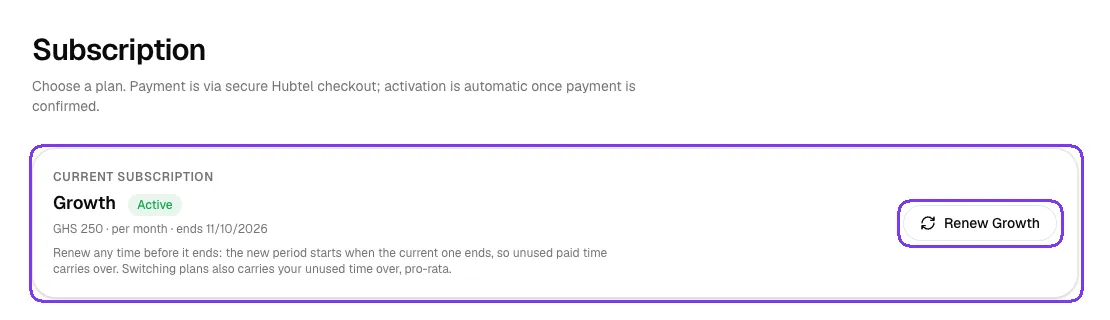
In the left menu, go to Administration → Subscription. The Current subscription card shows your plan name, its status (for example Active), the price, the billing period and the date it ends.
To extend the same plan, click Renew. You can renew any time before the plan ends: the new period starts when the current one ends, so you never lose paid days. If you switch plans, your unused time carries over too, pro-rata.
Step 2: Keep an eye on your storage
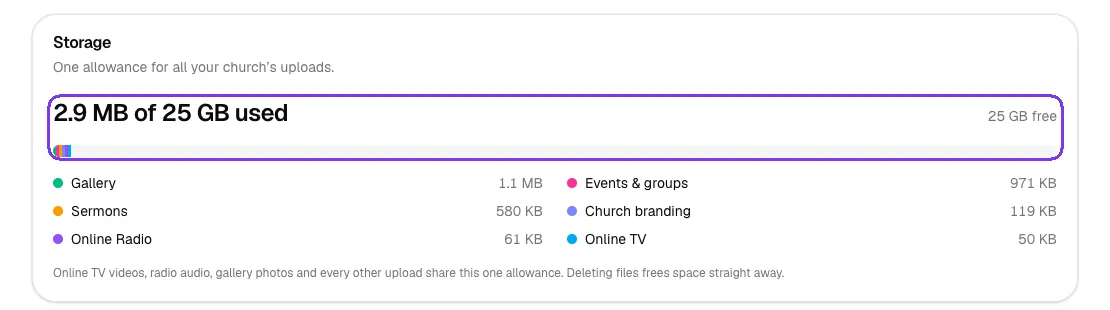
The Storage card shows how much of your allowance you have used, for example "2.9 MB of 25 GB used", and how much is left. The coloured bar and the list below it break your usage down by area: Gallery, Sermons, Events & groups, Church branding, Online Radio and Online TV.
All your uploads share this one allowance, and deleting files frees space straight away. When you get close to the limit, an Upgrade for more storage button appears on this card.
Step 3: Compare the plans
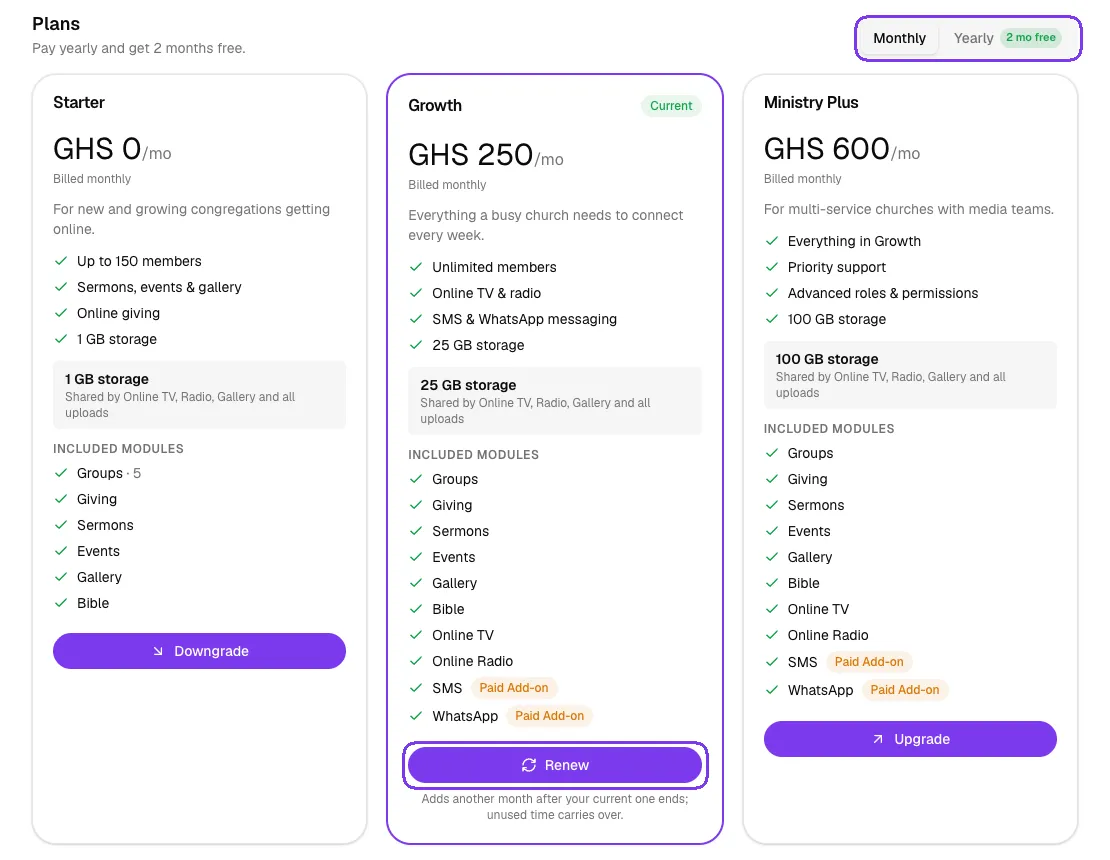
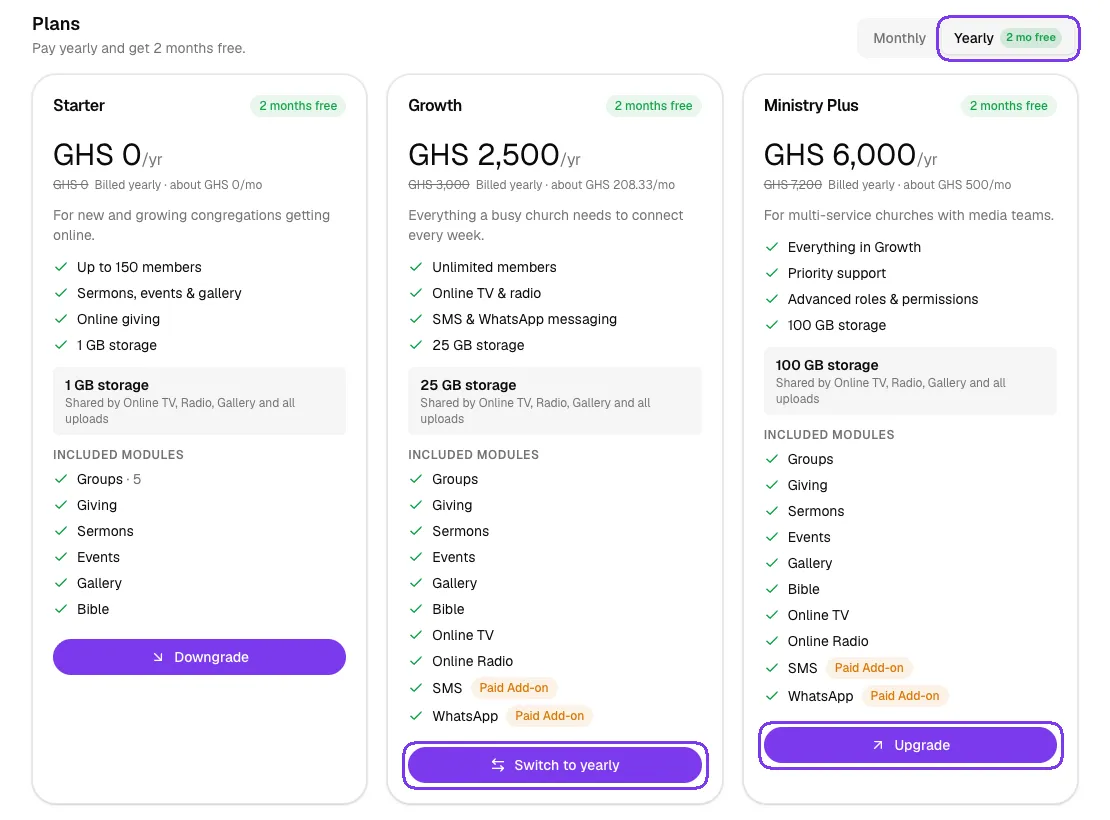
Scroll down to Plans. Each plan card lists its price, what it is best for, its key features, its storage and its included modules (such as Groups, Giving, Sermons, Events, Gallery, Bible, Online TV and Online Radio). Your plan has a purple outline and a Current badge.
Items marked Paid Add-on, such as SMS and WhatsApp, are available on the plan but paid for separately, for example by buying SMS credits.
Step 4: Choose monthly or yearly billing
Use the Monthly and Yearly switch at the top of the plans. Paying yearly gives you 2 months free: each card shows the yearly price, the old price crossed out, and what that works out to per month.
The button on each card tells you what will happen:
- Renew: adds another period of your current plan after the current one ends. Unused time carries over.
- Switch to yearly or Switch to monthly: keeps your plan but changes how often you pay.
- Upgrade: moves you to a bigger plan.
- Downgrade: moves you to a smaller plan.
Step 5: Pay at the secure checkout
When you click a plan button, The Worship starts a secure Hubtel checkout and the button briefly shows "Starting checkout…". Complete the payment on the checkout page. Once the payment is confirmed, your plan is activated automatically and this page shows the new details.
Tips
- Renew a few days early. You won't lose any time, because the new period starts when the current one ends.
- Check your storage before uploading a lot of videos or audio. Deleting old files frees space straight away.
- If you are running out of space or need Online TV and radio, compare the next plan up before you renew.
Troubleshooting and FAQ
Will I lose my remaining days if I upgrade?
No. When you switch plans, your unused paid time carries over, pro-rata.
Some menu items show a lock. Why?
Features that aren't part of your current plan show a lock in the menu and link to this page, so you can see which plan includes them.
I paid, but my plan hasn't changed yet.
Activation happens automatically as soon as the payment is confirmed. Refresh the Subscription page after a short while. If it still hasn't changed, contact The Worship support with your payment details.



