Every message preached at your church can live on in The Worship. When you add a sermon, it appears on your church's Sermons page, where members and visitors can watch, listen, search and share it any time. This guide shows you how to add a sermon, publish it and keep your sermon library tidy.
Before you start
- Who can do this: church admins, and staff whose role includes sermon permissions (for example a "Media Team" role).
- What you need: the sermon title, the preacher's name and the date it was preached.
- Optional: a YouTube link for the video, a link to an audio file (such as an MP3), and a thumbnail picture (JPG, PNG or WebP).
Step 1: Open Sermons and click "New sermon"
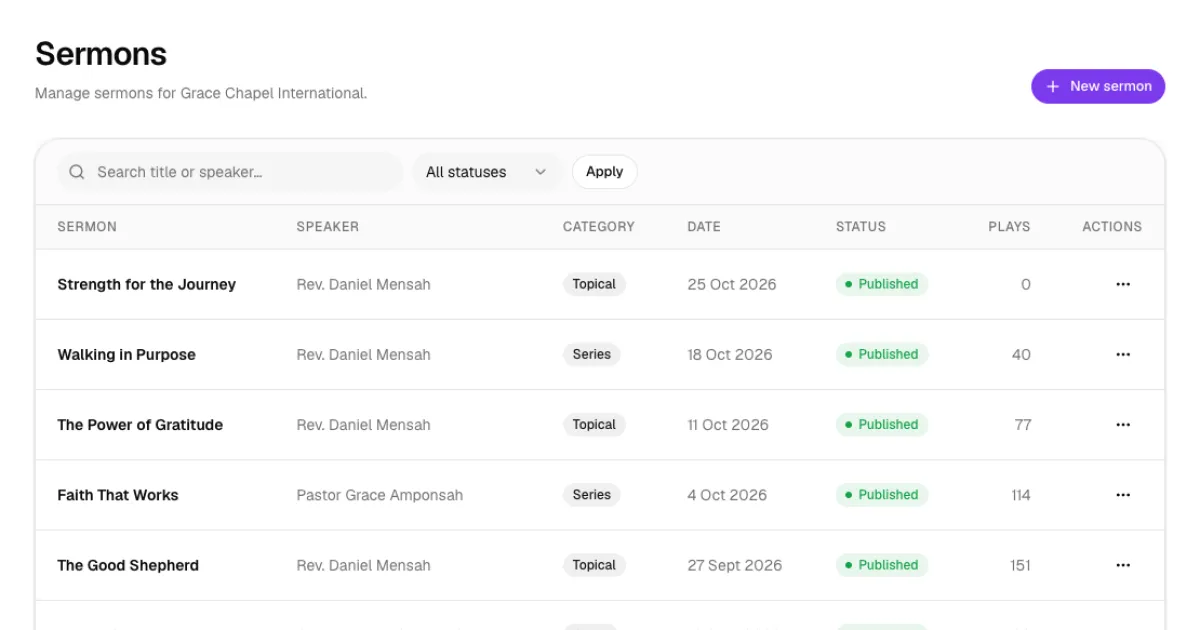
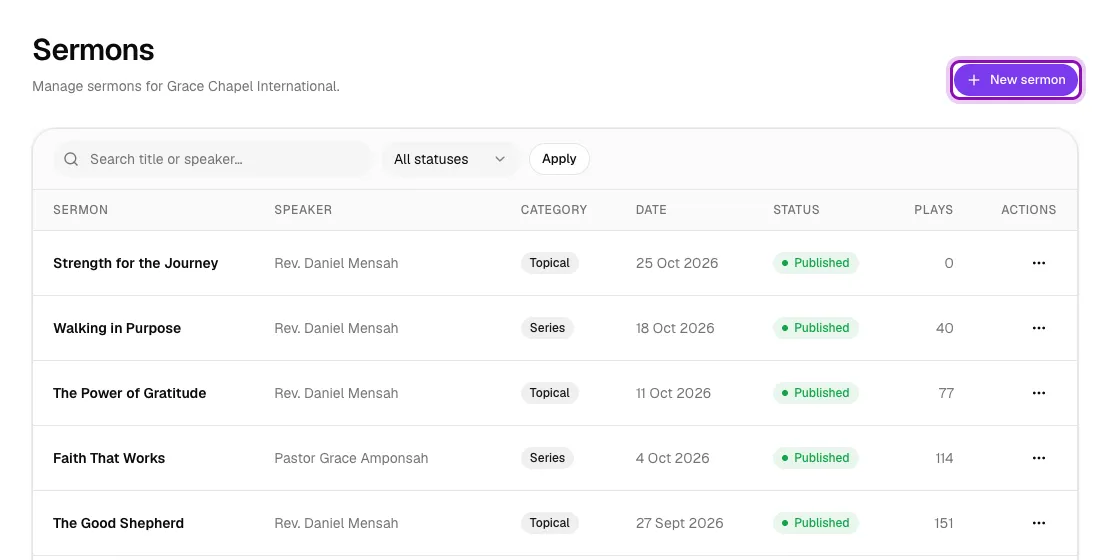
In the left menu, go to Content & Media → Sermons. You will see all your sermons with their speaker, category, date, status and how many times each has been played. Click New sermon at the top right.
Step 2: Fill in the sermon details
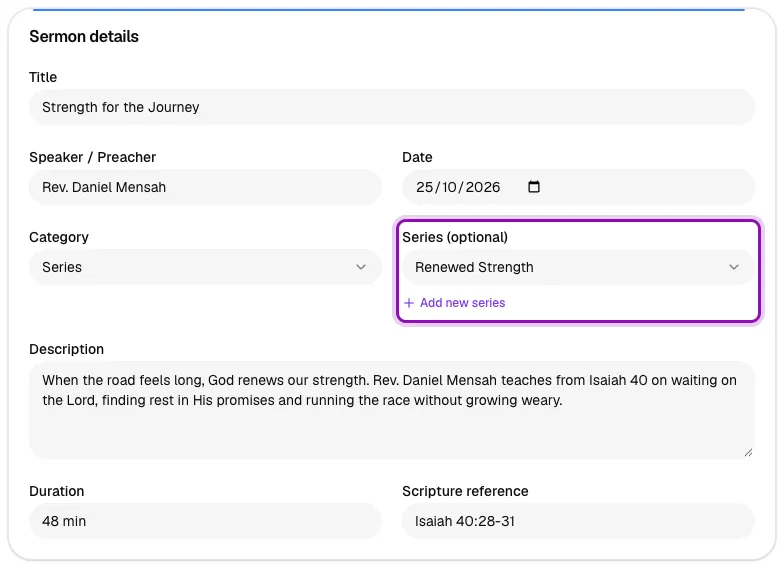
The Sermon details card holds the information members see first:
- Title: the name of the message, for example "Strength for the Journey".
- Speaker / Preacher: who preached it. For visitors you can write "Guest: Bishop Samuel Owusu".
- Date: the day it was preached. Your list is sorted by this date.
- Category: choose Series, Topical, Guest or Special. Members can filter sermons by these categories.
- Series (optional): if the sermon is part of a series, pick it from the list. Leave it as None for a one-off message.
- Description: two or three sentences about the message. This shows on the sermon page and in search results.
- Duration and Scripture reference: for example "48 min" and "Isaiah 40:28-31".
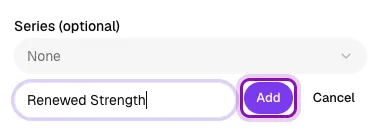
Starting a new series? Click Add new series under the Series box, type the series name (for example "Renewed Strength") and click Add. The series is created and chosen for this sermon straight away. Series belong to your church only, so other churches never see them.
Step 3: Add the video, audio and thumbnail
In the Media card:
- Paste the YouTube link into Video URL (YouTube). Members will watch the video right on your church page.
- If you have an audio recording online, paste its link into Audio URL.
- Under Thumbnail image, click Choose File and pick a picture for the sermon: a JPG, PNG or WebP file up to 25 MB. A wide picture (16:9, for example 1280 × 720 pixels) looks best.
- Tick Publish immediately if you want members to see the sermon straight away.
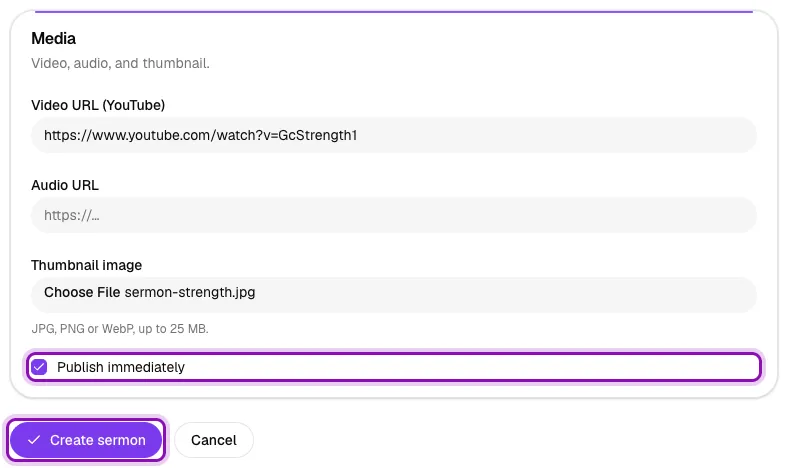
Step 4: Click "Create sermon"
Click Create sermon. You are taken back to the Sermons list, where your new sermon now appears at the top.
If you did not tick Publish immediately, the sermon is saved as a Draft. Drafts are hidden from members, which is handy when you want to prepare a sermon before Sunday.
Step 5: Publish, edit or delete a sermon later
Every sermon has a ⋯ button in the Actions column. Click it to:
- Edit: change any detail, swap the thumbnail or add a video link later. Leave the thumbnail empty to keep the current picture, then click Save changes.
- Publish or Unpublish: show or hide the sermon from members.
- Delete: remove the sermon for good. You will be asked to confirm.
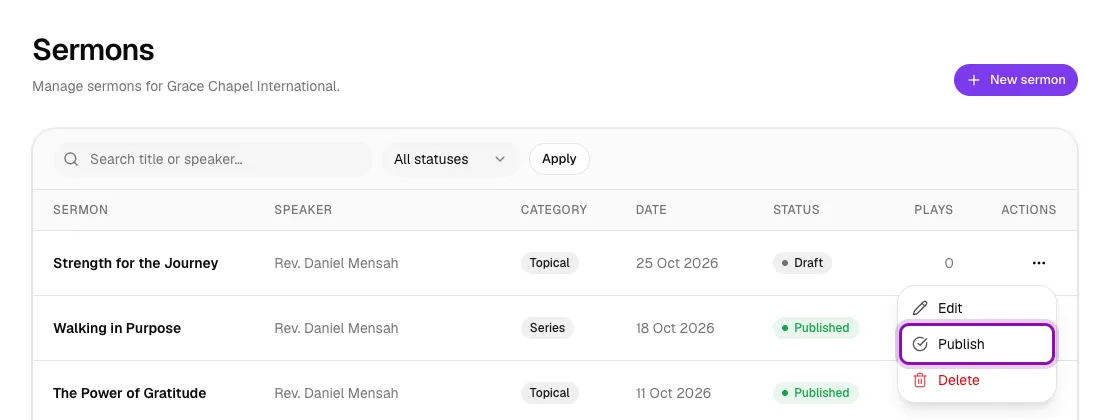
Once published, the status changes to Published.
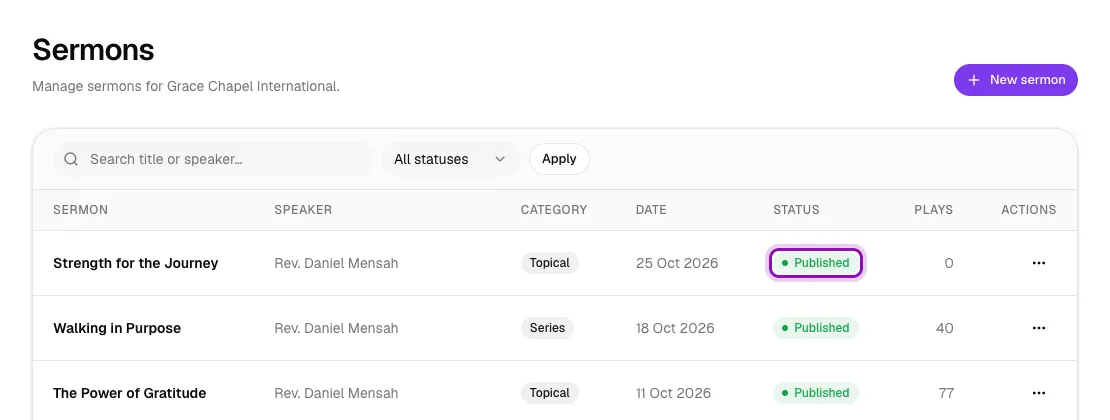
Step 6: See how members find it
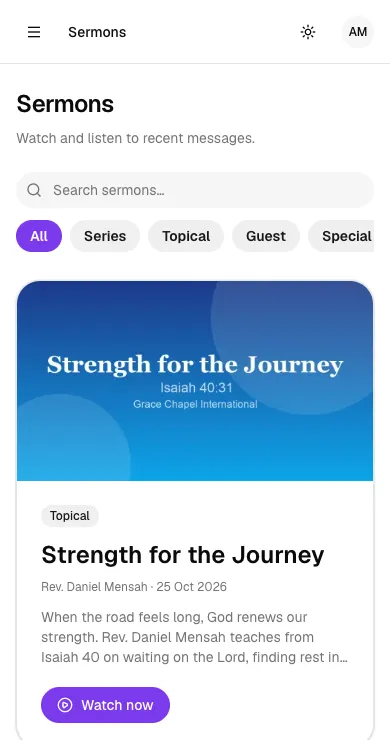
Open your church page and tap Sermons. Your newest sermon is featured at the top with a Watch now button, followed by the rest of your library. Members can search by title or preacher and filter by category (Series, Topical, Guest or Special).
Tips
- Upload the sermon the same day it is preached, while people are still talking about it, and share the link in your WhatsApp groups.
- Use the search box on the Sermons page, or the status filter (Published or Draft), to find a sermon quickly.
- Keep titles short and clear. A good title and description help people find your sermons on Google.
- The Plays column shows how often each sermon has been played, so you can see which messages touch people most.
Troubleshooting
My sermon is not showing on the church page
Check its status on the Sermons page. If it says Draft, click ⋯ → Publish.
The form says my link is not valid
The Video URL and Audio URL must be full web addresses that start with https://. Copy the link straight from the browser's address bar or from YouTube's Share button.
My thumbnail did not upload
Use a JPG, PNG or WebP picture, not a PDF or Word document, and keep it under 25 MB. Smaller files upload faster, especially on mobile data.
What's next
Filed underGuidesSermons & Events



