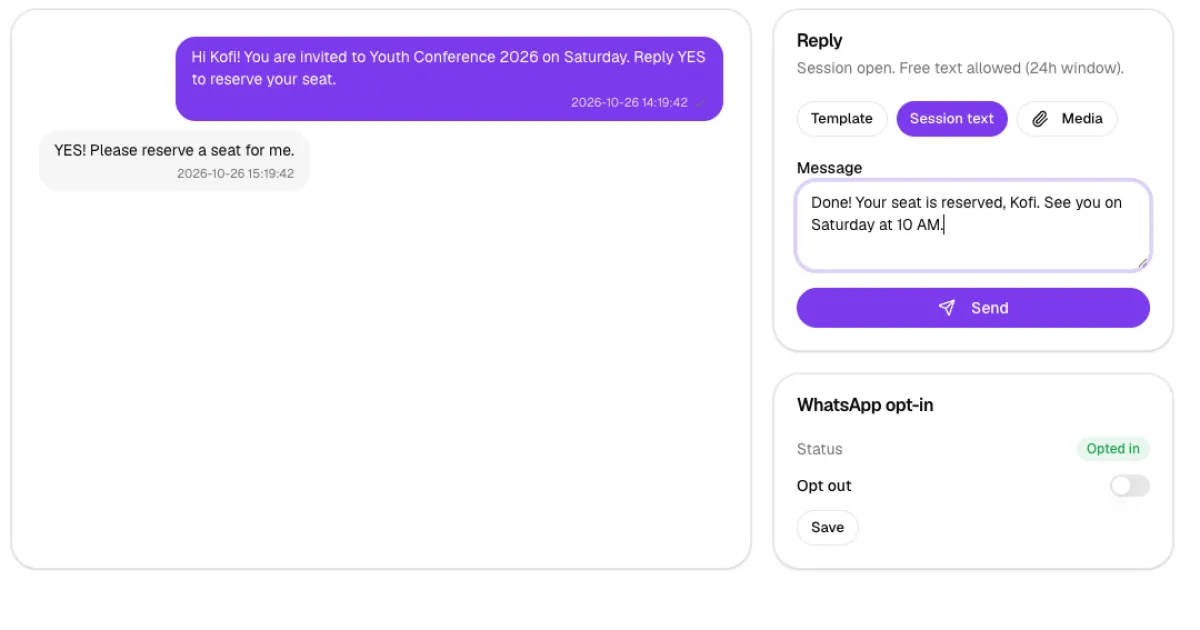
Many of your members already live on WhatsApp. The Worship lets your church send and receive WhatsApp messages from your own WhatsApp Business number, right inside the admin dashboard. You can send service reminders and invitations with approved templates, reply to members in a conversation, and keep track of every message and credit. This guide shows you how to connect WhatsApp, buy credits, create templates, start a conversation and reply to messages.
Before you start
- Who can do this: the church admin, or staff whose role includes the WhatsApp permissions.
- A Facebook (Meta) account that can manage your church's WhatsApp Business account.
- A phone number for WhatsApp Business: Meta asks you to verify it with a code during setup. It's best to use a number that isn't already active in the WhatsApp or WhatsApp Business app.
- WhatsApp messaging must be included in your church's plan.
Step 1: Connect your WhatsApp Business number
In the admin menu, under Communication, click WhatsApp. Until you connect, the page tells you that you need to connect WhatsApp before you can buy credits or send messages. Click Connect WhatsApp.
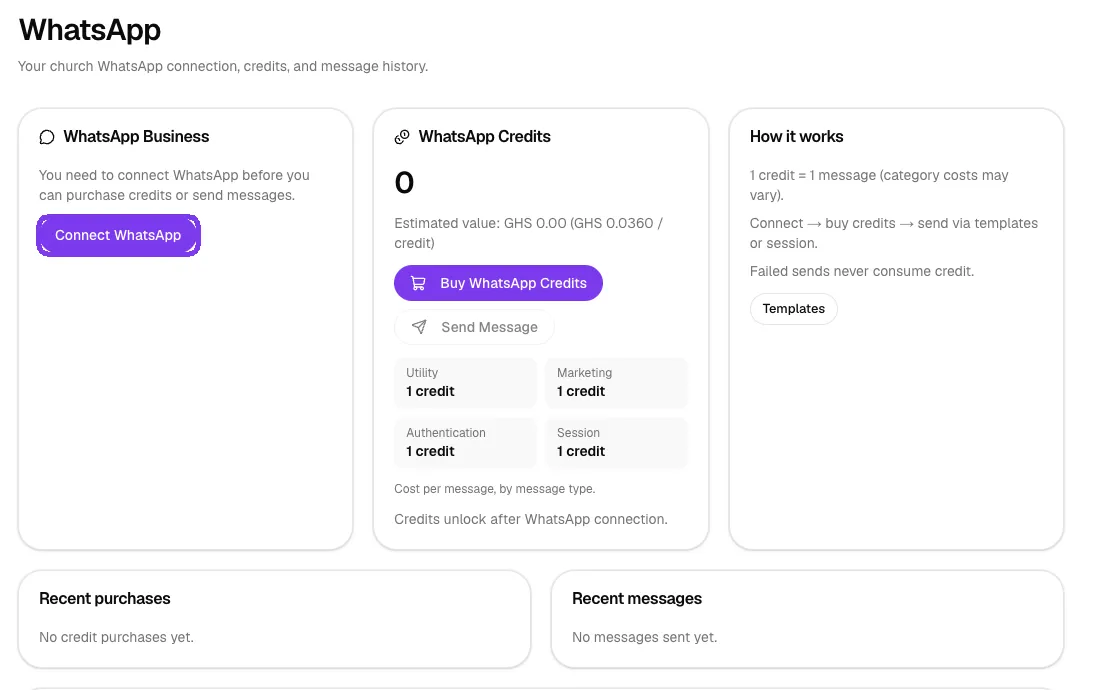
A Meta window opens. Sign in with Facebook, choose or create your WhatsApp Business account, and verify your phone number with the code Meta sends. When you finish, the WhatsApp page shows Connected, together with your business name, phone number and quality rating.
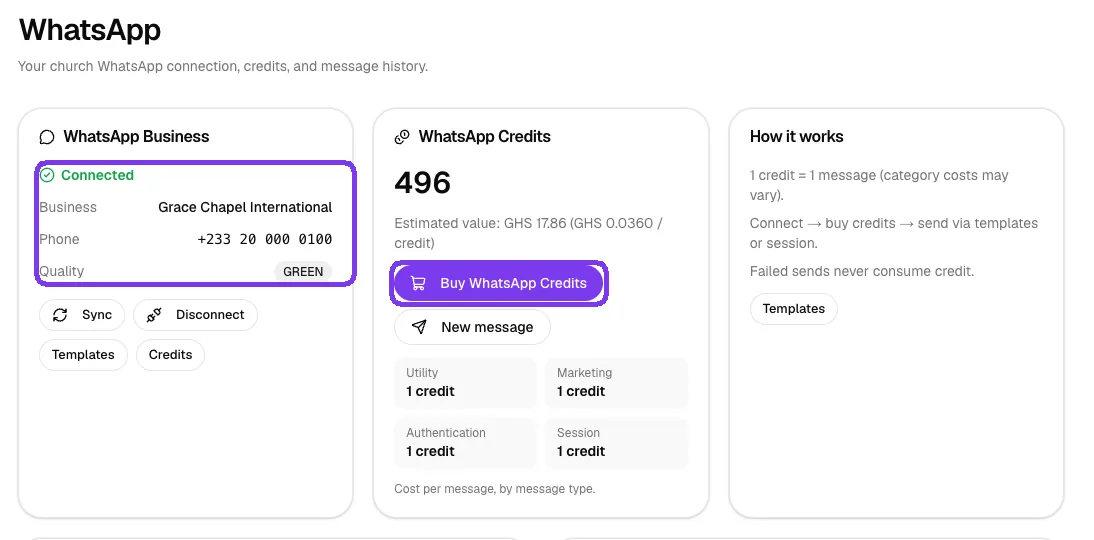
Use Sync to refresh your number's details from Meta. Disconnect removes the connection, but your message history is kept.
Step 2: Buy WhatsApp credits
Each WhatsApp message uses credits. The WhatsApp Credits card shows your balance and the cost of each message type (Utility, Marketing, Authentication and Session). Click Buy WhatsApp Credits, enter the Number of credits or tap one of the quick amounts, enter the mobile-money number for the payment prompt, and click Pay.
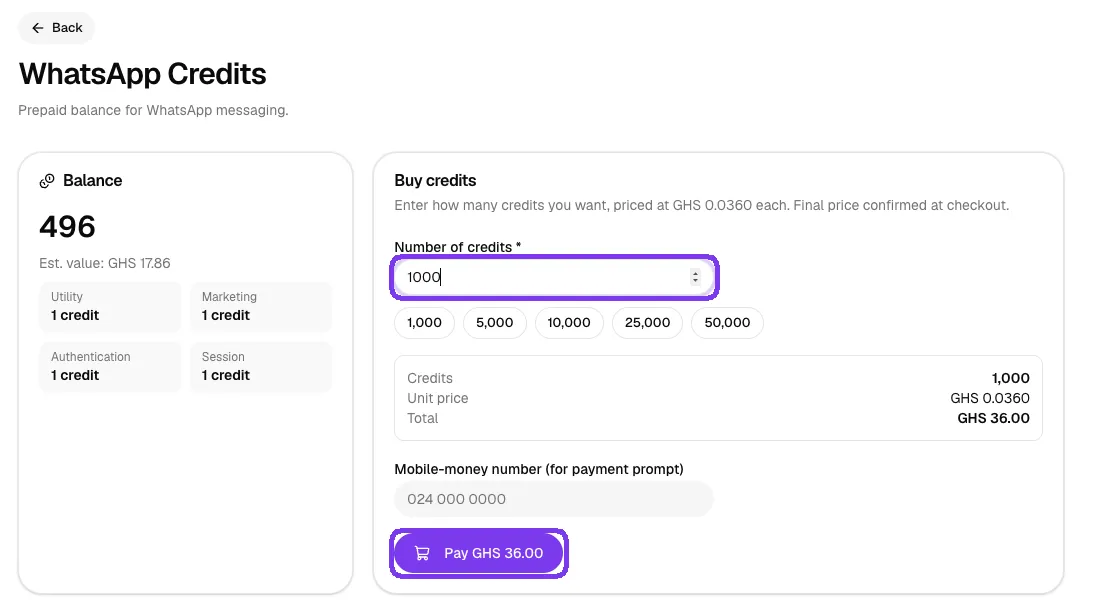
Credits are added after the payment succeeds. Failed sends never use up credit.
Step 3: Create message templates
WhatsApp only lets businesses start a conversation with a template that Meta has approved. Click Templates to see yours, with each template's category and approval status.
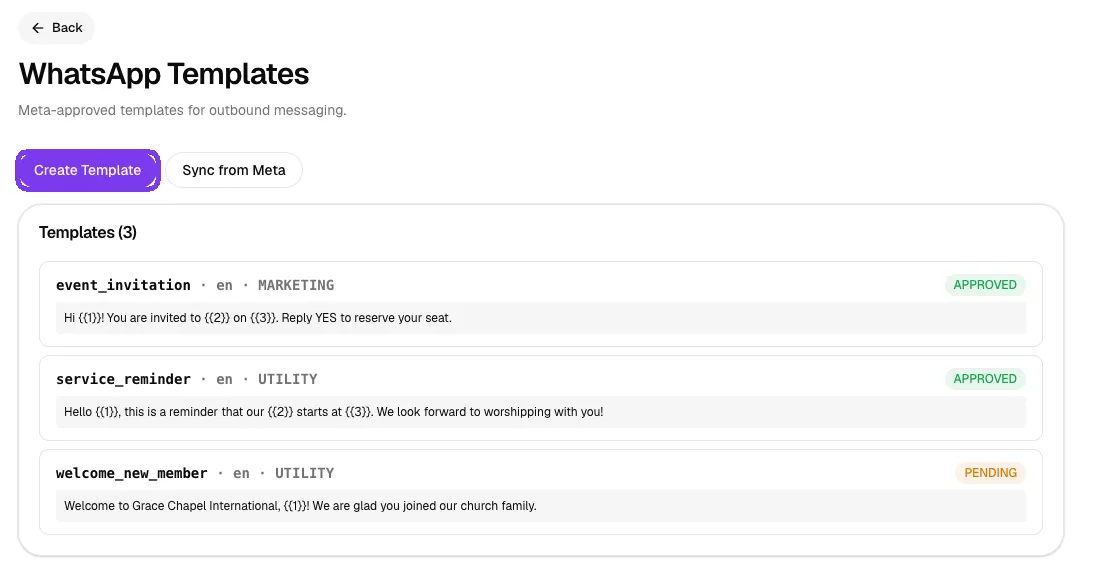
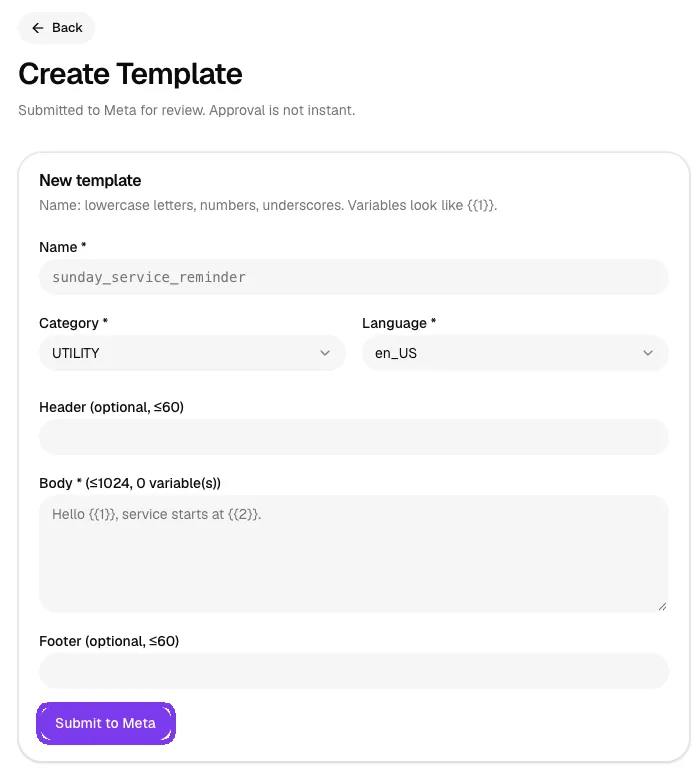
Click Create Template and fill in:
- Name: lowercase letters, numbers and underscores only, for example sunday_service_reminder.
- Category: Utility for reminders and updates, Marketing for invitations and promotions.
- Language, an optional Header, the Body and an optional Footer.
Use {{1}}, {{2}} and so on as placeholders for details you fill in when sending, such as a name or a time. Click Submit to Meta. Approval is not instant; click Sync from Meta later to update the status.
Step 4: Start a conversation
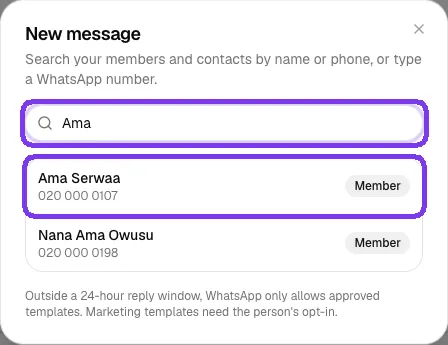
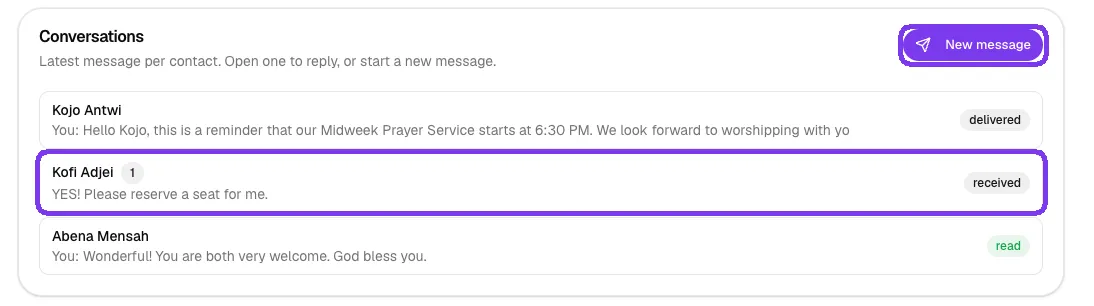
To message someone first, click New message. You'll find it on the WhatsApp Credits card and above the Conversations list. In the New message window, type at least two letters of a name or part of a phone number. The list shows your members, SMS contacts and WhatsApp contacts, each with a label. Click the person you want.
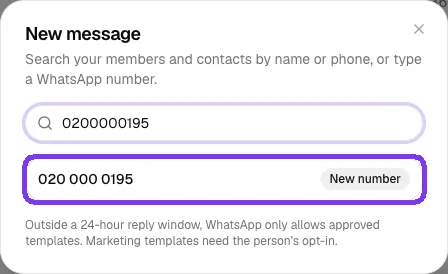
To message someone who isn't on your lists yet, type their full WhatsApp number, for example 020 000 0195, and click the result marked New number.
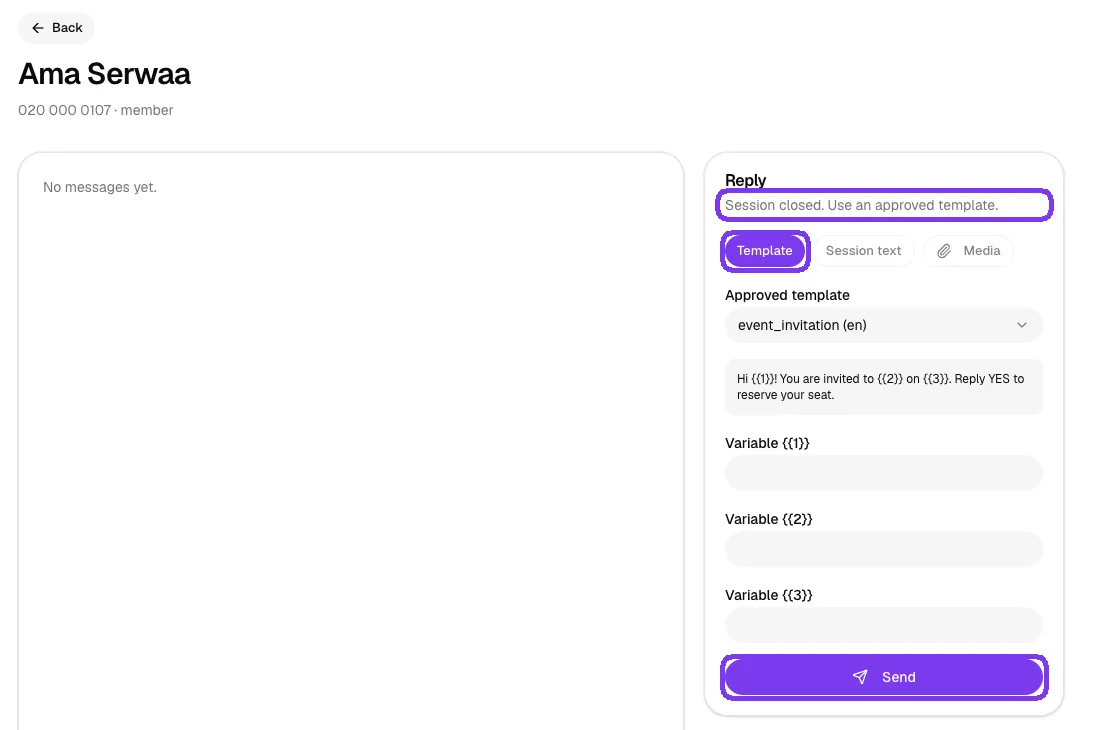
The conversation page opens. Because the person hasn't written to you in the last 24 hours, the Reply panel says Session closed. Use an approved template. Choose a template, fill in its variables and click Send (see Step 6). Once they reply, you can chat freely for 24 hours.
Step 5: Open a conversation
The Conversations list at the bottom of the WhatsApp page shows the latest message from each person: people you've messaged, and anyone who has messaged your church's WhatsApp number. A number badge shows unread replies. Click a conversation to open it.
Step 6: Reply to a member
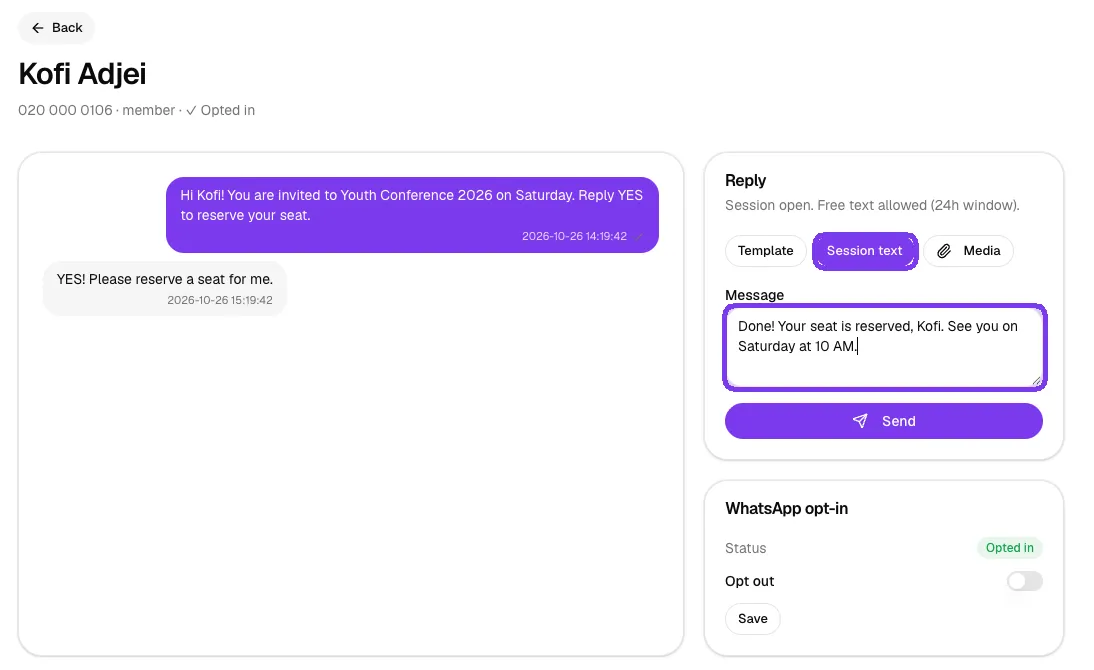
On the right, the Reply panel tells you what you can send:
- Session open: the person messaged you in the last 24 hours, so you can type a normal reply with Session text or send a photo or file with Media.
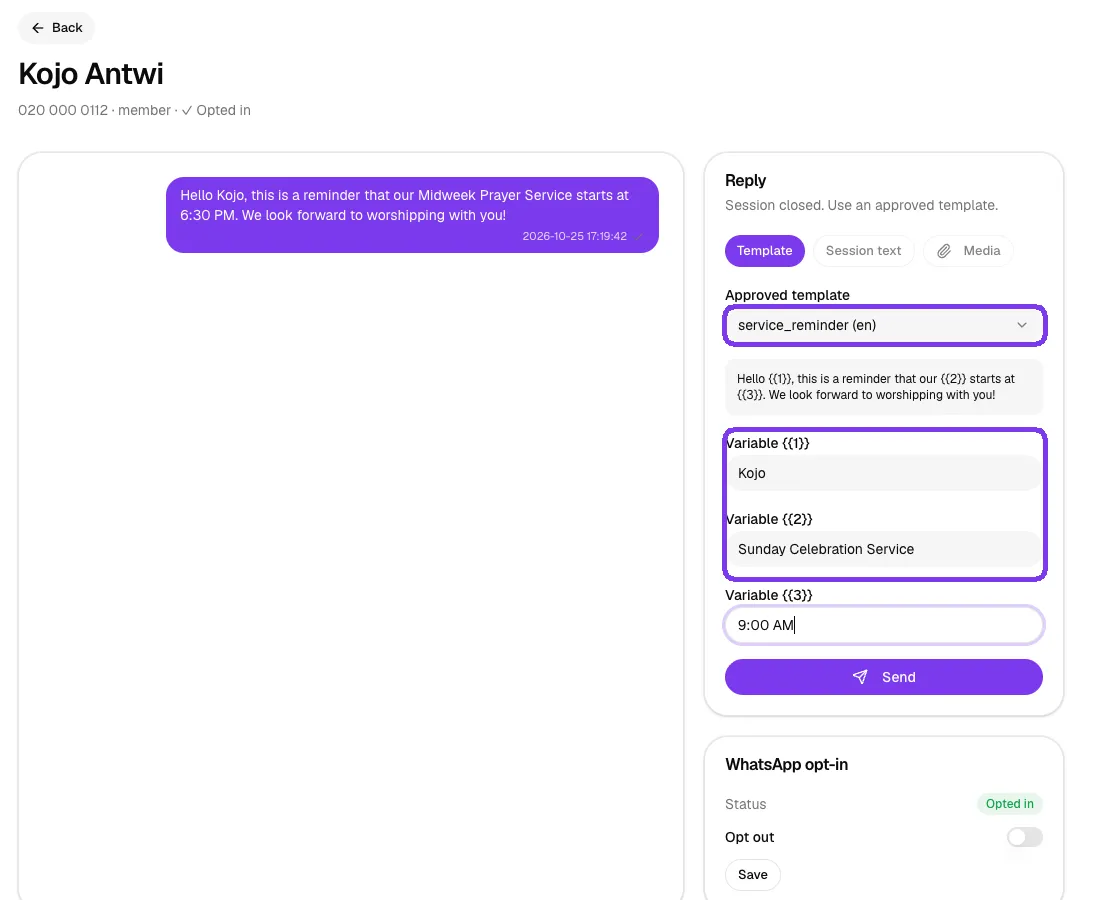
- Session closed: you must use an approved Template.
To send a template, choose it under Approved template, fill in each Variable and click Send.
Recording opt-in
Marketing templates can only go to people who have agreed to receive them. The WhatsApp opt-in card on each conversation shows the person's status. Switch it on or off and click Save to record their choice.
Tips
- Create a few general templates in advance, such as a service reminder and an event invitation, so they are approved before you need them.
- Reply quickly while a session is open: free-text replies are only allowed within 24 hours of the member's last message.
- Check Recent messages on the WhatsApp page to see whether messages were delivered or read.
Troubleshooting and FAQ
The Buy WhatsApp Credits button is greyed out.
Credits unlock only after you connect WhatsApp. Finish Step 1 first.
My template is still PENDING.
Meta reviews every template, and approval can take some time. Click Sync from Meta to refresh. If it is rejected, change the wording and submit a new template.
I can't send a Marketing template to someone.
Marketing messages need the person's WhatsApp opt-in. Record it on their conversation, or use a Utility template for reminders.
How do I message a member who has never written to us?
Click New message, find the member (or type their full number) and send an approved template. Free-text replies become possible once they answer.
Someone I searched for doesn't appear.
The search covers your church's active members and saved contacts. Check the spelling, or type their full phone number to message them as a New number.



