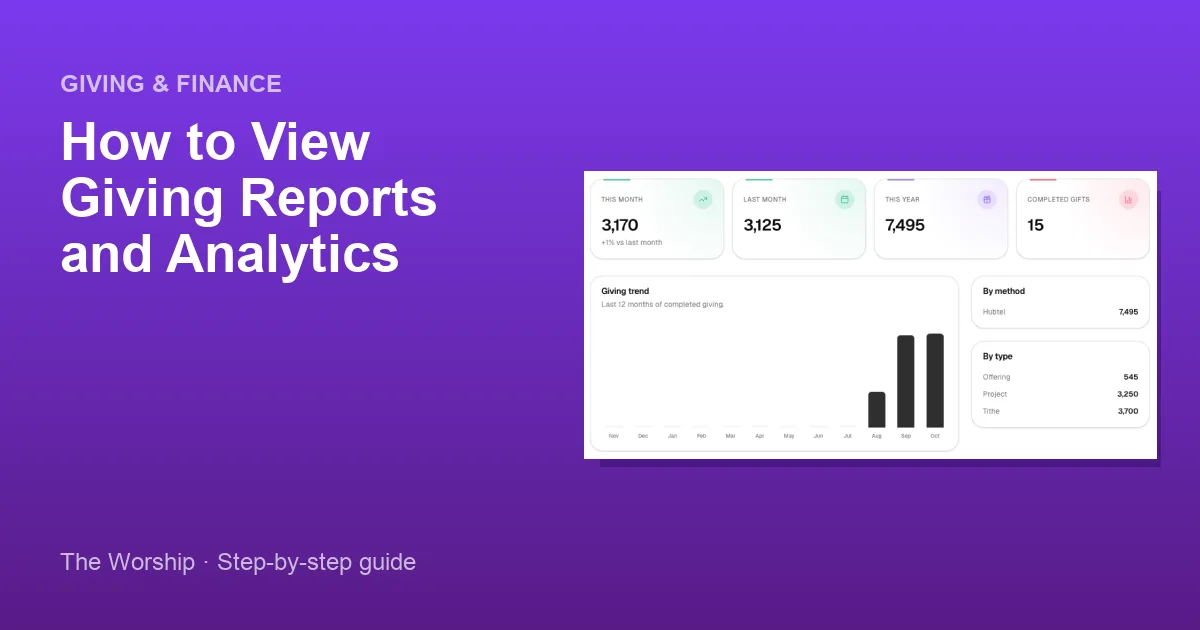
Knowing how your church is giving helps you plan budgets, thank donors and report to your leadership with confidence. The Worship gives you two places to follow your giving: the Giving page, which lists every gift, and Financial Analytics, which shows trends and totals at a glance. This guide shows you how to read both.
Before you start
- You need to be the church admin, or a staff member whose role includes the giving permissions. Viewing the Giving page and viewing the reports are separate permissions, so you can choose exactly what your finance team sees.
- Your plan must include Giving.
- Gifts appear here once members start giving. See How to accept online giving.
Step 1: Open the Giving page and read the totals
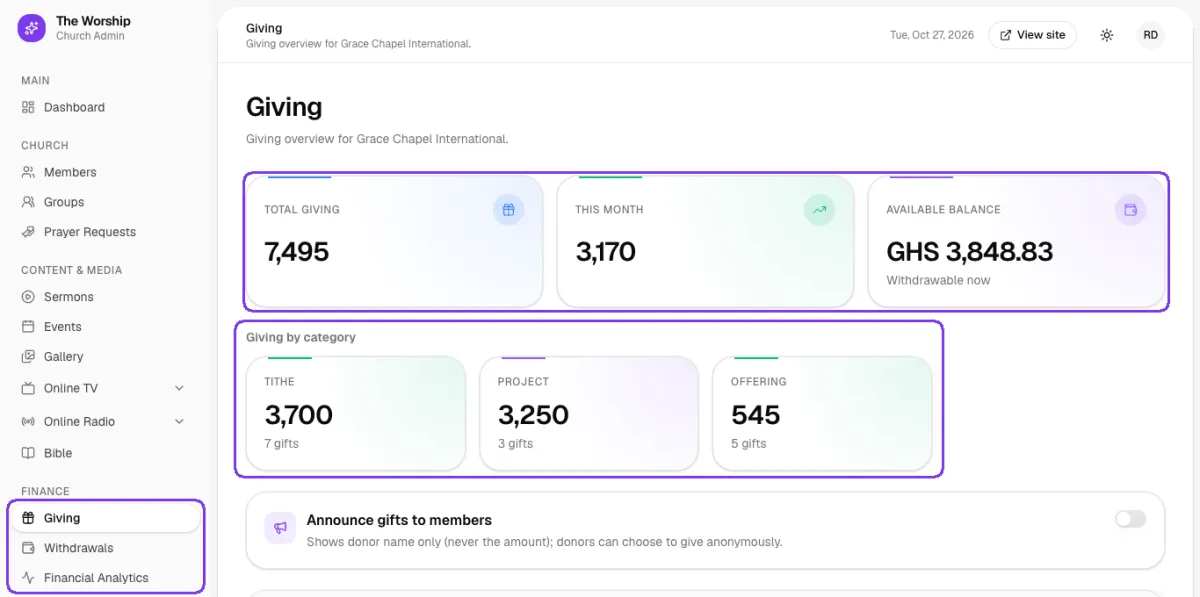
In the left menu, go to Finance → Giving. The three cards at the top show:
- Total giving: all completed gifts.
- This month: completed gifts this month.
- Available balance: the amount you can withdraw now ("Withdrawable now").
Underneath, Giving by category has a card for every category your members have given to, such as Tithe, Project and Offering, with the total and the number of gifts. The biggest category comes first.
Step 2: Search and filter gifts
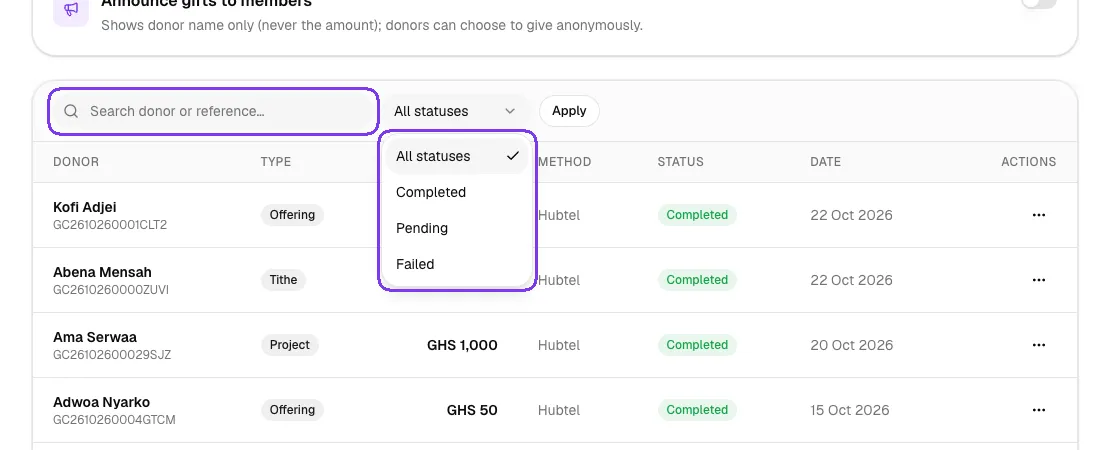
Below the cards is the full list of gifts. Use the search box to find a gift by donor name or reference, then press Enter or click Apply. Use the status list to show All statuses, Completed, Pending or Failed gifts only.
Step 3: Read each gift
Each row shows the Donor ("Anonymous" if they chose not to be named) with the payment reference under the name, the Type (Tithe, Offering, Donation or Project), the Amount, the payment Method, the Status and the Date. Use the page links at the bottom of the list to see older gifts.
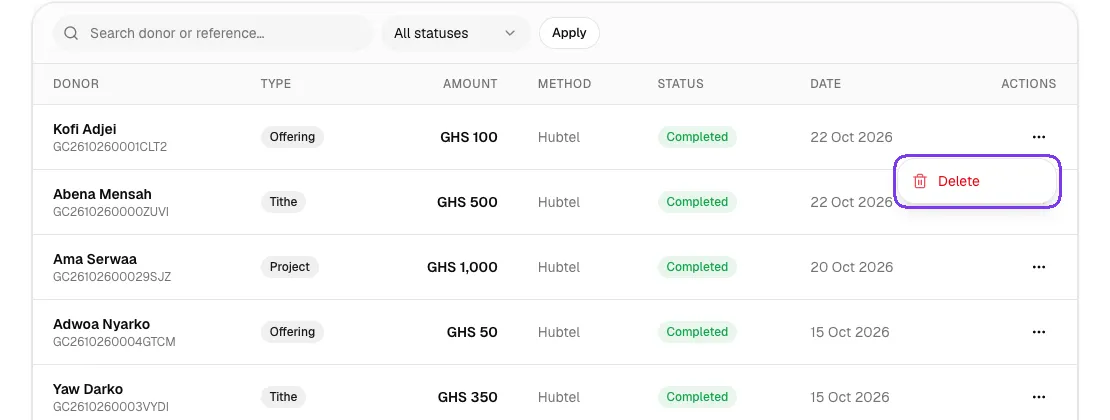
The … button opens the actions for a gift. Manually recorded gifts can be marked Completed or Failed, and any record can be removed with Delete. Only delete a record that was entered by mistake.
Step 4: Open Financial Analytics
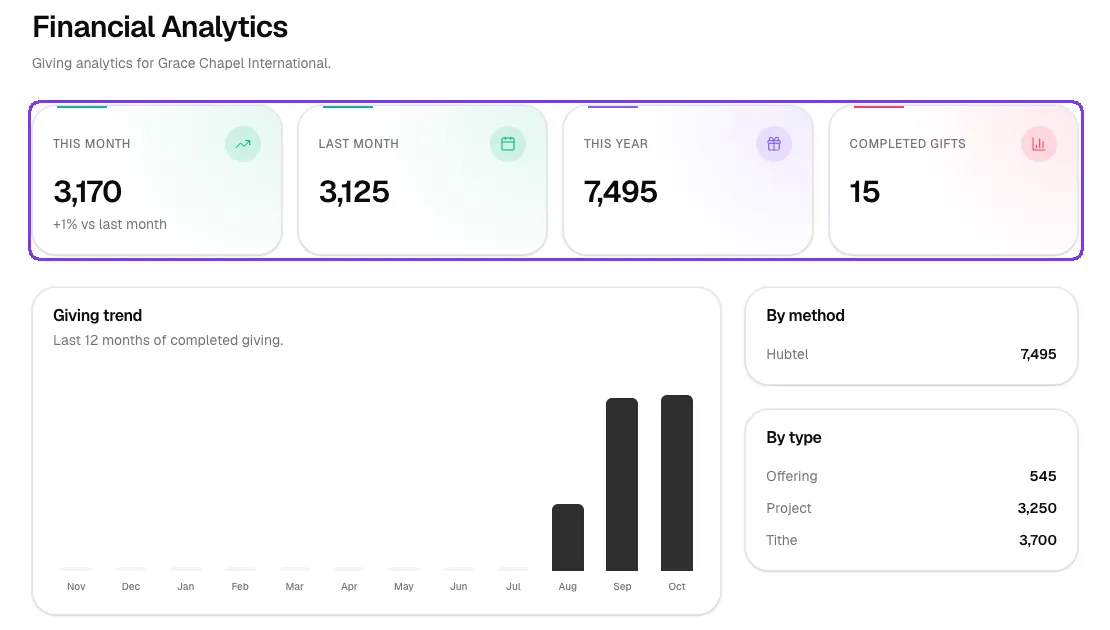
Go to Finance → Financial Analytics for the big picture. The top cards show This month, Last month and This year, and count your Completed gifts. The This month card also tells you how this month compares with last month, for example "+1% vs last month".
Step 5: Look at the trend, methods and types
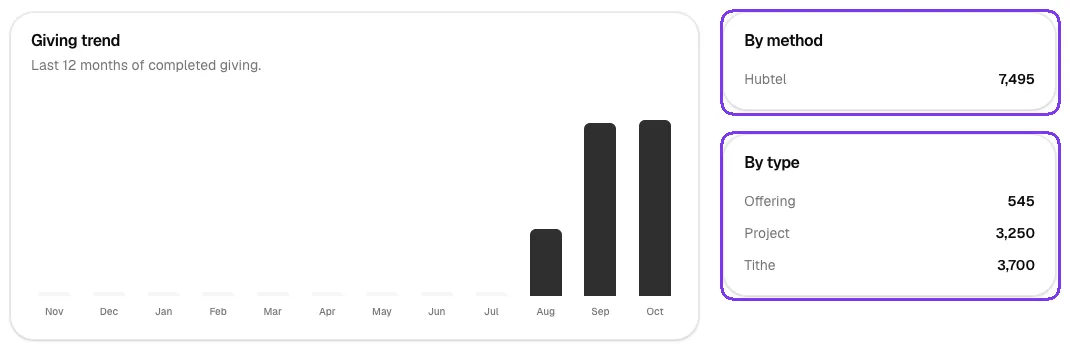
Lower on the page you will find:
- Giving trend: a bar for each of the last 12 months of completed giving, so you can spot seasons such as harvest or year-end.
- By method: how much came in through each payment method.
- By type: totals for Tithe, Offering, Donation and Project.
Step 6: Give your finance team access
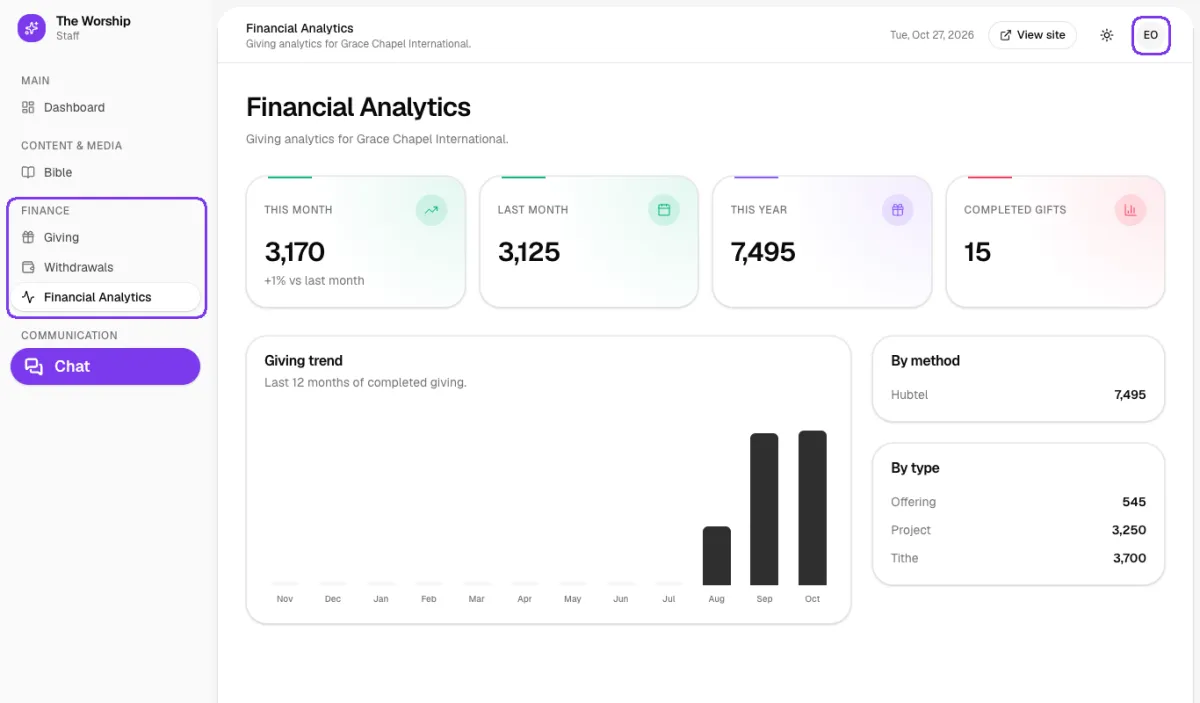
You don't have to share the church admin login. Create a role for your treasurer or finance team that includes only the giving permissions, and assign it to them. When they sign in, they see only the Finance pages they need. See How to give staff access with roles and permissions.
Tips
- Check the Giving page after each service to see gifts coming in.
- Compare This month with Last month on Financial Analytics before your monthly leadership meeting.
- Encourage members to choose the correct category when they give, so your By type report stays accurate.
Troubleshooting and FAQ
Why is a gift marked Pending?
The payment has not been confirmed yet. It changes to Completed once confirmation arrives, and Failed if the payment did not go through.
Why doesn't a pending gift appear in Financial Analytics?
Analytics counts completed giving only, so pending and failed gifts are left out until they are confirmed.
Do offline bank and mobile money transfers show up here?
No. Transfers that members send directly to your church accounts don't pass through The Worship, so they don't appear in these reports.



